Why a multilingual voice survey?
Voice surveys let respondents speak their answers instead of typing — capturing richer, more spontaneous verbatim, especially in markets where literacy or typing comfort varies. When you run the same study across multiple countries (FR, DE, US, UK, IN, BR, MX, JP, CN…), three challenges emerge:- Respondents must be able to speak in their own language and dialect.
- The author needs one survey — not one per market — with translated question text.
- The analyst must read all responses in a single working language (typically English) for cross-market analysis.
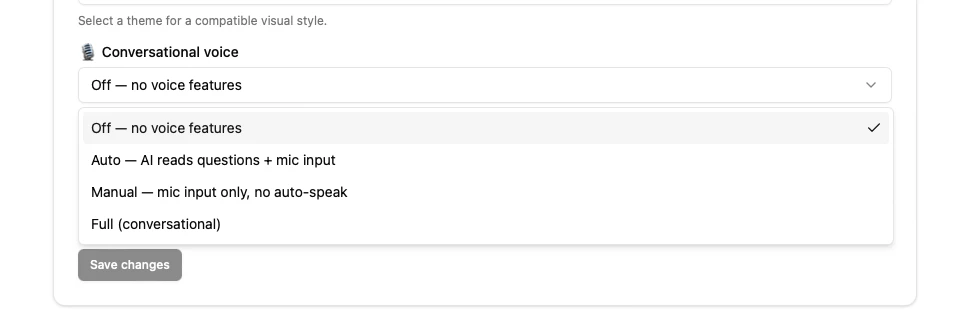
- Auto - AI read question and mic input, by clicking.
- Manual - mic input only, no TTS for auto-speak.
- Full (conversational) - activate the microphone at the beginning and speak on the survey to trigger the cursor / multi-choice.
- Off - no text to speech model.
1. Add a voice question
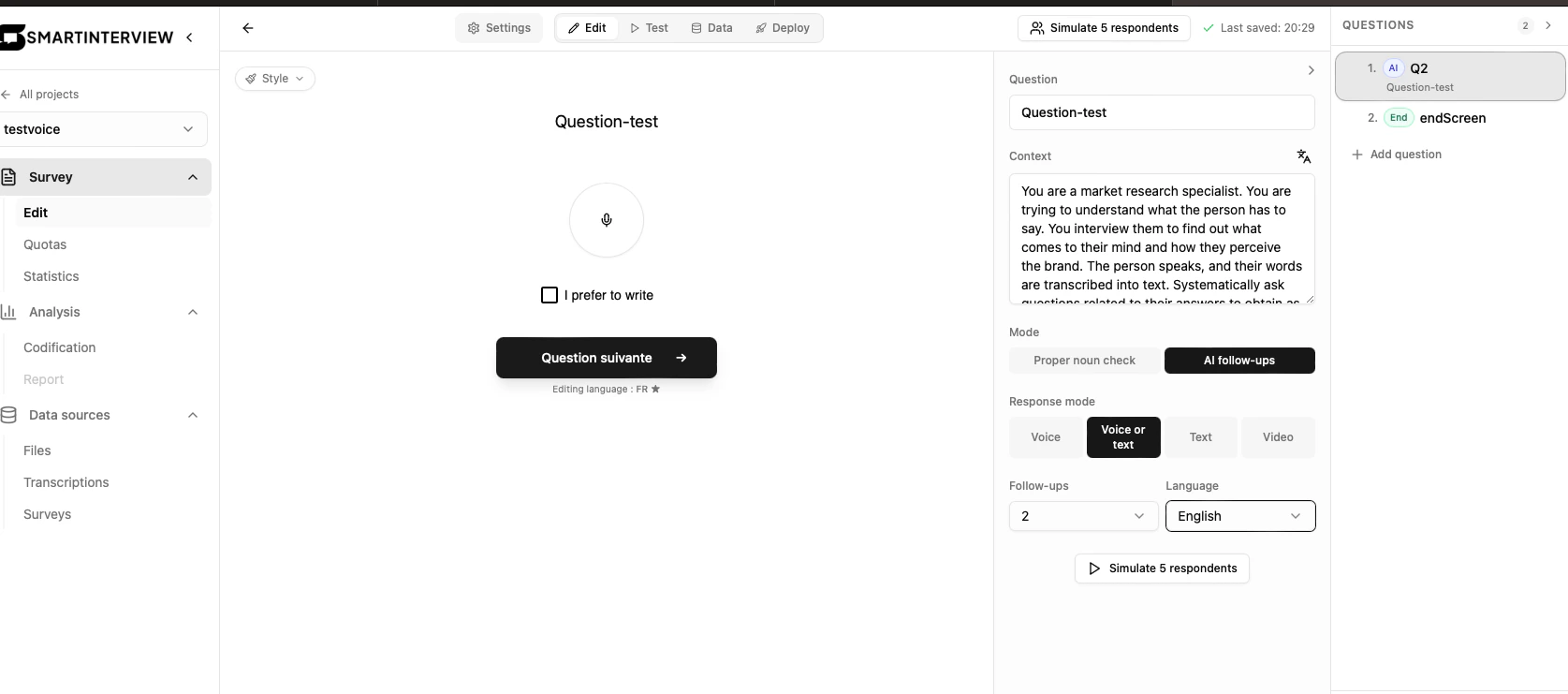
In the Survey Builder, add a new question and set its Response Mode to one of:
The Vocal modes activate Smartinterview’s transcription pipeline automatically. The respondent sees a microphone button, the transcript streams or appears once they stop, and the final text is saved as the answer.
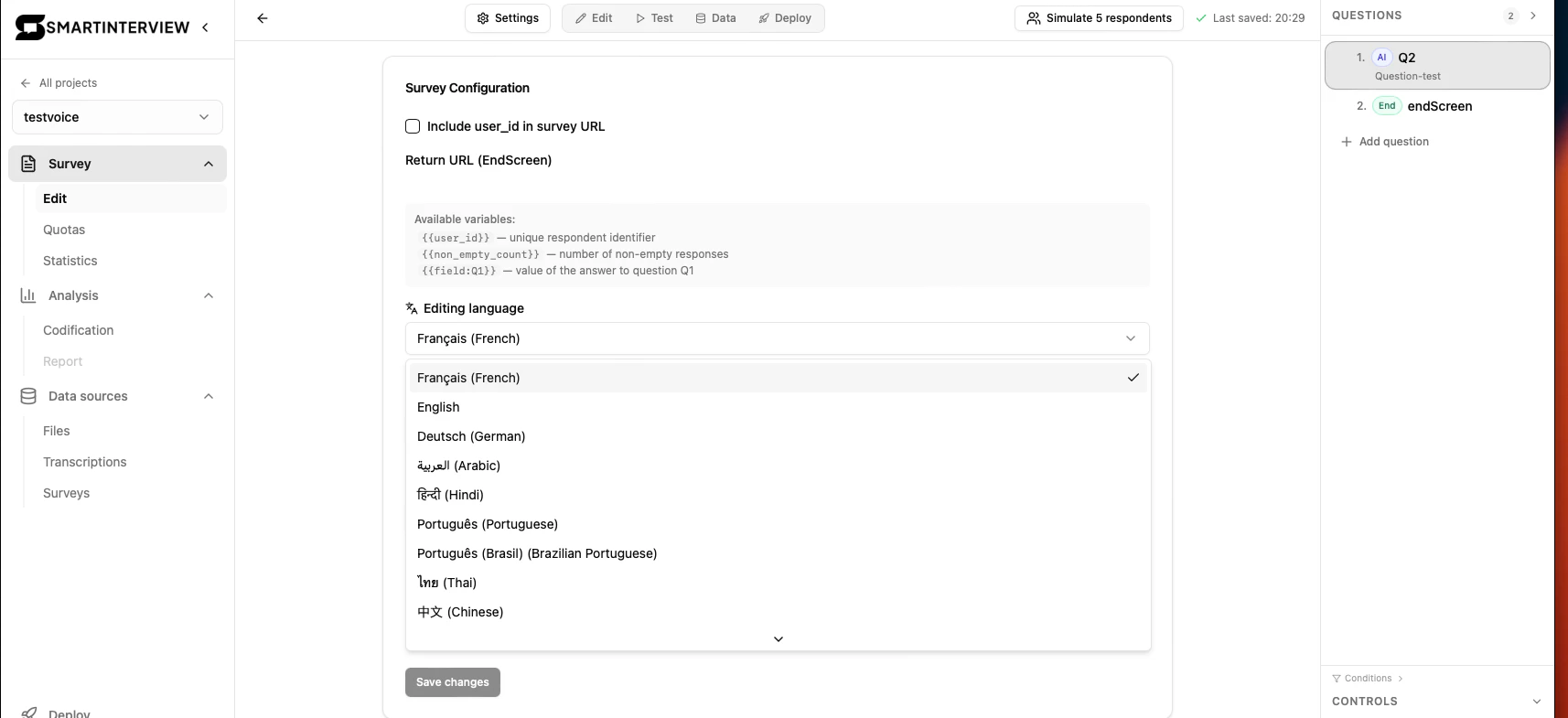
2. Pick the survey’s editing language
In Settings → Editing Language, choose the language you’ll author the survey in (e.g. English). This becomes the canonical version of every question. Translations are layered on top of it later.💡 The Editing Language is shared across the builder. Switching it from English to Français re-renders the editor in French — but the canonical English text is preserved.
3. Set the language per voice question (optional override)
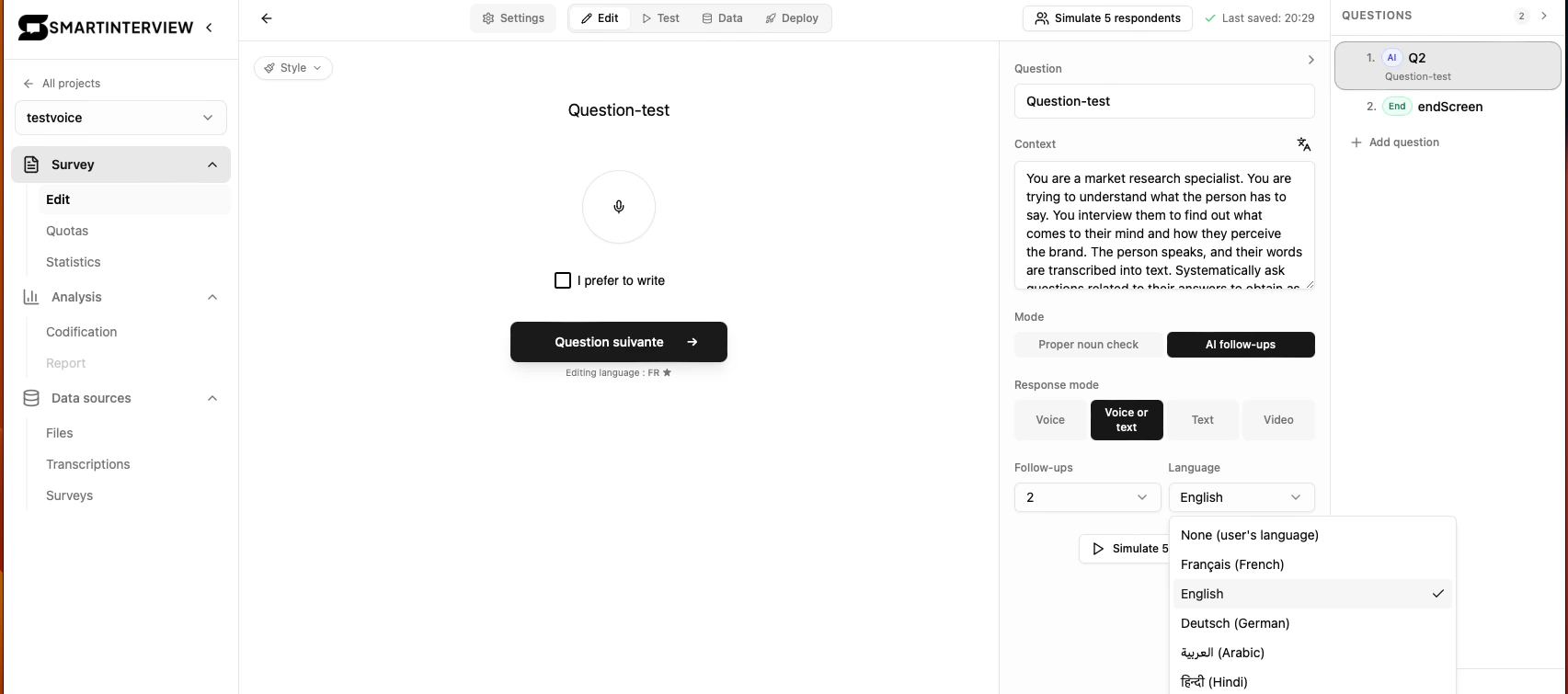
By default, transcription auto-detects the language the respondent speaks. This works well in single-market studies. For multi-market studies, open the Question Language Panel (right-hand side of the builder) on each voice question and pick a specific language/dialect tag from the list:- The respondent’s accent is similar to a neighboring language (Portuguese ↔ Spanish, Hindi ↔ Urdu, etc.)
- Mixed-language phrases are common (Hinglish, Spanglish)
- You want consistent, predictable behavior across waves
⚠️ Pick the dialect, not just the language.pt-BRandpt-PTproduce noticeably different transcriptions on the same audio. Same fores-MXvses-ES, andzh-CNvszh-TW. Confirm the priority dialects with Sid (see action item above).
4. Translate question text to each market language
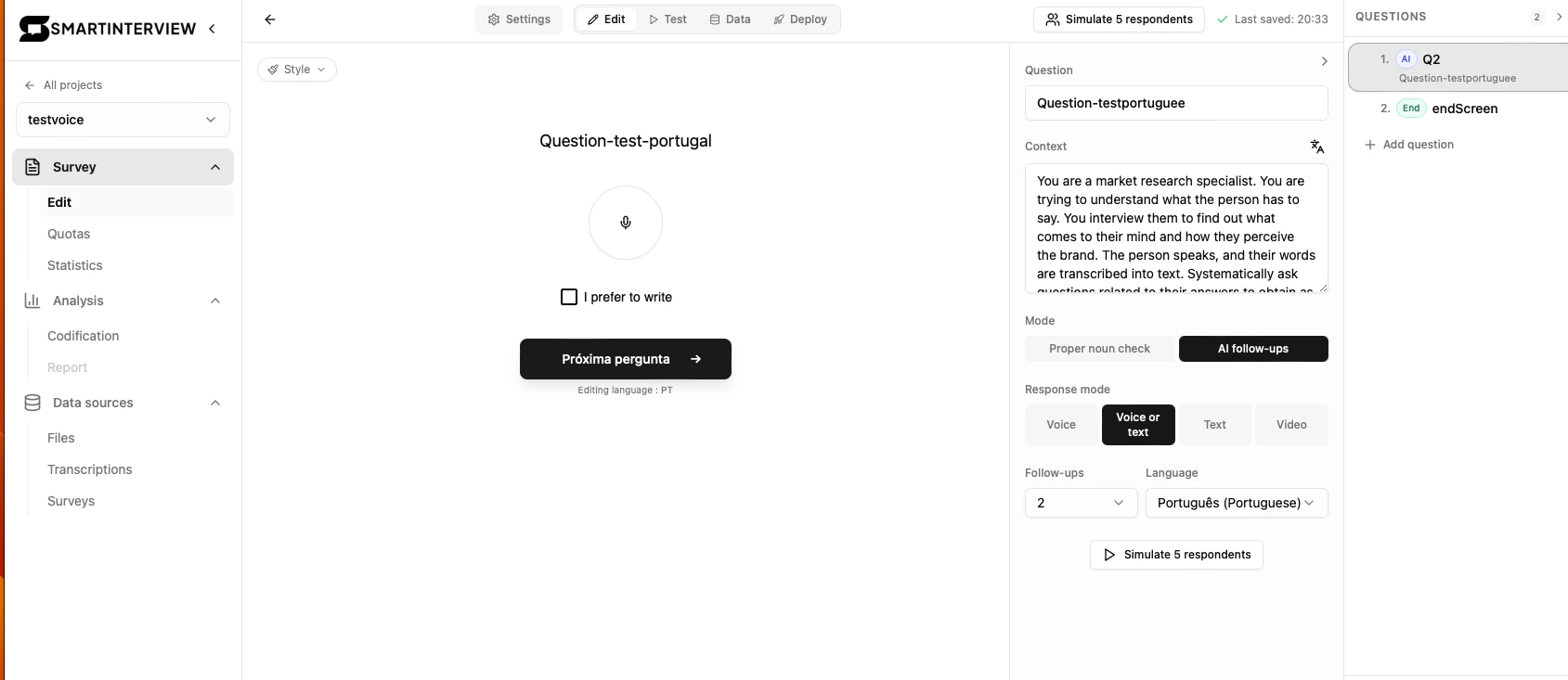
For each market you’ll publish to, translate the question text:- Open the question in the editor.
- In the Editing Language dropdown, switch to the target language (e.g. Português).
- Either type the translated text directly, or click ✨ Translate to auto-translate from the canonical version.
- Repeat for choices, button labels, and rich-text content.
uischema.options.translations[lang]. At runtime, the renderer reads the URL locale (/fr/..., /en/..., /pt-BR/...) and serves the matching translation; if none exists, it falls back to the canonical text.
💡 One survey, many URLs. A single survey published atsurveys/abccan be opened as/en/surveys/abc,/fr/surveys/abc,/de/surveys/abc, etc. The respondent sees questions in their language.
5. Review responses — translate everything to English for multi-market analysis
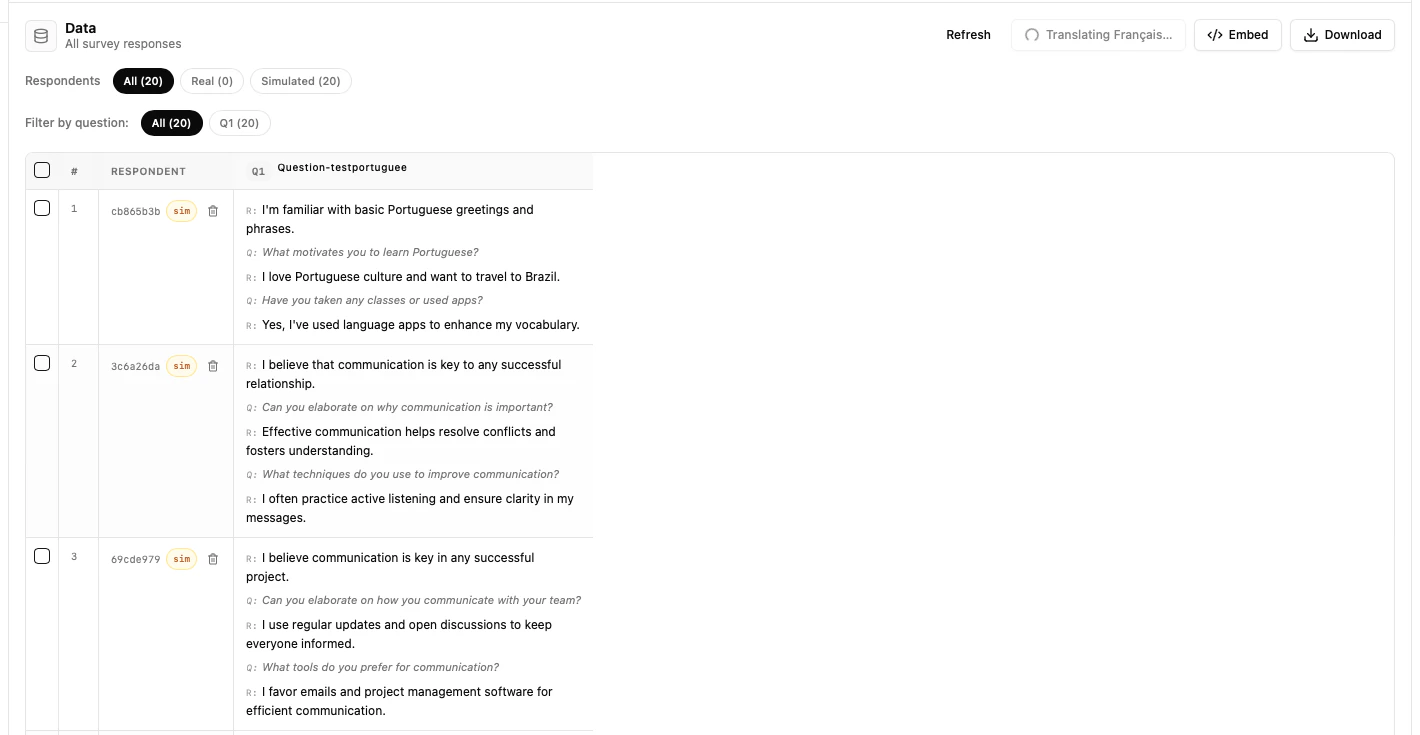
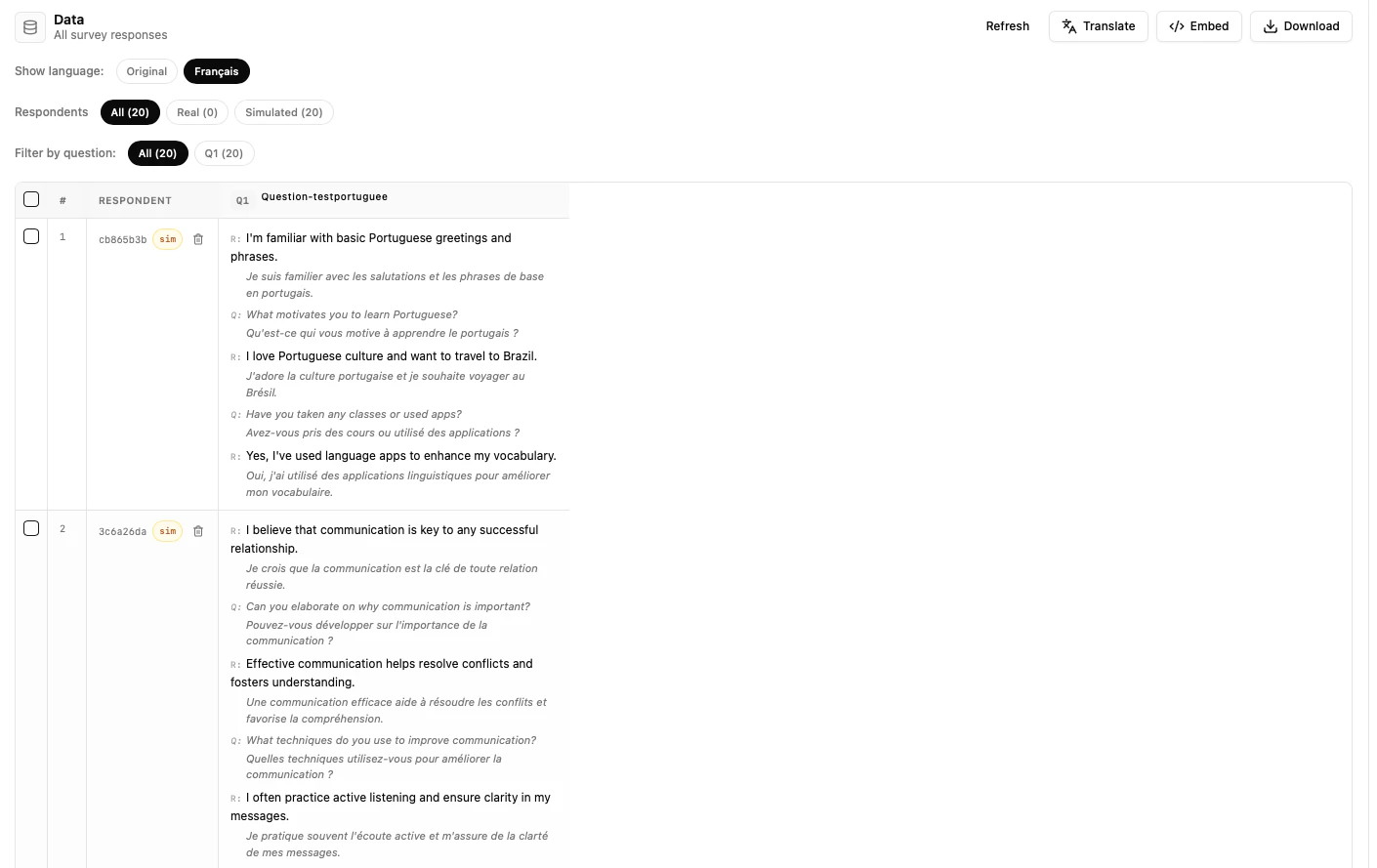
Once responses are in, head to Dashboard → Analytics → Responses.The “View Language” toggle
At the top of the responses table, the View Language dropdown lets you display every answer in a single language — typically English for multi-market studies. When you switch to English:- Smartinterview translates all answer texts in batch via
gpt-4o-mini(the original audio and original transcript are preserved). - Translations are cached in
survey.config.data_translations.en— subsequent loads are instant. - The original-language text remains accessible (toggle back any time).
Why this matters for multi-market
A wave covering FR + DE + BR + IN + JP produces verbatims in 5 languages. Without unified translation:- Analysts can’t read 4 out of 5 markets.
- Cross-market themes are invisible.
- Quote selection for the readout becomes a per-market chore.
- Every response reads in English in one table.
- Open-ended answers can be classified together in the Pulse Classifier with a single English code-frame (instead of one per market).
- Quotes can be lifted directly into the readout, with the original-language verbatim attached for verification.
💡 Always export both. When downloading, the Excel export includes the original transcript and the English translation as separate columns. Keep both — the original is your evidence trail.