

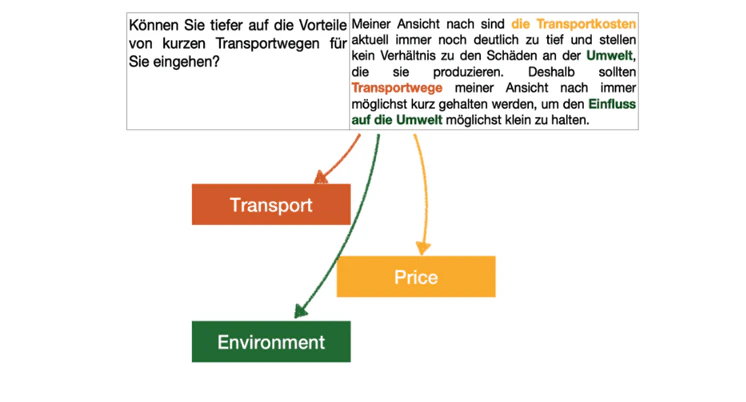
Open-ended codification
SmartInterview’s Pulse Classifier is an AI-powered tool that automates the codification of open-ended survey responses. It adapts to Excel files (.xlsx, .xls), SPSS format (.sav), and in-platform SmartInterview surveys, letting you classify thousands of verbatim responses in minutes instead of hours. It preserves your original data intact and appends structured classification columns (codes and sentiment), making it immediately compatible with your existing analysis workflows. Key capabilities include:- Automatic code generation from respondent answers
- Predefined codelist import from your Excel Topics sheet
- Sentiment analysis (Positive / Negative / Neutral) per code
- Multi-column classification for files with several open-ended questions
- Real-time progress tracking so you can work on other tasks while classification runs
- Estimated code counts before running the full classification
1. Getting Started
Supported Input Formats
To begin, navigate to the Pulse classifier page from your dashboard. You can either upload a file (drag-and-drop or click to browse) or select an active survey from your account.
When importing from an active SmartInterview survey, the configuration automatically adapts to the platform’s data structure:
2. Configuration
Once your file is uploaded, a configuration dialog opens: “Configuration de la classification” — Configure the classification parameters before launching the process.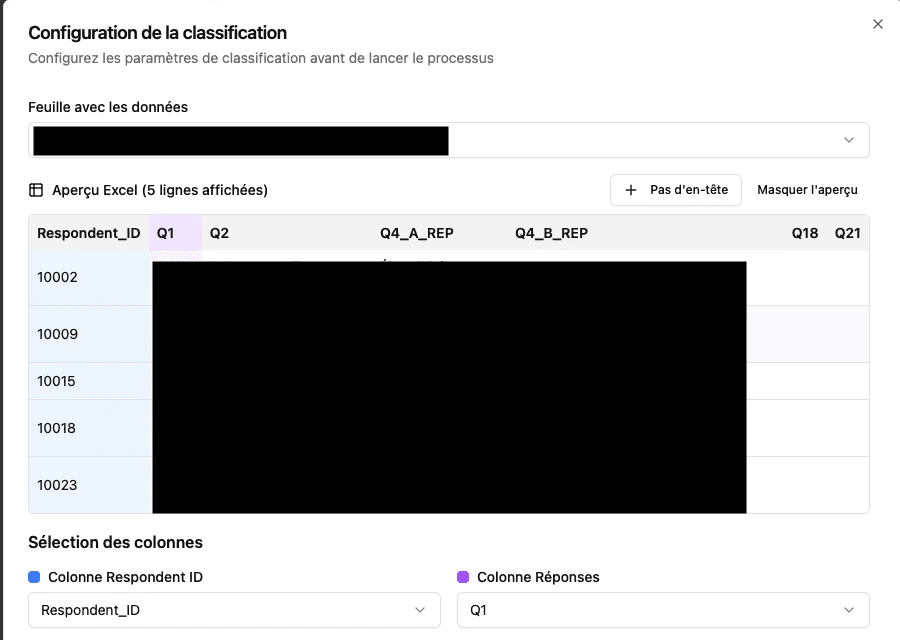
Sheet Selection
Use the “Feuille avec les données” dropdown to select the sheet containing your respondent data. SmartInterview shows an Excel preview (5 rows) so you can verify you’ve selected the correct sheet.If your file has no header row, click ”+ Pas d’en-tete” to tell the system that the first row is data, not column names.
Column Mapping
Under “Selection des colonnes”, map two required columns:- Colonne Respondent ID (blue indicator) — The unique identifier for each respondent (e.g.,
Respondent_ID,user_id,Respondent_Serial) - Colonne Reponses (purple indicator) — The column containing open-ended answers to classify (e.g.,
Q1,Q2,question_id)
Topics Sheet
Under “Feuille avec les topics”, select the sheet containing your predefined codelist. If your Excel file includes a sheet named Topics with two columns (Valeur and Libelle), it will be detected automatically.
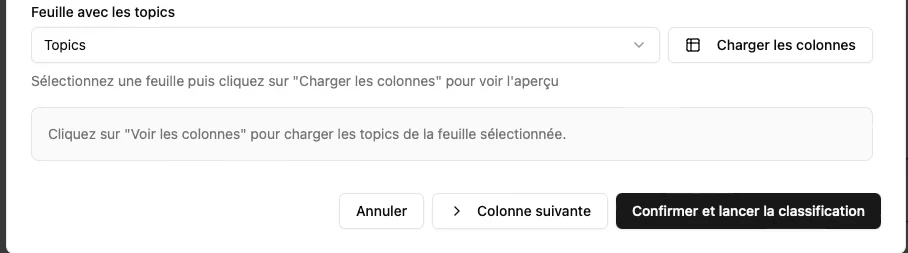
Click “Charger les colonnes” to load and preview the topics from the selected sheet. The system displays how many topics were detected (e.g., “45 topics detectes dans la feuille Topics”).
If no topics sheet exists, select “Aucune (detection automatique)” and SmartInterview will generate codes for you automatically (see Code Generation).3. Code Generation
SmartInterview offers two approaches for defining your codelist:A. Import Existing Codes
If your Excel file already contains a Topics sheet with a predefined codelist, SmartInterview reads it directly. The expected format is:
SmartInterview supports multilingual topic labels separated by
/ (e.g., Qualite du produit / Produktqualitat / Product quality), enabling cross-language matching. A respondent answering “Die Qualitat ist hervorragend” in German will be correctly matched to a topic originally labeled in French as “Qualite du produit”.
B. Auto-Generate Codes
When no codelist is available, click “Generer le plan de code”. The AI samples your responses and infers the most representative topics. You can then review and edit them before launching the classification.
- Rename any topic by clicking on its label
- Reorder topics by drag-and-drop (grip handle on the left)
- Delete individual topics using the trash icon
- Add new topics with the ”+ Ajouter un topic” button
- Regenerate the entire codelist if needed
4. Code Counting & Estimation
Before running the full classification, SmartInterview provides approximate code counts — an estimate of how many respondents will be assigned to each topic.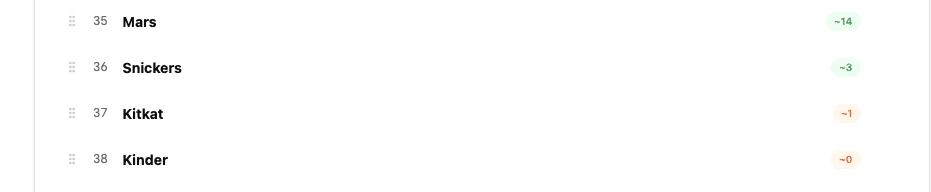
- Green numbers indicate topics with meaningful response volume
- Red/low numbers highlight topics that may be underrepresented
5. Code Deletion & Editing
The topic editor gives you full control over your codelist:- Delete a topic: Click the trash icon next to any topic. The numbering automatically adjusts.
- Rename a topic: Click on the label text and edit it inline.
- Reorder topics: Drag the grip handle to change the rank order.
- Add a topic: Use the ”+ Ajouter un topic” button at the bottom of the list.
6. Multiple Open-Ended Questions
If your file contains several open-ended columns (e.g.,Q1_1, Q2_1, Q3_1), you can classify them all in a single operation.
How It Works

- Configure the first column as described above

- Click “Colonne suivante” to add another column
- Column tabs appear at the top of the dialog (e.g.,
Q1_1,Q2_1) - Configure each column independently: select the response column, topics sheet, and settings
- Click “Lancer X classifications” to start all columns at once
SmartInterview processes each column as a separate classification job, running them concurrently. You can track the progress of each one individually.
7. Tolerance Level
The “Seuil de tolerance” slider (range: 1 to 5) controls how aggressively the AI assigns codes to responses.
Increasing the tolerance increases the number of codes attributed per response. A higher tolerance is useful when respondents give long, multi-topic answers and you want to capture every nuance. A lower tolerance is better for short answers or when precision matters more than coverage.
8. Sentiment Analysis
SmartInterview automatically performs sentiment analysis alongside topic classification. For each code assigned to a response, the AI determines whether the respondent’s tone is:- Positive
- Negative
- Neutral
Special cases like “Don’t know” or “Other” are always classified as Neutral.
9. Running Classifications & Waiting Time
Once you click “Confirmer et lancer la classification” (or “Confirmer et classifier” from the topic editor), the classification begins processing in the background.
Background Processing
Classifications run in your session — you can navigate to other pages, work on other surveys, or configure additional classifications while the process runs. A floating badge at the bottom of the screen reminds you: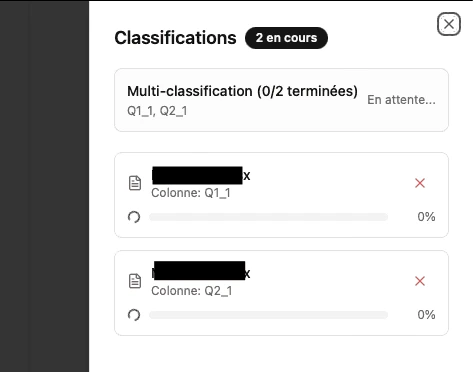

- File name and column being classified (e.g.,
Survey_Raw.xlsx,Colonne: Q1_1) - Progress bar with percentage (0% to 100%)
- Estimated time remaining (e.g.,
~2m30s) - Cancel button (red X) to stop a running classification
Typical Processing Times
Processing time depends on the number of respondents and the tolerance level. As a general indication:You do not need to keep the page open. The classification runs server-side and results will be available when you return.
10. Top Topics
Once classification is complete, the output Excel file includes a “Top Topics” sheet that ranks topics by frequency across all respondents.
This gives you an instant overview of the most frequently mentioned themes, sorted by count. Use this sheet to quickly identify dominant topics, spot emerging issues, and prioritize your analysis — without manually reading through hundreds of verbatims.
11. Special Cases
SmartInterview handles several edge cases automatically:Multilingual Responses
Topic labels can include multiple language variants separated by/. For example:
Qualite du produit / Produktqualitat / Product quality / Qualita del prodotto
The AI performs cross-language semantic matching. A respondent answering “Die Lieferung war sehr schnell” in German will be correctly matched to a topic labeled “Livraison / Lieferung / Delivery”. Similarly, an Italian response like “Ottimo servizio clienti” will match “Service client / Kundendienst / Customer service”.
This is particularly useful in multilingual markets (e.g., Switzerland with FR/DE/IT/EN) where respondents answer in their preferred language but topics need to be consolidated into a single codelist.
12. Excel Output Structure
The classified file preserves your original data and appends new columns:Main Data Sheet (e.g., FilesQO)
Q1_1ais the original verbatim column (open-ended responses)Q1_1aCOMM1**, **Q1_1aCOMM2contain the topic code numbers (matching theValeurin the Topics sheet). The column name is derived from the response column:Q1_1a+COMM+ rank.Q1_1aCOMM1_SENTIMENT**, **Q1_1aCOMM2_SENTIMENTcontain the sentiment label for each code assignment- Multiple COMM/SENTIMENT column pairs are created when a response matches several topics
Topics Sheet
Top Topics Sheet
13. Quality Assurance
SmartInterview includes several safeguards to ensure classification quality:- Preview before launch: The Excel preview and topic estimation let you verify your configuration before launching.
- Cancel anytime: Running classifications can be cancelled from the progress drawer. The system stops gracefully and releases reserved resources.
- Re-classify: If results are unsatisfactory, adjust your codelist or tolerance and re-run the classification on the same file.
- Matching: The AI uses semantic similarity, not just keyword matching. Synonyms, abbreviations, and multilingual variants are recognized automatically.
- Multiple parallel prompts: The tolerance setting runs multiple AI passes per response and merges the results, reducing variance and improving coverage.
14. Reported ROI
The Pulse Classifier dramatically reduces the time required for open-ended codification:
Beyond time savings, automated classification provides consistency — every response is evaluated against the same criteria, eliminating inter-coder variability that affects manual codification.
Next Steps
You’re now ready to start classifying open-ended responses with SmartInterview.- Upload your file or select an active survey
- Configure your columns and topics
- Review estimated code counts
- Launch the classification and let it run in the background
- Download your classified Excel file