# Classifying verbatim transcripts into levels 1 and 2: tutorial
Source: https://docs.smartinterview.ai/Classifying-verbatim-transcripts
![Classifier les verbatims]() ## **Classifying open-ended verbatim transcripts (levels 1 and 2) with smartinterview**
Once the data has been collected, whether via SmartInterview or an external file, the next step is to transform the open-ended responses into usable thematic codes.
Smartinterview allows you to:
* Define a coding plan (1 or 2 levels of depth) (3 coming soon)
* Automatically generate themes using AI, with customized instructions
* Precisely control the number of codes per respondent using a rules system
* Import a training set to guide classification
* Pre-classify a sample and correct the results
* Run the full classification on all responses
* Evaluate code quality with a MECE (mutually exclusive, commonly exhaustive) correlation matrix
* Export results to Excel
* Analyze results on the dashboard
This article explains, step by step, how to perform a 1 or 2-level classification in the platform.
## **1. Choose the data source**
The codification accepts two sources:
| Source | Usage | When to use it |
| :------------------------ | :----------------------------------------------------- | :----------------------------------------- |
| **SmartInterview Survey** | Select an existing survey, then an open-ended question | You collected responses via SmartInterview |
| **Excel file** | Import a file containing the transcripts | You have data from an external tool |
### **Excel file:**
## **Classifying open-ended verbatim transcripts (levels 1 and 2) with smartinterview**
Once the data has been collected, whether via SmartInterview or an external file, the next step is to transform the open-ended responses into usable thematic codes.
Smartinterview allows you to:
* Define a coding plan (1 or 2 levels of depth) (3 coming soon)
* Automatically generate themes using AI, with customized instructions
* Precisely control the number of codes per respondent using a rules system
* Import a training set to guide classification
* Pre-classify a sample and correct the results
* Run the full classification on all responses
* Evaluate code quality with a MECE (mutually exclusive, commonly exhaustive) correlation matrix
* Export results to Excel
* Analyze results on the dashboard
This article explains, step by step, how to perform a 1 or 2-level classification in the platform.
## **1. Choose the data source**
The codification accepts two sources:
| Source | Usage | When to use it |
| :------------------------ | :----------------------------------------------------- | :----------------------------------------- |
| **SmartInterview Survey** | Select an existing survey, then an open-ended question | You collected responses via SmartInterview |
| **Excel file** | Import a file containing the transcripts | You have data from an external tool |
### **Excel file:**
![Fichier excel]() ### **Survey:**
### **Survey:**
![Sondage]() ### **File import: column selection**
When importing a file, you must tell the system:
* The respondent column (unique identifier for each respondent)
* If your file does not contain an identifier, choose "No column": the system will automatically number the respondents from 1 to N
* The column of responses to be classified (the verbatim comments)
> *\_Tip: The system automatically detects common columns (Respondent\_ID, Serial, Responses, Answer, etc.) from the file headers.\_*
\[Screenshot: selecting columns in the configuration]
## **2. Choose the classification depth**
### **Depth 1 level (L1 only)**
A flat list of main themes. Each answer is associated with one or more themes.
### **File import: column selection**
When importing a file, you must tell the system:
* The respondent column (unique identifier for each respondent)
* If your file does not contain an identifier, choose "No column": the system will automatically number the respondents from 1 to N
* The column of responses to be classified (the verbatim comments)
> *\_Tip: The system automatically detects common columns (Respondent\_ID, Serial, Responses, Answer, etc.) from the file headers.\_*
\[Screenshot: selecting columns in the configuration]
## **2. Choose the classification depth**
### **Depth 1 level (L1 only)**
A flat list of main themes. Each answer is associated with one or more themes.
![choose]() > **Use case: exploratory studies, initial rapid analysis, short verbatim transcripts.**
### **Depth 2 levels (L1 + L2)**
Main themes (L1) with attached sub-themes (L2). The structure is hierarchical: each sub-theme belongs to a single parent theme.
> **Use case: exploratory studies, initial rapid analysis, short verbatim transcripts.**
### **Depth 2 levels (L1 + L2)**
Main themes (L1) with attached sub-themes (L2). The structure is hierarchical: each sub-theme belongs to a single parent theme.
![choose 2]() > *Use case: in-depth studies requiring fine granularity, distinction of nuances within the same theme, coding conforming to market research standards.*
In this example:
* Ease of use → L1 (main theme)
* Lines with an ID → L2 (sub-themes)
## **3. Define the coding plan**
You also have two ways to create your code plan:
* A - Import an Excel codeframe (as in the example)
* B - Let the AI generate the themes.
### **Option A: Importer les codes via Excel**
If you already have a code-frame, import it directly.
#### **Format for 1 level**
A file with at least one column containing the theme labels:
| ID | Label |
| :- | :--------------------- |
| 1 | Interface is intuitive |
| 2 | Ease of use |
| 3 | Performance is fast |
| 4 | App crashes |
| 5 | Nothing |
#### **Format for 2 levels**
The file must be structured L1 and L2 hierarchically. The system automatically detects the ID and Label columns from the headers.
**Option 1:** Separate level columns (in an Excel sheet):
| L1 | L2 |
| :---------- | :---------------------- |
| Ease of use | Interface is intuitive |
| Ease of use | Navigation is confusing |
| Ease of use | Easy to complete tasks |
| Ease of use | Sensation is smooth |
| Ease of use | The shape is nice |
**Option 2**: With identifiers and Parent\_ID:
> *Use case: in-depth studies requiring fine granularity, distinction of nuances within the same theme, coding conforming to market research standards.*
In this example:
* Ease of use → L1 (main theme)
* Lines with an ID → L2 (sub-themes)
## **3. Define the coding plan**
You also have two ways to create your code plan:
* A - Import an Excel codeframe (as in the example)
* B - Let the AI generate the themes.
### **Option A: Importer les codes via Excel**
If you already have a code-frame, import it directly.
#### **Format for 1 level**
A file with at least one column containing the theme labels:
| ID | Label |
| :- | :--------------------- |
| 1 | Interface is intuitive |
| 2 | Ease of use |
| 3 | Performance is fast |
| 4 | App crashes |
| 5 | Nothing |
#### **Format for 2 levels**
The file must be structured L1 and L2 hierarchically. The system automatically detects the ID and Label columns from the headers.
**Option 1:** Separate level columns (in an Excel sheet):
| L1 | L2 |
| :---------- | :---------------------- |
| Ease of use | Interface is intuitive |
| Ease of use | Navigation is confusing |
| Ease of use | Easy to complete tasks |
| Ease of use | Sensation is smooth |
| Ease of use | The shape is nice |
**Option 2**: With identifiers and Parent\_ID:
![Parent_ID]() > *Tip: You must store the topics in a separate sheet of your Excel file (e.g., a "Topics" tab). The system will prompt you to select the sheet containing the codes.*
#### **Preview and filtering**
After the import, a preview of the code frame is displayed with:
* The number of topics detected (updated automatically)
* The ability to **filter by column** (useful for excluding certain categories)
* The **ability to manually** exclude individual rows
### **Option B: Generate the codes using AI**
If you do not have a pre-existing code plan, the AI analyzes a sample of your responses and automatically discovers recurring themes.
#### **How it works**
1. The system samples up to 400 responses from your file.
2. AI identifies recurring themes and formulates them into clear labels.
3. The themes are sorted by estimated frequency (the indicative number of respondents concerned).
4. The themes are automatically numbered (sequential IDs).
#### **Provide personalized instructions (guidelines)**
You can guide the generation by providing text instructions in the "Guidelines" field:
> *Tip: You must store the topics in a separate sheet of your Excel file (e.g., a "Topics" tab). The system will prompt you to select the sheet containing the codes.*
#### **Preview and filtering**
After the import, a preview of the code frame is displayed with:
* The number of topics detected (updated automatically)
* The ability to **filter by column** (useful for excluding certain categories)
* The **ability to manually** exclude individual rows
### **Option B: Generate the codes using AI**
If you do not have a pre-existing code plan, the AI analyzes a sample of your responses and automatically discovers recurring themes.
#### **How it works**
1. The system samples up to 400 responses from your file.
2. AI identifies recurring themes and formulates them into clear labels.
3. The themes are sorted by estimated frequency (the indicative number of respondents concerned).
4. The themes are automatically numbered (sequential IDs).
#### **Provide personalized instructions (guidelines)**
You can guide the generation by providing text instructions in the "Guidelines" field:
![Guidelines]() These instructions directly influence:
* The vocabulary used for the labels
* The level of granularity (more or fewer themes)
* The analytical perspective (sensory, emotional, functional, etc.)
* The language of the labels
> *Important: These instructions are in Beta. They work well for guiding the generation process, but results may vary. Always check the generated themes.*
#### **Generation in 2-level mode**
In 2-level mode, the process involves two steps:
1. L1 generation: AI identifies the main themes
2. Automatic L2 generation: For each L1 theme, AI automatically generates sub-themes based on the corresponding responses.
L1s that do not yet have sub-themes are automatically detected, and the system starts generating the missing L2s before starting the classification.
These instructions directly influence:
* The vocabulary used for the labels
* The level of granularity (more or fewer themes)
* The analytical perspective (sensory, emotional, functional, etc.)
* The language of the labels
> *Important: These instructions are in Beta. They work well for guiding the generation process, but results may vary. Always check the generated themes.*
#### **Generation in 2-level mode**
In 2-level mode, the process involves two steps:
1. L1 generation: AI identifies the main themes
2. Automatic L2 generation: For each L1 theme, AI automatically generates sub-themes based on the corresponding responses.
L1s that do not yet have sub-themes are automatically detected, and the system starts generating the missing L2s before starting the classification.
![classification]() ### **Theme editor**
Whether imported or generated, themes appear in the theme editor (left sidebar), where you can:
| Action | Comment |
| :---------------------------- | :------------------------------------------- |
| Renaming a theme | Click on the label and edit it directly |
| Delete a theme | Click on the trash can icon 🗑️ |
| Add a theme | Click the + button at the bottom of the list |
| Reorder the themes | Drag and drop using the handle ≡ |
| Unfold/fold the L2 | Click the arrow ▶ next to an L1 theme |
| Regenerate the themes | Click the ✨ button to restart AI generation |
| Regenerate the L2 of a parent | Click on ✨ next to a specific L1 theme |
> *The estimated frequencies (indicative number displayed next to each theme) are recalculated after each classification. Before the first classification, they come from the AI's estimate during generation.*
## **4. Configure the classification rules**
The rules control how many codes can be assigned to each respondent. They are applied at three levels: during pre-classification, on imported examples, and during full classification.
### **Rules for level 1**
| Setting | Description | Default |
| :-------- | :-------------------------------------- | :------------ |
| Max codes | Maximum number of themes per respondent | 0 (unlimited) |
> ***Exemple***\*\_ : With Max codes = 3, a respondent can only receive a maximum of 3 themes, even if their answer mentions more.\*
### **Rules for 2 levels**
In 2-level mode, three additional parameters allow for fine control:
| Setting | Code interne | Description | Default |
| :---------------- | :-------------- | :-------------------------------------------------- | :------------ |
| **Max L1** | maxCodesL1 | Maximum number of main themes per respondent | 0 (unlimited) |
| **Max L2** | maxCodesL2 | Maximum overall number of sub-themes per respondent | 0 (unlimited) |
| **Max L2 par L1** | maxCodesL2PerL1 | Maximum number of subtopics per parent topic | 0 (unlimited) |
**Order of application of the rules:**
1. **Max L1**: Limits the number of main themes (Pass 1)
2. **Max L2/L1**: Limits subtopics by parent (Pass 2, by calls)
3. **Max L2 global**: Final ceiling after merging all sub-themes (post-processing)
> *Tip: The Max L2/L1 ratio is particularly useful when some L1 themes are very broad and might monopolize all the sub-themes. For example, with Max L2/L1 = 2, each parent theme can only contribute a maximum of 2 sub-themes, ensuring a balanced distribution.*
## **5. Import a training set (past data) (optional)**
### **Why import examples?**
A training set (or a few-shot examples) allows us to show examples of already coded verbatim transcripts. These examples are sent as context to guide each batch of classification.
**Importing is recommended when:**
* The themes are nuanced or closely related.
* You want continuity within a project or between several projects.
* You have specific coding conventions (e.g., certain expressions must always be classified under a particular theme).
* You want to replicate an existing classification on new data.
* Pre-classification without examples yields unsatisfactory results.
### **Training file format**
The Excel file should look like this:
| Answer | ANSW\_1aCOMM1 | ANSW\_2aCOMM2 | ANSW\_3aCOMM3 | ANSW\_4aCOMM4 | ANSW\_5aCOMM5 |
| :-------------------------------------------------------------------------------------- | :------------ | :------------ | :------------ | :------------ | :------------ |
| The interface remains fluid from beginning to end, very close to a premium application. | 21 | | | | |
| The application is fine, nothing particularly remarkable. | 18 | 207 | | | |
| Very smooth navigation, some pleasant animations | 18 | 207 | | | |
| Sometimes a little choppy, and some sections seem poorly optimized. | 45 | 212 | 233 | 240 | |
The system automatically detects columns containing codes by comparing them to the themes defined in your coding plan. Columns whose values correspond to known themes are automatically identified.
> *Limit: 30 examples are kept. The codes must be the same as those used in the initial code plan of the newly imported files.*
### **Verification and translation**
Each imported example is displayed with:
* The text of the response (verbatim)
* The assigned theme badges (color-coded)
* An individual translation button with language selection (French, English, German)
The translation allows you to check the content of the examples in your working language, without modifying the data sent to the classification.
### **Theme editor**
Whether imported or generated, themes appear in the theme editor (left sidebar), where you can:
| Action | Comment |
| :---------------------------- | :------------------------------------------- |
| Renaming a theme | Click on the label and edit it directly |
| Delete a theme | Click on the trash can icon 🗑️ |
| Add a theme | Click the + button at the bottom of the list |
| Reorder the themes | Drag and drop using the handle ≡ |
| Unfold/fold the L2 | Click the arrow ▶ next to an L1 theme |
| Regenerate the themes | Click the ✨ button to restart AI generation |
| Regenerate the L2 of a parent | Click on ✨ next to a specific L1 theme |
> *The estimated frequencies (indicative number displayed next to each theme) are recalculated after each classification. Before the first classification, they come from the AI's estimate during generation.*
## **4. Configure the classification rules**
The rules control how many codes can be assigned to each respondent. They are applied at three levels: during pre-classification, on imported examples, and during full classification.
### **Rules for level 1**
| Setting | Description | Default |
| :-------- | :-------------------------------------- | :------------ |
| Max codes | Maximum number of themes per respondent | 0 (unlimited) |
> ***Exemple***\*\_ : With Max codes = 3, a respondent can only receive a maximum of 3 themes, even if their answer mentions more.\*
### **Rules for 2 levels**
In 2-level mode, three additional parameters allow for fine control:
| Setting | Code interne | Description | Default |
| :---------------- | :-------------- | :-------------------------------------------------- | :------------ |
| **Max L1** | maxCodesL1 | Maximum number of main themes per respondent | 0 (unlimited) |
| **Max L2** | maxCodesL2 | Maximum overall number of sub-themes per respondent | 0 (unlimited) |
| **Max L2 par L1** | maxCodesL2PerL1 | Maximum number of subtopics per parent topic | 0 (unlimited) |
**Order of application of the rules:**
1. **Max L1**: Limits the number of main themes (Pass 1)
2. **Max L2/L1**: Limits subtopics by parent (Pass 2, by calls)
3. **Max L2 global**: Final ceiling after merging all sub-themes (post-processing)
> *Tip: The Max L2/L1 ratio is particularly useful when some L1 themes are very broad and might monopolize all the sub-themes. For example, with Max L2/L1 = 2, each parent theme can only contribute a maximum of 2 sub-themes, ensuring a balanced distribution.*
## **5. Import a training set (past data) (optional)**
### **Why import examples?**
A training set (or a few-shot examples) allows us to show examples of already coded verbatim transcripts. These examples are sent as context to guide each batch of classification.
**Importing is recommended when:**
* The themes are nuanced or closely related.
* You want continuity within a project or between several projects.
* You have specific coding conventions (e.g., certain expressions must always be classified under a particular theme).
* You want to replicate an existing classification on new data.
* Pre-classification without examples yields unsatisfactory results.
### **Training file format**
The Excel file should look like this:
| Answer | ANSW\_1aCOMM1 | ANSW\_2aCOMM2 | ANSW\_3aCOMM3 | ANSW\_4aCOMM4 | ANSW\_5aCOMM5 |
| :-------------------------------------------------------------------------------------- | :------------ | :------------ | :------------ | :------------ | :------------ |
| The interface remains fluid from beginning to end, very close to a premium application. | 21 | | | | |
| The application is fine, nothing particularly remarkable. | 18 | 207 | | | |
| Very smooth navigation, some pleasant animations | 18 | 207 | | | |
| Sometimes a little choppy, and some sections seem poorly optimized. | 45 | 212 | 233 | 240 | |
The system automatically detects columns containing codes by comparing them to the themes defined in your coding plan. Columns whose values correspond to known themes are automatically identified.
> *Limit: 30 examples are kept. The codes must be the same as those used in the initial code plan of the newly imported files.*
### **Verification and translation**
Each imported example is displayed with:
* The text of the response (verbatim)
* The assigned theme badges (color-coded)
* An individual translation button with language selection (French, English, German)
The translation allows you to check the content of the examples in your working language, without modifying the data sent to the classification.
![trusted]() ## **6. Pre-classify a sample**
### **What is pre-classification?**
Before running the classification on the entire dataset, the system classifies the first 30 responses as a test. This is the most important step to validate the quality of your coding plan.
The pre-classification uses the exact same algorithm as the full classification, but on a smaller sample to allow for quick verification.
### **What the pre-classification shows you**
For each answer, you see:
* The verbatim text (with keywords corresponding to the themes highlighted)
* The assigned L1 badges (with color coding)
* The assigned L2 badges (if depth = 2), grouped under their L1 parent badges
* A summary: number of classified responses out of the total
### **Correct the results**
The pre-classification is interactive; you can correct each line:
| Action | Gesture | Effect |
| :--------------------- | :----------------------------------- | :--------------------------------------------------------------------------------- |
| **Remove a theme** | Click on the badge × | The topic has been removed from this response. |
| **Add an L1 theme** | Click on the + next to the L1 badges | Drop-down menu with all available L1 themes |
| **Add an L2 theme** | Click on the + next to the L2 badges | Filtered dropdown menu: only sub-themes of already assigned L1 courses are offered |
| **Search for a theme** | Type in the menu search field | Real-time filtering of available themes |
> *Validation area: All lines between your first and last correction are considered validated. They are highlighted in blue and automatically become valid for the complete classification.*
## **7. Launch the full classification**
### **When to start the classification?**
Start the full classification when:
* The pre-classification themes match your expectations.
* Any necessary corrections are made to the first 30 lines.
* Training data is imported.
* The rules (Max codes) are correctly configured.
### **What's happening in the background**
1. The responses are divided into batches.
2. Each batch is sent to the AI with:
* List of available themes
* Training examples (imported + pre-classification corrections)
* Configured boundary rules
3. In 2-level mode:
* Pass 1: L1 classification on all batches
* **Pass 2**: For each assigned L1 theme, L2 classification by parent
* Post-processing: Application of the global L2 ceiling (Max L2)
### **Result**
After classification, you see:
* A success banner: "Classification complete: N classified responses."
* The first 30 responses with their assigned codes (editable)
* The imported examples (expandable section, if a training set was used)
* The correlation matrix (see next section)
## **8. Evaluate the results using the correlation matrix**
### **The MECE principle**
A quality coding plan must be MECE:
> * ***Mutually Exclusive: Each theme covers a distinct aspect. Two themes should not describe the same thing.***
> * ***Collectively Exhaustive: The set of themes covers all responses. No verbatim response should remain without relevant code.***
### **Read the co-occurrence matrix**
The matrix displays the percentage of respondents who received two themes simultaneously. The diagonal is always 100% (a theme is always correlated with itself).
| | Interface is intuitive (122) | App is fast (6) | Navigation is confusing. (14) | App crashes or freezes (28) |
| :--------------------------- | :--------------------------- | :-------------- | :----------------------------- | :-------------------------- |
| Interface is intuitive (122) | 100% | 33% | 21% | 0% |
| App is fast (6) | 33% | 100% | 0% | 0% |
| Navigation is confusing (14) | 21% | 0% | 100% | 0% |
| App crashes or freezes (28) | 0% | 0% | 0% | 100% |
### **How to interpret the matrix**
| Signal | Value | Signification | Recommended action |
| :------------------ | :----- | :------------------------------------------------ | :---------------------------------------------------------------------------------------------------- |
| High correlation | 50% | The two themes often overlap: possibly redundant. | Merge themes or rephrase definitions |
| Average correlation | 20-50% | The themes are related but distinct: acceptable | Check a few answers to confirm |
| Weak correlation | \< 20% | The themes are indeed mutually exclusive. | Nothing to change |
| Zero correlation | 0% | The themes never coexist | Perfect for antagonistic themes (e.g., "Nothing" vs. the others) |
| Low staff | (1-2) | The topic concerns very few respondents | Perhaps too specific; consider merging with a parent theme or removing it in a single-level encoding. |
> *Highly correlated cells are highlighted in color to quickly identify problems.* **Exemple d'analyse**
In the matrix above:
* App is fast × Interface is intuitive = 33% → These two sensations are sometimes mentioned together. This is normal for a product consumed by inhalation: the themes remain distinct.
* Nothing × everything else = 0% → Perfect: respondents who have nothing to say are not categorized under other themes.
* Interface is intuitive (122) is the dominant theme: 122 out of 232 respondents, or more than half.
### **Acting on the results**
If the matrix reveals problems:
1. Click "Back to codes" to return to the theme editor.
2. Merge redundant themes or rewrite ambiguous definitions.
3. Rerun the classification; the corrections made to the first 30 lines are saved as training examples ("Re-classify with corrections" button).
This iterative cycle, classify → evaluate → adjust → re-classify, allows us to gradually achieve a robust and MECE coding plan.
## **9. Export the results**
Once the classification is validated, click on "Download Excel" to obtain a structured file:
| Leaf | Content | Description |
| :------------- | :------------------- | :----------------------------------------------------------------------------------- |
| **FilesQO** | Classified data | Each respondent with their text and assigned codes (columns L1 and L2 if applicable) |
| **Topics** | Plan de codification | The complete list of themes with their identifiers, organized hierarchically |
| **Top Topics** | Frequency synthesis | The most frequent themes with their counts and percentages |
## **Practical advice**
### **How many themes should be defined?**
| Number of responses | Recommended L1 topics | Recommended L2 topics |
| :------------------ | :-------------------- | :-------------------- |
| \< 100 | 5 – 10 | 2 – 4 par L1 |
| 100 – 500 | 10 – 20 | 3 – 6 par L1 |
| 500 | 15 – 30 | 5 – 10 par L1 |
### **When to use 1 level vs 2 levels?**
| Criteria | Level 1 | 2 levels |
| :---------------------------- | :------ | :------- |
| Rapid exploratory objective | ✅ | |
| Initial data analysis | ✅ | |
| Fine granulation required | | ✅ |
| Long and detailed transcripts | | ✅ |
| Verbatim courts (\< 20 mots) | ✅ | |
# SmartInterview: Integration with LimeSurvey
Source: https://docs.smartinterview.ai/Integration-with-LimeSurvey
### **Introduction**
SmartInterview’s AI-powered vocal interviews can be combined with **LimeSurvey** (open-source or Cloud) to add qualitative depth to your quantitative research.
LimeSurvey supports full HTML, expression variables, and flexible scripting—making SmartInterview integration smooth and powerful
### What LimeSurvey Supports
| Feature | LimeSurvey |
| :-------------------------- | :----------------------------- |
| Custom HTML | Yes |
| iframe embedding | Yes |
| URL redirects | Yes |
| JavaScript support | Yes |
| **Recommended integration** | **Widget (embed) or Redirect** |
## Integration Options:
### Option A: Widget (Embed SmartInterview inside LimeSurvey)
The respondent stays within LimeSurvey. A SmartInterview question appears inline as an embedded widget.
Step 1 — Get your embed code
In SmartInterview:
* Go to **Builder → Widget**
* Copy the embed code:
```text theme={null}
```
> `allow="microphone; camera"` is required for vocal questions.
**Step 2 - Insert in LimeSurvey**
* Add a **Text / HTML question**
* Open the **HTML editor**
* Paste the iframe code
* Replace `RESPONDENT_ID` with LimeSurvey variable\
(e.g. `{TOKEN}` or `{SID}` depending on the setup)
**Step 3 — Match the style**
```text theme={null}
?theme=limesurvey
```
This ensures visual consistency with your LimeSurvey interface.
### Advantages:
* No navigation away from LimeSurvey
* Seamless respondent experience
* Full compatibility with LimeSurvey logic & quotas
### Limitations:
* Requires iframe support (usually enabled)
* Must test on your LimeSurvey hosting environment
### Option B: Redirect (Link from LimeSurvey to SmartInterview)
The respondent is redirected to SmartInterview and then returns to LimeSurvey.
### Flow:
LimeSurvey → SmartInterview (AI interview) → LimeSurvey
***
## Step 1 — Prepare your SmartInterview survey
* Create your survey in SmartInterview
* Go to **Builder → Settings**
### Configuration:
* Set `user_id` = null
* Add a **Return URL** (your LimeSurvey survey link)
Example:
```text theme={null}
https://your-limesurvey.com/index.php/123456?lang=en
```
## Step 2 — Configure redirect in LimeSurvey
* Add a **URL redirect/end URL / link question**
* Insert your SmartInterview survey link:
```text theme={null}
https://www.smartinterview.ai/YOUR_SURVEY_ID
```
### Tip:
Add instruction text like:
> “For the next part, please click the link and answer using your voice or text.”
## Step 3 — Configure return to LimeSurvey
In SmartInterview:
* Set the **Redirect URL** back to LimeSurvey
SmartInterview will automatically pass parameters back.
## What gets captured
All URL parameters from LimeSurvey:
* Stored in the respondent transcript
* Available as metadata
* Usable in display logic
* Passed back to LimeSurvey
***
## Using Display Conditions
Example:
Pass parameter:
```text theme={null}
?group=A
```
Then in SmartInterview:
* Field: `group`
* Operator: equals
* Value: `A`
This allows personalized AI interviews.
## Summary: Which approach to choose?
### If you want the best UX:
Use **Widget (Embed)**
* No redirects
* Fully integrated experience
***
### If you want a simple setup:
Use **Redirect**
* Easy to configure
* Works in all cases
***
## Recommendation
### Why SmartInterview alone can be more efficient
Using two platforms can create:
* Respondent friction (switching interfaces)
* Fragmented data
* Extra setup & maintenance
SmartInterview already supports:
* Structured questions
* AI vocal interviews
* Real-time transcription
* Automated coding (Pulse Classifier)
* Sentiment analysis
***
## Quick Start Checklist
* Create your SmartInterview survey
* Choose: Embed or Redirect
* Configure Return URL
* Add an iframe or a link in LimeSurvey
* Test full flow
* Validate captured data
***
## Need Help?
Contact: [**info@smartinterview.ai**](mailto:info@smartinterview.ai)
# Open-ended coding - smartinterview to extract verbatim
Source: https://docs.smartinterview.ai/Open-ended-coding
## **6. Pre-classify a sample**
### **What is pre-classification?**
Before running the classification on the entire dataset, the system classifies the first 30 responses as a test. This is the most important step to validate the quality of your coding plan.
The pre-classification uses the exact same algorithm as the full classification, but on a smaller sample to allow for quick verification.
### **What the pre-classification shows you**
For each answer, you see:
* The verbatim text (with keywords corresponding to the themes highlighted)
* The assigned L1 badges (with color coding)
* The assigned L2 badges (if depth = 2), grouped under their L1 parent badges
* A summary: number of classified responses out of the total
### **Correct the results**
The pre-classification is interactive; you can correct each line:
| Action | Gesture | Effect |
| :--------------------- | :----------------------------------- | :--------------------------------------------------------------------------------- |
| **Remove a theme** | Click on the badge × | The topic has been removed from this response. |
| **Add an L1 theme** | Click on the + next to the L1 badges | Drop-down menu with all available L1 themes |
| **Add an L2 theme** | Click on the + next to the L2 badges | Filtered dropdown menu: only sub-themes of already assigned L1 courses are offered |
| **Search for a theme** | Type in the menu search field | Real-time filtering of available themes |
> *Validation area: All lines between your first and last correction are considered validated. They are highlighted in blue and automatically become valid for the complete classification.*
## **7. Launch the full classification**
### **When to start the classification?**
Start the full classification when:
* The pre-classification themes match your expectations.
* Any necessary corrections are made to the first 30 lines.
* Training data is imported.
* The rules (Max codes) are correctly configured.
### **What's happening in the background**
1. The responses are divided into batches.
2. Each batch is sent to the AI with:
* List of available themes
* Training examples (imported + pre-classification corrections)
* Configured boundary rules
3. In 2-level mode:
* Pass 1: L1 classification on all batches
* **Pass 2**: For each assigned L1 theme, L2 classification by parent
* Post-processing: Application of the global L2 ceiling (Max L2)
### **Result**
After classification, you see:
* A success banner: "Classification complete: N classified responses."
* The first 30 responses with their assigned codes (editable)
* The imported examples (expandable section, if a training set was used)
* The correlation matrix (see next section)
## **8. Evaluate the results using the correlation matrix**
### **The MECE principle**
A quality coding plan must be MECE:
> * ***Mutually Exclusive: Each theme covers a distinct aspect. Two themes should not describe the same thing.***
> * ***Collectively Exhaustive: The set of themes covers all responses. No verbatim response should remain without relevant code.***
### **Read the co-occurrence matrix**
The matrix displays the percentage of respondents who received two themes simultaneously. The diagonal is always 100% (a theme is always correlated with itself).
| | Interface is intuitive (122) | App is fast (6) | Navigation is confusing. (14) | App crashes or freezes (28) |
| :--------------------------- | :--------------------------- | :-------------- | :----------------------------- | :-------------------------- |
| Interface is intuitive (122) | 100% | 33% | 21% | 0% |
| App is fast (6) | 33% | 100% | 0% | 0% |
| Navigation is confusing (14) | 21% | 0% | 100% | 0% |
| App crashes or freezes (28) | 0% | 0% | 0% | 100% |
### **How to interpret the matrix**
| Signal | Value | Signification | Recommended action |
| :------------------ | :----- | :------------------------------------------------ | :---------------------------------------------------------------------------------------------------- |
| High correlation | 50% | The two themes often overlap: possibly redundant. | Merge themes or rephrase definitions |
| Average correlation | 20-50% | The themes are related but distinct: acceptable | Check a few answers to confirm |
| Weak correlation | \< 20% | The themes are indeed mutually exclusive. | Nothing to change |
| Zero correlation | 0% | The themes never coexist | Perfect for antagonistic themes (e.g., "Nothing" vs. the others) |
| Low staff | (1-2) | The topic concerns very few respondents | Perhaps too specific; consider merging with a parent theme or removing it in a single-level encoding. |
> *Highly correlated cells are highlighted in color to quickly identify problems.* **Exemple d'analyse**
In the matrix above:
* App is fast × Interface is intuitive = 33% → These two sensations are sometimes mentioned together. This is normal for a product consumed by inhalation: the themes remain distinct.
* Nothing × everything else = 0% → Perfect: respondents who have nothing to say are not categorized under other themes.
* Interface is intuitive (122) is the dominant theme: 122 out of 232 respondents, or more than half.
### **Acting on the results**
If the matrix reveals problems:
1. Click "Back to codes" to return to the theme editor.
2. Merge redundant themes or rewrite ambiguous definitions.
3. Rerun the classification; the corrections made to the first 30 lines are saved as training examples ("Re-classify with corrections" button).
This iterative cycle, classify → evaluate → adjust → re-classify, allows us to gradually achieve a robust and MECE coding plan.
## **9. Export the results**
Once the classification is validated, click on "Download Excel" to obtain a structured file:
| Leaf | Content | Description |
| :------------- | :------------------- | :----------------------------------------------------------------------------------- |
| **FilesQO** | Classified data | Each respondent with their text and assigned codes (columns L1 and L2 if applicable) |
| **Topics** | Plan de codification | The complete list of themes with their identifiers, organized hierarchically |
| **Top Topics** | Frequency synthesis | The most frequent themes with their counts and percentages |
## **Practical advice**
### **How many themes should be defined?**
| Number of responses | Recommended L1 topics | Recommended L2 topics |
| :------------------ | :-------------------- | :-------------------- |
| \< 100 | 5 – 10 | 2 – 4 par L1 |
| 100 – 500 | 10 – 20 | 3 – 6 par L1 |
| 500 | 15 – 30 | 5 – 10 par L1 |
### **When to use 1 level vs 2 levels?**
| Criteria | Level 1 | 2 levels |
| :---------------------------- | :------ | :------- |
| Rapid exploratory objective | ✅ | |
| Initial data analysis | ✅ | |
| Fine granulation required | | ✅ |
| Long and detailed transcripts | | ✅ |
| Verbatim courts (\< 20 mots) | ✅ | |
# SmartInterview: Integration with LimeSurvey
Source: https://docs.smartinterview.ai/Integration-with-LimeSurvey
### **Introduction**
SmartInterview’s AI-powered vocal interviews can be combined with **LimeSurvey** (open-source or Cloud) to add qualitative depth to your quantitative research.
LimeSurvey supports full HTML, expression variables, and flexible scripting—making SmartInterview integration smooth and powerful
### What LimeSurvey Supports
| Feature | LimeSurvey |
| :-------------------------- | :----------------------------- |
| Custom HTML | Yes |
| iframe embedding | Yes |
| URL redirects | Yes |
| JavaScript support | Yes |
| **Recommended integration** | **Widget (embed) or Redirect** |
## Integration Options:
### Option A: Widget (Embed SmartInterview inside LimeSurvey)
The respondent stays within LimeSurvey. A SmartInterview question appears inline as an embedded widget.
Step 1 — Get your embed code
In SmartInterview:
* Go to **Builder → Widget**
* Copy the embed code:
```text theme={null}
```
> `allow="microphone; camera"` is required for vocal questions.
**Step 2 - Insert in LimeSurvey**
* Add a **Text / HTML question**
* Open the **HTML editor**
* Paste the iframe code
* Replace `RESPONDENT_ID` with LimeSurvey variable\
(e.g. `{TOKEN}` or `{SID}` depending on the setup)
**Step 3 — Match the style**
```text theme={null}
?theme=limesurvey
```
This ensures visual consistency with your LimeSurvey interface.
### Advantages:
* No navigation away from LimeSurvey
* Seamless respondent experience
* Full compatibility with LimeSurvey logic & quotas
### Limitations:
* Requires iframe support (usually enabled)
* Must test on your LimeSurvey hosting environment
### Option B: Redirect (Link from LimeSurvey to SmartInterview)
The respondent is redirected to SmartInterview and then returns to LimeSurvey.
### Flow:
LimeSurvey → SmartInterview (AI interview) → LimeSurvey
***
## Step 1 — Prepare your SmartInterview survey
* Create your survey in SmartInterview
* Go to **Builder → Settings**
### Configuration:
* Set `user_id` = null
* Add a **Return URL** (your LimeSurvey survey link)
Example:
```text theme={null}
https://your-limesurvey.com/index.php/123456?lang=en
```
## Step 2 — Configure redirect in LimeSurvey
* Add a **URL redirect/end URL / link question**
* Insert your SmartInterview survey link:
```text theme={null}
https://www.smartinterview.ai/YOUR_SURVEY_ID
```
### Tip:
Add instruction text like:
> “For the next part, please click the link and answer using your voice or text.”
## Step 3 — Configure return to LimeSurvey
In SmartInterview:
* Set the **Redirect URL** back to LimeSurvey
SmartInterview will automatically pass parameters back.
## What gets captured
All URL parameters from LimeSurvey:
* Stored in the respondent transcript
* Available as metadata
* Usable in display logic
* Passed back to LimeSurvey
***
## Using Display Conditions
Example:
Pass parameter:
```text theme={null}
?group=A
```
Then in SmartInterview:
* Field: `group`
* Operator: equals
* Value: `A`
This allows personalized AI interviews.
## Summary: Which approach to choose?
### If you want the best UX:
Use **Widget (Embed)**
* No redirects
* Fully integrated experience
***
### If you want a simple setup:
Use **Redirect**
* Easy to configure
* Works in all cases
***
## Recommendation
### Why SmartInterview alone can be more efficient
Using two platforms can create:
* Respondent friction (switching interfaces)
* Fragmented data
* Extra setup & maintenance
SmartInterview already supports:
* Structured questions
* AI vocal interviews
* Real-time transcription
* Automated coding (Pulse Classifier)
* Sentiment analysis
***
## Quick Start Checklist
* Create your SmartInterview survey
* Choose: Embed or Redirect
* Configure Return URL
* Add an iframe or a link in LimeSurvey
* Test full flow
* Validate captured data
***
## Need Help?
Contact: [**info@smartinterview.ai**](mailto:info@smartinterview.ai)
# Open-ended coding - smartinterview to extract verbatim
Source: https://docs.smartinterview.ai/Open-ended-coding
![Open-ended coding]() ## **Open-ended codification**
SmartInterview's Pulse Classifier is an AI-powered tool that automates the codification of open-ended survey responses. It adapts to Excel files (.xlsx, .xls), SPSS format (.sav), and in-platform SmartInterview surveys, letting you classify thousands of verbatim responses in minutes instead of hours.
It preserves your original data intact and appends structured classification columns (codes and sentiment), making it immediately compatible with your existing analysis workflows.
Key capabilities include:
* **Automatic code generation** from respondent answers
* **Predefined codelist import** from your Excel Topics sheet
* **Sentiment analysis** (Positive / Negative / Neutral) per code
* **Multi-column classification** for files with several open-ended questions
* **Real-time progress tracking** so you can work on other tasks while classification runs
* **Estimated code counts** before running the full classification
***
## **1. Getting Started**
### **Supported Input Formats**
| Format | Description |
| :--------------------- | :-------------------------------------------- |
| **.xlsx** | Microsoft Excel 2007+ (primary format) |
| **.xls** | Legacy Excel 97-2003 |
| **.sav** | SPSS data files |
| **In-platform survey** | Active SmartInterview surveys (auto-imported) |
To begin, navigate to the [Pulse classifier](https://www.smartinterview.ch/en/dashboard/pulse-classifier) page from your dashboard. You can either **upload a file** (drag-and-drop or click to browse) or **select an active survey** from your account.
When importing from an active SmartInterview survey, the configuration automatically adapts to the platform's data structure:
## **2. Configuration**
Once your file is uploaded, a configuration dialog opens:
**"Configuration de la classification"** — *Configure the classification parameters before launching the process.*
## **Open-ended codification**
SmartInterview's Pulse Classifier is an AI-powered tool that automates the codification of open-ended survey responses. It adapts to Excel files (.xlsx, .xls), SPSS format (.sav), and in-platform SmartInterview surveys, letting you classify thousands of verbatim responses in minutes instead of hours.
It preserves your original data intact and appends structured classification columns (codes and sentiment), making it immediately compatible with your existing analysis workflows.
Key capabilities include:
* **Automatic code generation** from respondent answers
* **Predefined codelist import** from your Excel Topics sheet
* **Sentiment analysis** (Positive / Negative / Neutral) per code
* **Multi-column classification** for files with several open-ended questions
* **Real-time progress tracking** so you can work on other tasks while classification runs
* **Estimated code counts** before running the full classification
***
## **1. Getting Started**
### **Supported Input Formats**
| Format | Description |
| :--------------------- | :-------------------------------------------- |
| **.xlsx** | Microsoft Excel 2007+ (primary format) |
| **.xls** | Legacy Excel 97-2003 |
| **.sav** | SPSS data files |
| **In-platform survey** | Active SmartInterview surveys (auto-imported) |
To begin, navigate to the [Pulse classifier](https://www.smartinterview.ch/en/dashboard/pulse-classifier) page from your dashboard. You can either **upload a file** (drag-and-drop or click to browse) or **select an active survey** from your account.
When importing from an active SmartInterview survey, the configuration automatically adapts to the platform's data structure:
## **2. Configuration**
Once your file is uploaded, a configuration dialog opens:
**"Configuration de la classification"** — *Configure the classification parameters before launching the process.*
![Configuration]() ### **Sheet Selection**
Use the **"Feuille avec les données"** dropdown to select the sheet containing your respondent data. SmartInterview shows an **Excel preview** (5 rows) so you can verify you've selected the correct sheet.
> *If your file has no header row, click **"+ Pas d'en-tete"** to tell the system that the first row is data, not column names.*
### **Column Mapping**
Under **"Selection des colonnes"**, map two required columns:
* **Colonne Respondent ID** (blue indicator) — The unique identifier for each respondent (e.g., `Respondent_ID`, `user_id`, `Respondent_Serial`)
* **Colonne Reponses** (purple indicator) — The column containing open-ended answers to classify (e.g., `Q1`, `Q2`, `question_id`)
SmartInterview **auto-detects** common column names, but you can always override the selection using the dropdowns.
### **Topics Sheet**
##### Under **"Feuille avec les topics"**, select the sheet containing your predefined codelist. If your Excel file includes a sheet named `Topics` with two columns (`Valeur` and `Libelle`), it will be detected automatically.
### **Sheet Selection**
Use the **"Feuille avec les données"** dropdown to select the sheet containing your respondent data. SmartInterview shows an **Excel preview** (5 rows) so you can verify you've selected the correct sheet.
> *If your file has no header row, click **"+ Pas d'en-tete"** to tell the system that the first row is data, not column names.*
### **Column Mapping**
Under **"Selection des colonnes"**, map two required columns:
* **Colonne Respondent ID** (blue indicator) — The unique identifier for each respondent (e.g., `Respondent_ID`, `user_id`, `Respondent_Serial`)
* **Colonne Reponses** (purple indicator) — The column containing open-ended answers to classify (e.g., `Q1`, `Q2`, `question_id`)
SmartInterview **auto-detects** common column names, but you can always override the selection using the dropdowns.
### **Topics Sheet**
##### Under **"Feuille avec les topics"**, select the sheet containing your predefined codelist. If your Excel file includes a sheet named `Topics` with two columns (`Valeur` and `Libelle`), it will be detected automatically.
![Topics Sheet]() ##### Click **"Charger les colonnes"** to load and preview the topics from the selected sheet. The system displays how many topics were detected (e.g., *"45 topics detectes dans la feuille Topics"*).
If no topics sheet exists, select **"Aucune (detection automatique)"** and SmartInterview will generate codes for you automatically (see [Code Generation](http://localhost:63342/markdownPreview/788349302/markdown-preview-index-1091423967.html?_ijt=9cc44tmpnk393kgf32jsflo78d#3-code-generation)).
## **3. Code Generation**
SmartInterview offers two approaches for defining your codelist:
### **A. Import Existing Codes**
If your Excel file already contains a **Topics sheet** with a predefined codelist, SmartInterview reads it directly. The expected format is:
| Valeur | Libelle |
| :----- | :------------------------------------------------------------ |
| 1 | Qualite du produit / Produktqualitat / Product quality |
| 2 | Service client / Kundendienst / Customer service |
| 3 | Rapport qualite-prix / Preis-Leistung / Value for money |
| 4 | Facilite d'utilisation / Benutzerfreundlichkeit / Ease of use |
| 5 | Livraison / Lieferung / Delivery |
| - | - |
SmartInterview supports **multilingual topic labels** separated by `/` (e.g., `Qualite du produit / Produktqualitat / Product quality`), enabling cross-language matching. A respondent answering *"Die Qualitat ist hervorragend"* in German will be correctly matched to a topic originally labeled in French as *"Qualite du produit"*.
### **B. Auto-Generate Codes**
When no codelist is available, click **"Generer le plan de code"**. The AI samples your responses and infers the most representative topics. You can then review and edit them before launching the classification.
##### Click **"Charger les colonnes"** to load and preview the topics from the selected sheet. The system displays how many topics were detected (e.g., *"45 topics detectes dans la feuille Topics"*).
If no topics sheet exists, select **"Aucune (detection automatique)"** and SmartInterview will generate codes for you automatically (see [Code Generation](http://localhost:63342/markdownPreview/788349302/markdown-preview-index-1091423967.html?_ijt=9cc44tmpnk393kgf32jsflo78d#3-code-generation)).
## **3. Code Generation**
SmartInterview offers two approaches for defining your codelist:
### **A. Import Existing Codes**
If your Excel file already contains a **Topics sheet** with a predefined codelist, SmartInterview reads it directly. The expected format is:
| Valeur | Libelle |
| :----- | :------------------------------------------------------------ |
| 1 | Qualite du produit / Produktqualitat / Product quality |
| 2 | Service client / Kundendienst / Customer service |
| 3 | Rapport qualite-prix / Preis-Leistung / Value for money |
| 4 | Facilite d'utilisation / Benutzerfreundlichkeit / Ease of use |
| 5 | Livraison / Lieferung / Delivery |
| - | - |
SmartInterview supports **multilingual topic labels** separated by `/` (e.g., `Qualite du produit / Produktqualitat / Product quality`), enabling cross-language matching. A respondent answering *"Die Qualitat ist hervorragend"* in German will be correctly matched to a topic originally labeled in French as *"Qualite du produit"*.
### **B. Auto-Generate Codes**
When no codelist is available, click **"Generer le plan de code"**. The AI samples your responses and infers the most representative topics. You can then review and edit them before launching the classification.
![Auto-Generate Codes]() Once generated, you enter the **Topic Editor** where you can:
* **Rename** any topic by clicking on its label
* **Reorder** topics by drag-and-drop (grip handle on the left)
* **Delete** individual topics using the trash icon
* **Add** new topics with the **"+ Ajouter un topic"** button
* **Regenerate** the entire codelist if needed
## **4. Code Counting & Estimation**
Before running the full classification, SmartInterview provides **approximate code counts** — an estimate of how many respondents will be assigned to each topic.
Once generated, you enter the **Topic Editor** where you can:
* **Rename** any topic by clicking on its label
* **Reorder** topics by drag-and-drop (grip handle on the left)
* **Delete** individual topics using the trash icon
* **Add** new topics with the **"+ Ajouter un topic"** button
* **Regenerate** the entire codelist if needed
## **4. Code Counting & Estimation**
Before running the full classification, SmartInterview provides **approximate code counts** — an estimate of how many respondents will be assigned to each topic.
![Code Counting & Estimation]() These estimates appear as colored badges next to each topic:
* **Green** numbers indicate topics with meaningful response volume
* **Red/low** numbers highlight topics that may be underrepresented
A notice reminds you: \_"\_Estimations approximatives: classifiez pour obtenir les valeurs précises."
This preview helps you **refine your codelist before committing** to the full classification: merge underperforming topics, split broad ones, or remove irrelevant codes.
## **5. Code Deletion & Editing**
The topic editor gives you full control over your codelist:
* **Delete a topic**: Click the trash icon next to any topic. The numbering automatically adjusts.
* **Rename a topic**: Click on the label text and edit it inline.
* **Reorder topics**: Drag the grip handle to change the rank order.
* **Add a topic**: Use the **"+ Ajouter un topic"** button at the bottom of the list.
All changes are reflected instantly in the editor. The final codelist is what will be used during classification and exported in the output file.
## **6. Multiple Open-Ended Questions**
If your file contains **several open-ended columns** (e.g., `Q1_1`, `Q2_1`, `Q3_1`), you can classify them all in a single operation.
### **How It Works**
These estimates appear as colored badges next to each topic:
* **Green** numbers indicate topics with meaningful response volume
* **Red/low** numbers highlight topics that may be underrepresented
A notice reminds you: \_"\_Estimations approximatives: classifiez pour obtenir les valeurs précises."
This preview helps you **refine your codelist before committing** to the full classification: merge underperforming topics, split broad ones, or remove irrelevant codes.
## **5. Code Deletion & Editing**
The topic editor gives you full control over your codelist:
* **Delete a topic**: Click the trash icon next to any topic. The numbering automatically adjusts.
* **Rename a topic**: Click on the label text and edit it inline.
* **Reorder topics**: Drag the grip handle to change the rank order.
* **Add a topic**: Use the **"+ Ajouter un topic"** button at the bottom of the list.
All changes are reflected instantly in the editor. The final codelist is what will be used during classification and exported in the output file.
## **6. Multiple Open-Ended Questions**
If your file contains **several open-ended columns** (e.g., `Q1_1`, `Q2_1`, `Q3_1`), you can classify them all in a single operation.
### **How It Works**
![How It Works]() 1. Configure the first column as described above
1. Configure the first column as described above
![Configure the first]() 1. Click **"Colonne suivante"** to add another column
2. Column tabs appear at the top of the dialog (e.g., `Q1_1`, `Q2_1`)
3. Configure each column independently: select the response column, topics sheet, and settings
4. Click **"Lancer X classifications"** to start all columns at once
Each column can have its **own topics sheet** and settings. A green checkmark appears on completed column tabs.
> *SmartInterview processes each column as a separate classification job, running them concurrently. You can track the progress of each one individually.*
## **7. Tolerance Level**
The **"Seuil de tolerance"** slider (range: 1 to 5) controls how aggressively the AI assigns codes to responses.
1. Click **"Colonne suivante"** to add another column
2. Column tabs appear at the top of the dialog (e.g., `Q1_1`, `Q2_1`)
3. Configure each column independently: select the response column, topics sheet, and settings
4. Click **"Lancer X classifications"** to start all columns at once
Each column can have its **own topics sheet** and settings. A green checkmark appears on completed column tabs.
> *SmartInterview processes each column as a separate classification job, running them concurrently. You can track the progress of each one individually.*
## **7. Tolerance Level**
The **"Seuil de tolerance"** slider (range: 1 to 5) controls how aggressively the AI assigns codes to responses.
![Tolerance Level]() | Level | Behavior |
| :---- | :---------------------------------------------------------------------------- |
| **1** | Conservative: Assigns fewer codes per response. Only high-confidence matches. |
| **3** | Balanced (default): Good trade-off between precision and recall. |
| **5** | Permissive: Assigns more codes per response. Captures weaker associations. |
Increasing the tolerance increases the number of codes attributed per response. A higher tolerance is useful when respondents give long, multi-topic answers and you want to capture every nuance. A lower tolerance is better for short answers or when precision matters more than coverage.
## **8. Sentiment Analysis**
SmartInterview automatically performs sentiment analysis alongside topic classification. For each code assigned to a response, the AI determines whether the respondent's tone is:
* **Positive**
* **Negative**
* **Neutral**
Sentiment results are added as dedicated columns in the output file (see [Excel Output Structure](http://localhost:63342/markdownPreview/788349302/markdown-preview-index-1091423967.html?_ijt=9cc44tmpnk393kgf32jsflo78d#12-excel-output-structure)), making it easy to cross-tabulate topics by sentiment in your analysis tool.
> *Special cases like "Don't know" or "Other" are always classified as **Neutral**.*
## **9. Running Classifications & Waiting Time**
Once you click **"Confirmer et lancer la classification"** (or **"Confirmer et classifier"** from the topic editor), the classification begins processing in the background.
| Level | Behavior |
| :---- | :---------------------------------------------------------------------------- |
| **1** | Conservative: Assigns fewer codes per response. Only high-confidence matches. |
| **3** | Balanced (default): Good trade-off between precision and recall. |
| **5** | Permissive: Assigns more codes per response. Captures weaker associations. |
Increasing the tolerance increases the number of codes attributed per response. A higher tolerance is useful when respondents give long, multi-topic answers and you want to capture every nuance. A lower tolerance is better for short answers or when precision matters more than coverage.
## **8. Sentiment Analysis**
SmartInterview automatically performs sentiment analysis alongside topic classification. For each code assigned to a response, the AI determines whether the respondent's tone is:
* **Positive**
* **Negative**
* **Neutral**
Sentiment results are added as dedicated columns in the output file (see [Excel Output Structure](http://localhost:63342/markdownPreview/788349302/markdown-preview-index-1091423967.html?_ijt=9cc44tmpnk393kgf32jsflo78d#12-excel-output-structure)), making it easy to cross-tabulate topics by sentiment in your analysis tool.
> *Special cases like "Don't know" or "Other" are always classified as **Neutral**.*
## **9. Running Classifications & Waiting Time**
Once you click **"Confirmer et lancer la classification"** (or **"Confirmer et classifier"** from the topic editor), the classification begins processing in the background.
![Running Classifications]() ### **Background Processing**
Classifications run **in your session** — you can navigate to other pages, work on other surveys, or configure additional classifications while the process runs. A floating badge at the bottom of the screen reminds you:
### **Background Processing**
Classifications run **in your session** — you can navigate to other pages, work on other surveys, or configure additional classifications while the process runs. A floating badge at the bottom of the screen reminds you:
![Background Processing]() Click the badge to open the **Classifications drawer**, which shows real-time progress for all active jobs:
Click the badge to open the **Classifications drawer**, which shows real-time progress for all active jobs:
![job classification]() For each job, you can see:
* **File name** and **column** being classified (e.g., `Survey_Raw.xlsx`, `Colonne: Q1_1`)
* **Progress bar** with percentage (0% to 100%)
* **Estimated time remaining** (e.g., `~2m30s`)
* **Cancel button** (red X) to stop a running classification
For multi-column classifications, a summary header shows overall batch progress: *"Multi-classification (0/2 terminees)"*.
### **Typical Processing Times**
Processing time depends on the number of respondents and the tolerance level. As a general indication:
| Respondents | Approximate Time |
| :---------- | :--------------- |
| 100 | \~2 minutes |
| 500 | \~3 minutes |
| 1,000+ | \~5 minutes |
> *You do **not** need to keep the page open. The classification runs server-side and results will be available when you return.*
## **10. Top Topics**
Once classification is complete, the output Excel file includes a **"Top Topics"** sheet that ranks topics by frequency across all respondents.
| Rang | Libelle | Compte |
| :--- | :------------------------------------------------------------ | :----- |
| 1 | Service client / Kundendienst / Customer service | 312 |
| 2 | Qualite du produit / Produktqualitat / Product quality | 287 |
| 3 | Rapport qualite-prix / Preis-Leistung / Value for money | 145 |
| 4 | Facilite d'utilisation / Benutzerfreundlichkeit / Ease of use | 98 |
| 5 | Livraison / Lieferung / Delivery | 73 |
| 6 | Ne sait pas | 42 |
| 7 | Autre | 18 |
This gives you an instant overview of the **most frequently mentioned themes**, sorted by count. Use this sheet to quickly identify dominant topics, spot emerging issues, and prioritize your analysis — without manually reading through hundreds of verbatims.
## **11. Special Cases**
SmartInterview handles several edge cases automatically:
### **Multilingual Responses**
Topic labels can include multiple language variants separated by `/`. For example:
> `Qualite du produit / Produktqualitat / Product quality / Qualita del prodotto`
The AI performs **cross-language semantic matching**. A respondent answering *"Die Lieferung war sehr schnell"* in German will be correctly matched to a topic labeled *"Livraison / Lieferung / Delivery"*. Similarly, an Italian response like *"Ottimo servizio clienti"* will match *"Service client / Kundendienst / Customer service"*.
This is particularly useful in multilingual markets (e.g., Switzerland with FR/DE/IT/EN) where respondents answer in their preferred language but topics need to be consolidated into a single codelist.
## **12. Excel Output Structure**
The classified file preserves your original data and appends new columns:
### **Main Data Sheet (e.g., `FilesQO`)**
| Respondent\_ID | Q1\_1a | Q1\_1aCOMM1 | Q1\_1aCOMM1\_SENTIMENT | Q1\_1aCOMM2 | Q1\_1aCOMM2\_SENTIMENT |
| :------------- | :------------------------------------------------------------------------- | :---------- | :--------------------- | :---------- | :--------------------- |
| 1001 | J'adore la qualite du produit, le service est toujours rapide et efficace | 1 | Positive | 2 | Positive |
| 1002 | Le prix est trop eleve par rapport a ce qu'on recoit, franchement decevant | 3 | Negative | | |
| 1003 | Tres facile a utiliser, l'interface est claire et intuitive | 4 | Positive | | |
| 1004 | Je ne sais pas | 6 | Neutral | | |
| 1005 | Die Lieferung war sehr schnell, aber die Verpackung war beschadigt | 5 | Positive | 1 | Negative |
| 1006 | Ottimo servizio clienti, sempre disponibili e cortesi | 2 | Positive | | |
| 1007 | Nothing special to say, it does the job | 7 | Neutral | | |
* `Q1_1a` is the original verbatim column (open-ended responses)
* `Q1_1aCOMM1`\*\*, \*\*`Q1_1aCOMM2` contain the topic code numbers (matching the `Valeur` in the Topics sheet). The column name is derived from the response column: `Q1_1a` + `COMM` + rank.
* `Q1_1aCOMM1_SENTIMENT`\*\*, \*\*`Q1_1aCOMM2_SENTIMENT` contain the sentiment label for each code assignment
* Multiple COMM/SENTIMENT column pairs are created when a response matches several topics
### **Topics Sheet**
| Valeur | Libelle |
| :----- | :------------------------------------------------------------ |
| 1 | Qualite du produit / Produktqualitat / Product quality |
| 2 | Service client / Kundendienst / Customer service |
| 3 | Rapport qualite-prix / Preis-Leistung / Value for money |
| 4 | Facilite d'utilisation / Benutzerfreundlichkeit / Ease of use |
| 5 | Livraison / Lieferung / Delivery |
| 6 | Ne sait pas |
| 7 | Autre |
### **Top Topics Sheet**
| Rang | Libelle | Compte |
| :--- | :------------------------------------------------------------ | :----- |
| 1 | Service client / Kundendienst / Customer service | 312 |
| 2 | Qualite du produit / Produktqualitat / Product quality | 287 |
| 3 | Rapport qualite-prix / Preis-Leistung / Value for money | 145 |
| 4 | Facilite d'utilisation / Benutzerfreundlichkeit / Ease of use | 98 |
| 5 | Livraison / Lieferung / Delivery | 73 |
## **13. Quality Assurance**
SmartInterview includes several safeguards to ensure classification quality:
* **Preview before launch**: The Excel preview and topic estimation let you verify your configuration before launching.
* **Cancel anytime**: Running classifications can be cancelled from the progress drawer. The system stops gracefully and releases reserved resources.
* **Re-classify**: If results are unsatisfactory, adjust your codelist or tolerance and re-run the classification on the same file.
* **Matching**: The AI uses semantic similarity, not just keyword matching. Synonyms, abbreviations, and multilingual variants are recognized automatically.
* **Multiple parallel prompts**: The tolerance setting runs multiple AI passes per response and merges the results, reducing variance and improving coverage.
## **14. Reported ROI**
The Pulse Classifier dramatically reduces the time required for open-ended codification:
| Metric | Manual Codification | SmartInterview |
| :----------------------- | :------------------ | :------------- |
| **100 responses** | 1 - 2 hours | \~2 minutes |
| **500 responses** | 4 - 8 hours | \~3 minutes |
| **1,000 responses** | 1 - 2 days | \~5 minutes |
| **Codelist creation** | 1 - 3 hours | Automatic |
| **Sentiment tagging** | Separate pass | Included |
| **Multi-question files** | Sequential | Parallel |
Beyond time savings, automated classification provides **consistency** — every response is evaluated against the same criteria, eliminating inter-coder variability that affects manual codification.
## **Next Steps**
You're now ready to start classifying open-ended responses with SmartInterview.
1. **Upload** your file or select an active survey
2. **Configure** your columns and topics
3. **Review** estimated code counts
4. **Launch** the classification and let it run in the background
5. **Download** your classified Excel file
If you need help or have advanced questions, reach out to us at [**info@smartinterview.ai**](mailto:info@smartinterview.ai).
# SmartInterview: Integration with Askia
Source: https://docs.smartinterview.ai/SmartInterview-Integration-with-Askia
### **Introduction**
SmartInterview’s AI-powered vocal interviews can be combined with Askia surveys (AskiaDesign / AskiaWeb) to add qualitative depth to quantitative research.
**Askia supports:**
* Custom HTML
* Free-format questions\
So you can integrate SmartInterview in two ways:
1. **Embed (Widget)** – inside the survey
2. **Redirect** – send users to SmartInterview and back
## What Askia Supports
| Feature | Support |
| :-------------------------- | :----------------------------- |
| Custom HTML | Yes |
| iframe embedding | Yes |
| URL redirects | Yes |
| JavaScript support | Yes |
| Variable interpolation | Yes (`%Var%`, AskiaScript) |
| **Recommended integration** | **Widget (embed) or Redirect** |
## Important Note on Themes
* SmartInterview has themes for Sphinx, LimeSurvey, Decipher, and Qualtrics
* **No Askia theme yet**
* Use **Default theme** (clean & neutral)
* Askia theme is planned for the future
## Integration Methods
### Option A: Widget (Embed) — Recommended
Embed SmartInterview directly inside Askia.
**How it works:**
* User stays inside Askia
* SmartInterview appears inline via iframe
**Steps:**
1. Get iframe embed code from SmartInterview
2. Add a **free-format question** in Askia
3. Paste iframe into HTML template
4. Pass the respondent ID using `%IntvwIdentifier%` or similar
**Advantages:**
* No page redirects
* Better user experience
* Works with Askia logic (quotas, routing)
**Limitations:**
* Some servers may block iframes
* No perfect visual match (no native theme yet)
### Option B: Redirect
Send users to SmartInterview, then bring them back.
**Flow:**
```text highlight={6-7} theme={null}
Askia → SmartInterview → Askia
```
**Steps:**
1. Create SmartInterview survey
2. Set Return URL (back to Askia)
3. Add a link or auto-redirect in Askia
4. Pass parameters (like respondent ID)
**Advantages:**
* Works everywhere (no iframe issues)
* Cleaner dedicated interview page
**Limitations:**
* User leaves survey → possible drop-off
* Slightly worse UX than embed
## Redirect Setup Overview
### Step 1: SmartInterview Setup
* Create survey
* Leave `user_id = null`
* Add Return URL with placeholders:
* `{{ResumeID}}`
* `{{IntvwId}}`
***
### Step 2: Askia Setup
Two options:
* Manual link (recommended)
* Auto redirect via JavaScript
***
### Step 3: Return to Askia
* SmartInterview replaces parameters automatically
* Respondent resumes the survey where they left
***
## What Data Gets Captured
All URL parameters:
* Stored in SmartInterview responses
* Available as metadata
* Can be used for logic & filtering
* Passed back to Askia
***
## Visual Styling
* Default theme used (neutral UI)
* You can:
* Adjust container styling in Askia
* Match background & spacing
***
## Display Conditions
You can personalize interviews using Askia data.
**Example:**
* Pass `Wave=2`
* Show the question only if `Wave = 2`
***
## Summary: Which Option to Choose
### Use **Widget (Embed)** if:
* You want a seamless experience
* You need inline vocal questions
### Use **Redirect** if:
* iframe is blocked
* You want a simpler setup
***
## Recommendation
### Why SmartInterview Alone Can Be Better
Using Askia + SmartInterview can cause:
* Respondent fatigue (redirects)
* Split data across platforms
* More maintenance
***
### SmartInterview vs Askia (Simplified)
| Capability | Askia | SmartInterview |
| :------------------ | :---- | :------------- |
| Surveys | Yes | Yes |
| Logic & conditions | Yes | Yes |
| AI vocal interviews | No | Yes |
| Transcription | No | Yes |
| AI follow-ups | No | Yes |
| Sentiment analysis | No | Yes |
## Key Benefits of SmartInterview
### 1. Faster Setup
* No complex scripting
* Visual builder
### 2. Better Engagement
* Higher completion rates
* More detailed responses
### 3. Deeper Insights
* AI follow-ups
* Sentiment + coding
* Automatic analysis
***
## Quick Start Checklist
* Check iframe support
* Create SmartInterview survey
* Set Default theme
* Configure Return URL
* Add iframe or redirect
* Test full flow
***
## Need Help?
Contact: [**info@smartinterview.ai**](mailto:info@smartinterview.ai)
# SmartInterview: Integration with Decipher (Forsta)
Source: https://docs.smartinterview.ai/SmartInterview-Integration-with-decipher
### **Introduction**
SmartInterview’s AI-powered vocal interviews can be combined with Decipher (Forsta Surveys) to add qualitative depth to quantitative research.
**Decipher provides:**
* Full HTML control
* JavaScript support
* XML-based survey engine
**This allows two integration methods:**
1. **Widget (Embed)** – inline inside survey
2. **Redirect** – send respondents out and back
## What Decipher Supports
| Feature | Support |
| :-------------------------- | :----------------------------------- |
| Custom HTML | Yes |
| iframe embedding | Yes |
| URL redirects | Yes |
| JavaScript support | Yes |
| Variable interpolation | Yes (`[pipe:var]`, `${var}`, `gv()`) |
| **Recommended integration** | **Widget (embed) or Redirect** |
**Key Insight:**\
Decipher is highly flexible, so **embed is almost always the best option**.
## Integration Methods
### **Option A: Widget (Embed) — Recommended**
Embed SmartInterview directly inside the Decipher survey using an iframe.
**How it works:**
* Respondent stays inside Decipher
* SmartInterview appears inline
***
### **Setup Steps**
#### **Step 1 — Get Embed Code**
From SmartInterview:
* Go to **Builder → Widget**
* Select **Decipher (Forsta) theme**
* Copy iframe code
***
#### **Step 2 — Insert into Decipher**
* Open **Survey Editor**
* Add `` block in XML
* Paste iframe inside it
* Replace `RESPONDENT_ID` with:
* `[pipe:respid]`
* `${respid}`
* or custom variable
***
#### **Step 3 — Match Styling**
Use:
```text highlight={6-7} theme={null}
?theme=decipher
```
This ensures:
* Clean typography
* Neutral background
* Native-like survey appearance
***
### Advantages
* No page redirects
* Works with routing, quotas, and sampling
* Fully responsive (mobile-friendly)
***
### Limitations
* Some environments may block iframes
* Data is stored in SmartInterview (linked via ID)
***
## Option B: Redirect
Use this if:
* iframe is blocked
* You want a full-page interview experience
***
### Flow
```text highlight={6-7} theme={null}
Decipher → SmartInterview → Decipher
```
### **Redirect Setup**
#### **Step 1 — SmartInterview Setup**
* Create survey
* Keep `user_id = null`
* Set Return URL with parameters:
* `{{respid}}`
* other variables (list, source, etc.)
***
### **Step 2 — Decipher Setup**
Options:
* Add HTML link
* Use auto redirect (JavaScript or ``)
***
### **Step 3 — Return to Decipher**
* SmartInterview sends user back
* Parameters automatically passed
***
## What Data Gets Captured
All URL parameters:
* Stored in SmartInterview
* Available as metadata
* Used in logic/display conditions
* Sent back to Decipher
***
## Visual Styling
SmartInterview includes a **Decipher theme**:
| Element | Style |
| :--------- | :--------------- |
| Font | Sans-serif |
| Background | Transparent |
| Inputs | Neutral bordered |
**Activate via:**
* Builder → Settings → Theme → **Decipher**
***
## Display Conditions (Personalization)
You can use Decipher variables inside SmartInterview.
**Example:**
* Pass `cell=A`
* Show the question only if `cell = A`
***
## Summary: Which Option to Choose
### Use **Widget (Embed)** if:
* You want the best UX
* You need inline vocal questions
* iframe is supported
***
### Use **Redirect** if:
* iframe is blocked
* You want a standalone interview page
***
## Recommendation
### Why SmartInterview Alone Can Be Better
Using both platforms may cause:
* Respondent fatigue (redirects)
* Split data across systems
* More maintenance
***
## SmartInterview vs Decipher
| Feature | Decipher | SmartInterview |
| :------------------ | :------- | :------------- |
| Surveys | Yes | Yes |
| Logic & routing | Yes | Yes |
| Quotas & sampling | Strong | Limited |
| AI vocal interviews | No | Yes |
| Transcription | No | Yes |
| AI follow-ups | No | Yes |
| Sentiment analysis | No | Yes |
## Key Benefits of SmartInterview
### **1. Faster Setup**
* No XML scripting
* Visual builder
* Saves 50–70% time
***
### 2. Better Engagement
* No redirects (with embed)
* Higher completion rates
* More detailed responses
***
### 3. Deeper Insights
* AI follow-up questions
* Real-time transcription
* Automatic coding & sentiment
***
### 4. Better Analysis
* Combine quant + qual using `respid`
* Ready for cross-tabulation
* No manual coding
***
## Quick Start Checklist
* Check iframe support
* Create SmartInterview survey
* Enable Decipher theme
* Set Return URL
* Add `` iframe or redirect
* Test full flow
* Verify parameters
***
## Need Help?
Contact: [**info@smartinterview.ai**](mailto:info@smartinterview.ai)
# Smartinterview: integraiton with sphinx declic/sphinx iq3
Source: https://docs.smartinterview.ai/SmartInterview-integration-with-Sphinx
For each job, you can see:
* **File name** and **column** being classified (e.g., `Survey_Raw.xlsx`, `Colonne: Q1_1`)
* **Progress bar** with percentage (0% to 100%)
* **Estimated time remaining** (e.g., `~2m30s`)
* **Cancel button** (red X) to stop a running classification
For multi-column classifications, a summary header shows overall batch progress: *"Multi-classification (0/2 terminees)"*.
### **Typical Processing Times**
Processing time depends on the number of respondents and the tolerance level. As a general indication:
| Respondents | Approximate Time |
| :---------- | :--------------- |
| 100 | \~2 minutes |
| 500 | \~3 minutes |
| 1,000+ | \~5 minutes |
> *You do **not** need to keep the page open. The classification runs server-side and results will be available when you return.*
## **10. Top Topics**
Once classification is complete, the output Excel file includes a **"Top Topics"** sheet that ranks topics by frequency across all respondents.
| Rang | Libelle | Compte |
| :--- | :------------------------------------------------------------ | :----- |
| 1 | Service client / Kundendienst / Customer service | 312 |
| 2 | Qualite du produit / Produktqualitat / Product quality | 287 |
| 3 | Rapport qualite-prix / Preis-Leistung / Value for money | 145 |
| 4 | Facilite d'utilisation / Benutzerfreundlichkeit / Ease of use | 98 |
| 5 | Livraison / Lieferung / Delivery | 73 |
| 6 | Ne sait pas | 42 |
| 7 | Autre | 18 |
This gives you an instant overview of the **most frequently mentioned themes**, sorted by count. Use this sheet to quickly identify dominant topics, spot emerging issues, and prioritize your analysis — without manually reading through hundreds of verbatims.
## **11. Special Cases**
SmartInterview handles several edge cases automatically:
### **Multilingual Responses**
Topic labels can include multiple language variants separated by `/`. For example:
> `Qualite du produit / Produktqualitat / Product quality / Qualita del prodotto`
The AI performs **cross-language semantic matching**. A respondent answering *"Die Lieferung war sehr schnell"* in German will be correctly matched to a topic labeled *"Livraison / Lieferung / Delivery"*. Similarly, an Italian response like *"Ottimo servizio clienti"* will match *"Service client / Kundendienst / Customer service"*.
This is particularly useful in multilingual markets (e.g., Switzerland with FR/DE/IT/EN) where respondents answer in their preferred language but topics need to be consolidated into a single codelist.
## **12. Excel Output Structure**
The classified file preserves your original data and appends new columns:
### **Main Data Sheet (e.g., `FilesQO`)**
| Respondent\_ID | Q1\_1a | Q1\_1aCOMM1 | Q1\_1aCOMM1\_SENTIMENT | Q1\_1aCOMM2 | Q1\_1aCOMM2\_SENTIMENT |
| :------------- | :------------------------------------------------------------------------- | :---------- | :--------------------- | :---------- | :--------------------- |
| 1001 | J'adore la qualite du produit, le service est toujours rapide et efficace | 1 | Positive | 2 | Positive |
| 1002 | Le prix est trop eleve par rapport a ce qu'on recoit, franchement decevant | 3 | Negative | | |
| 1003 | Tres facile a utiliser, l'interface est claire et intuitive | 4 | Positive | | |
| 1004 | Je ne sais pas | 6 | Neutral | | |
| 1005 | Die Lieferung war sehr schnell, aber die Verpackung war beschadigt | 5 | Positive | 1 | Negative |
| 1006 | Ottimo servizio clienti, sempre disponibili e cortesi | 2 | Positive | | |
| 1007 | Nothing special to say, it does the job | 7 | Neutral | | |
* `Q1_1a` is the original verbatim column (open-ended responses)
* `Q1_1aCOMM1`\*\*, \*\*`Q1_1aCOMM2` contain the topic code numbers (matching the `Valeur` in the Topics sheet). The column name is derived from the response column: `Q1_1a` + `COMM` + rank.
* `Q1_1aCOMM1_SENTIMENT`\*\*, \*\*`Q1_1aCOMM2_SENTIMENT` contain the sentiment label for each code assignment
* Multiple COMM/SENTIMENT column pairs are created when a response matches several topics
### **Topics Sheet**
| Valeur | Libelle |
| :----- | :------------------------------------------------------------ |
| 1 | Qualite du produit / Produktqualitat / Product quality |
| 2 | Service client / Kundendienst / Customer service |
| 3 | Rapport qualite-prix / Preis-Leistung / Value for money |
| 4 | Facilite d'utilisation / Benutzerfreundlichkeit / Ease of use |
| 5 | Livraison / Lieferung / Delivery |
| 6 | Ne sait pas |
| 7 | Autre |
### **Top Topics Sheet**
| Rang | Libelle | Compte |
| :--- | :------------------------------------------------------------ | :----- |
| 1 | Service client / Kundendienst / Customer service | 312 |
| 2 | Qualite du produit / Produktqualitat / Product quality | 287 |
| 3 | Rapport qualite-prix / Preis-Leistung / Value for money | 145 |
| 4 | Facilite d'utilisation / Benutzerfreundlichkeit / Ease of use | 98 |
| 5 | Livraison / Lieferung / Delivery | 73 |
## **13. Quality Assurance**
SmartInterview includes several safeguards to ensure classification quality:
* **Preview before launch**: The Excel preview and topic estimation let you verify your configuration before launching.
* **Cancel anytime**: Running classifications can be cancelled from the progress drawer. The system stops gracefully and releases reserved resources.
* **Re-classify**: If results are unsatisfactory, adjust your codelist or tolerance and re-run the classification on the same file.
* **Matching**: The AI uses semantic similarity, not just keyword matching. Synonyms, abbreviations, and multilingual variants are recognized automatically.
* **Multiple parallel prompts**: The tolerance setting runs multiple AI passes per response and merges the results, reducing variance and improving coverage.
## **14. Reported ROI**
The Pulse Classifier dramatically reduces the time required for open-ended codification:
| Metric | Manual Codification | SmartInterview |
| :----------------------- | :------------------ | :------------- |
| **100 responses** | 1 - 2 hours | \~2 minutes |
| **500 responses** | 4 - 8 hours | \~3 minutes |
| **1,000 responses** | 1 - 2 days | \~5 minutes |
| **Codelist creation** | 1 - 3 hours | Automatic |
| **Sentiment tagging** | Separate pass | Included |
| **Multi-question files** | Sequential | Parallel |
Beyond time savings, automated classification provides **consistency** — every response is evaluated against the same criteria, eliminating inter-coder variability that affects manual codification.
## **Next Steps**
You're now ready to start classifying open-ended responses with SmartInterview.
1. **Upload** your file or select an active survey
2. **Configure** your columns and topics
3. **Review** estimated code counts
4. **Launch** the classification and let it run in the background
5. **Download** your classified Excel file
If you need help or have advanced questions, reach out to us at [**info@smartinterview.ai**](mailto:info@smartinterview.ai).
# SmartInterview: Integration with Askia
Source: https://docs.smartinterview.ai/SmartInterview-Integration-with-Askia
### **Introduction**
SmartInterview’s AI-powered vocal interviews can be combined with Askia surveys (AskiaDesign / AskiaWeb) to add qualitative depth to quantitative research.
**Askia supports:**
* Custom HTML
* Free-format questions\
So you can integrate SmartInterview in two ways:
1. **Embed (Widget)** – inside the survey
2. **Redirect** – send users to SmartInterview and back
## What Askia Supports
| Feature | Support |
| :-------------------------- | :----------------------------- |
| Custom HTML | Yes |
| iframe embedding | Yes |
| URL redirects | Yes |
| JavaScript support | Yes |
| Variable interpolation | Yes (`%Var%`, AskiaScript) |
| **Recommended integration** | **Widget (embed) or Redirect** |
## Important Note on Themes
* SmartInterview has themes for Sphinx, LimeSurvey, Decipher, and Qualtrics
* **No Askia theme yet**
* Use **Default theme** (clean & neutral)
* Askia theme is planned for the future
## Integration Methods
### Option A: Widget (Embed) — Recommended
Embed SmartInterview directly inside Askia.
**How it works:**
* User stays inside Askia
* SmartInterview appears inline via iframe
**Steps:**
1. Get iframe embed code from SmartInterview
2. Add a **free-format question** in Askia
3. Paste iframe into HTML template
4. Pass the respondent ID using `%IntvwIdentifier%` or similar
**Advantages:**
* No page redirects
* Better user experience
* Works with Askia logic (quotas, routing)
**Limitations:**
* Some servers may block iframes
* No perfect visual match (no native theme yet)
### Option B: Redirect
Send users to SmartInterview, then bring them back.
**Flow:**
```text highlight={6-7} theme={null}
Askia → SmartInterview → Askia
```
**Steps:**
1. Create SmartInterview survey
2. Set Return URL (back to Askia)
3. Add a link or auto-redirect in Askia
4. Pass parameters (like respondent ID)
**Advantages:**
* Works everywhere (no iframe issues)
* Cleaner dedicated interview page
**Limitations:**
* User leaves survey → possible drop-off
* Slightly worse UX than embed
## Redirect Setup Overview
### Step 1: SmartInterview Setup
* Create survey
* Leave `user_id = null`
* Add Return URL with placeholders:
* `{{ResumeID}}`
* `{{IntvwId}}`
***
### Step 2: Askia Setup
Two options:
* Manual link (recommended)
* Auto redirect via JavaScript
***
### Step 3: Return to Askia
* SmartInterview replaces parameters automatically
* Respondent resumes the survey where they left
***
## What Data Gets Captured
All URL parameters:
* Stored in SmartInterview responses
* Available as metadata
* Can be used for logic & filtering
* Passed back to Askia
***
## Visual Styling
* Default theme used (neutral UI)
* You can:
* Adjust container styling in Askia
* Match background & spacing
***
## Display Conditions
You can personalize interviews using Askia data.
**Example:**
* Pass `Wave=2`
* Show the question only if `Wave = 2`
***
## Summary: Which Option to Choose
### Use **Widget (Embed)** if:
* You want a seamless experience
* You need inline vocal questions
### Use **Redirect** if:
* iframe is blocked
* You want a simpler setup
***
## Recommendation
### Why SmartInterview Alone Can Be Better
Using Askia + SmartInterview can cause:
* Respondent fatigue (redirects)
* Split data across platforms
* More maintenance
***
### SmartInterview vs Askia (Simplified)
| Capability | Askia | SmartInterview |
| :------------------ | :---- | :------------- |
| Surveys | Yes | Yes |
| Logic & conditions | Yes | Yes |
| AI vocal interviews | No | Yes |
| Transcription | No | Yes |
| AI follow-ups | No | Yes |
| Sentiment analysis | No | Yes |
## Key Benefits of SmartInterview
### 1. Faster Setup
* No complex scripting
* Visual builder
### 2. Better Engagement
* Higher completion rates
* More detailed responses
### 3. Deeper Insights
* AI follow-ups
* Sentiment + coding
* Automatic analysis
***
## Quick Start Checklist
* Check iframe support
* Create SmartInterview survey
* Set Default theme
* Configure Return URL
* Add iframe or redirect
* Test full flow
***
## Need Help?
Contact: [**info@smartinterview.ai**](mailto:info@smartinterview.ai)
# SmartInterview: Integration with Decipher (Forsta)
Source: https://docs.smartinterview.ai/SmartInterview-Integration-with-decipher
### **Introduction**
SmartInterview’s AI-powered vocal interviews can be combined with Decipher (Forsta Surveys) to add qualitative depth to quantitative research.
**Decipher provides:**
* Full HTML control
* JavaScript support
* XML-based survey engine
**This allows two integration methods:**
1. **Widget (Embed)** – inline inside survey
2. **Redirect** – send respondents out and back
## What Decipher Supports
| Feature | Support |
| :-------------------------- | :----------------------------------- |
| Custom HTML | Yes |
| iframe embedding | Yes |
| URL redirects | Yes |
| JavaScript support | Yes |
| Variable interpolation | Yes (`[pipe:var]`, `${var}`, `gv()`) |
| **Recommended integration** | **Widget (embed) or Redirect** |
**Key Insight:**\
Decipher is highly flexible, so **embed is almost always the best option**.
## Integration Methods
### **Option A: Widget (Embed) — Recommended**
Embed SmartInterview directly inside the Decipher survey using an iframe.
**How it works:**
* Respondent stays inside Decipher
* SmartInterview appears inline
***
### **Setup Steps**
#### **Step 1 — Get Embed Code**
From SmartInterview:
* Go to **Builder → Widget**
* Select **Decipher (Forsta) theme**
* Copy iframe code
***
#### **Step 2 — Insert into Decipher**
* Open **Survey Editor**
* Add `` block in XML
* Paste iframe inside it
* Replace `RESPONDENT_ID` with:
* `[pipe:respid]`
* `${respid}`
* or custom variable
***
#### **Step 3 — Match Styling**
Use:
```text highlight={6-7} theme={null}
?theme=decipher
```
This ensures:
* Clean typography
* Neutral background
* Native-like survey appearance
***
### Advantages
* No page redirects
* Works with routing, quotas, and sampling
* Fully responsive (mobile-friendly)
***
### Limitations
* Some environments may block iframes
* Data is stored in SmartInterview (linked via ID)
***
## Option B: Redirect
Use this if:
* iframe is blocked
* You want a full-page interview experience
***
### Flow
```text highlight={6-7} theme={null}
Decipher → SmartInterview → Decipher
```
### **Redirect Setup**
#### **Step 1 — SmartInterview Setup**
* Create survey
* Keep `user_id = null`
* Set Return URL with parameters:
* `{{respid}}`
* other variables (list, source, etc.)
***
### **Step 2 — Decipher Setup**
Options:
* Add HTML link
* Use auto redirect (JavaScript or ``)
***
### **Step 3 — Return to Decipher**
* SmartInterview sends user back
* Parameters automatically passed
***
## What Data Gets Captured
All URL parameters:
* Stored in SmartInterview
* Available as metadata
* Used in logic/display conditions
* Sent back to Decipher
***
## Visual Styling
SmartInterview includes a **Decipher theme**:
| Element | Style |
| :--------- | :--------------- |
| Font | Sans-serif |
| Background | Transparent |
| Inputs | Neutral bordered |
**Activate via:**
* Builder → Settings → Theme → **Decipher**
***
## Display Conditions (Personalization)
You can use Decipher variables inside SmartInterview.
**Example:**
* Pass `cell=A`
* Show the question only if `cell = A`
***
## Summary: Which Option to Choose
### Use **Widget (Embed)** if:
* You want the best UX
* You need inline vocal questions
* iframe is supported
***
### Use **Redirect** if:
* iframe is blocked
* You want a standalone interview page
***
## Recommendation
### Why SmartInterview Alone Can Be Better
Using both platforms may cause:
* Respondent fatigue (redirects)
* Split data across systems
* More maintenance
***
## SmartInterview vs Decipher
| Feature | Decipher | SmartInterview |
| :------------------ | :------- | :------------- |
| Surveys | Yes | Yes |
| Logic & routing | Yes | Yes |
| Quotas & sampling | Strong | Limited |
| AI vocal interviews | No | Yes |
| Transcription | No | Yes |
| AI follow-ups | No | Yes |
| Sentiment analysis | No | Yes |
## Key Benefits of SmartInterview
### **1. Faster Setup**
* No XML scripting
* Visual builder
* Saves 50–70% time
***
### 2. Better Engagement
* No redirects (with embed)
* Higher completion rates
* More detailed responses
***
### 3. Deeper Insights
* AI follow-up questions
* Real-time transcription
* Automatic coding & sentiment
***
### 4. Better Analysis
* Combine quant + qual using `respid`
* Ready for cross-tabulation
* No manual coding
***
## Quick Start Checklist
* Check iframe support
* Create SmartInterview survey
* Enable Decipher theme
* Set Return URL
* Add `` iframe or redirect
* Test full flow
* Verify parameters
***
## Need Help?
Contact: [**info@smartinterview.ai**](mailto:info@smartinterview.ai)
# Smartinterview: integraiton with sphinx declic/sphinx iq3
Source: https://docs.smartinterview.ai/SmartInterview-integration-with-Sphinx
![integration]() ### **Introduction**
SmartInterview's AI-powered vocal interviews can be combined with **Sphinx Online** surveys to add qualitative depth to your quantitative research. This guide covers integration with both Sphinx products:
* **Sphinx iQ3**: the full-featured desktop + online suite
* **Sphinx Declic**: the lightweight online survey tool
Each has different capabilities, so the recommended integration approach differs.
### **Which Sphinx product are you using?**
| | Sphinx iQ3 | Sphinx Declic |
| :-------------------------- | :----------------------------- | :------------------------------ |
| Custom HTML in questions | Yes (full HTML editor) | Limited (rich text editor only) |
| iframe embedding | Yes | No |
| URL redirects | Yes | Yes |
| JavaScript support | Yes | No |
| **Recommended integration** | **Widget (embed) or Redirect** | **Redirect only** |
### **Integration with Sphinx iQ3**
Sphinx iQ3 offers full HTML control, giving you two options:
### **Option A: Widget (embed SmartInterview inside your Sphinx survey)**
The respondent stays within the Sphinx interface. A SmartInterview question appears inline as an embedded widget.
**Step 1 - Get your embed code**
In SmartInterview, go to **Builder > Widget**:
### **Introduction**
SmartInterview's AI-powered vocal interviews can be combined with **Sphinx Online** surveys to add qualitative depth to your quantitative research. This guide covers integration with both Sphinx products:
* **Sphinx iQ3**: the full-featured desktop + online suite
* **Sphinx Declic**: the lightweight online survey tool
Each has different capabilities, so the recommended integration approach differs.
### **Which Sphinx product are you using?**
| | Sphinx iQ3 | Sphinx Declic |
| :-------------------------- | :----------------------------- | :------------------------------ |
| Custom HTML in questions | Yes (full HTML editor) | Limited (rich text editor only) |
| iframe embedding | Yes | No |
| URL redirects | Yes | Yes |
| JavaScript support | Yes | No |
| **Recommended integration** | **Widget (embed) or Redirect** | **Redirect only** |
### **Integration with Sphinx iQ3**
Sphinx iQ3 offers full HTML control, giving you two options:
### **Option A: Widget (embed SmartInterview inside your Sphinx survey)**
The respondent stays within the Sphinx interface. A SmartInterview question appears inline as an embedded widget.
**Step 1 - Get your embed code**
In SmartInterview, go to **Builder > Widget**:
![toggle]() 1. Select the **"Sphinx"** theme to match the visual style (adapt the color if needed)
2. Copy the embed code:
```text theme={null}
```
/
> `allow="microphone; camera"`\_ is required for vocal questions.\_
**Step 2 - Insert in Sphinx iQ3**
1. Add a **Text / Multimedia** question
2. Open the **HTML source editor** (`<>` button)
3. Paste the iframe code
4. Replace `RESPONDENT_ID` with your Sphinx respondent variable (e.g. `{ID_RESP}`)
**Step 3 - Match the style**
The `?theme=sphinx` parameter automatically applies the Sphinx visual identity:
* Golden buttons (#d4a534)
* Gotham font
* Transparent background
The SmartInterview question blends seamlessly into your Sphinx survey.
**Advantages:**
* Zero navigation away from Sphinx — the respondent stays on the same page
* Fully integrated experience
* All Sphinx routing and quotas continue to work normally
**Limitations:**
* Requires Sphinx iQ3 (HTML editor access)
* Some Sphinx iQ3 hosting configurations may restrict iframes — test before going live
### **Option B: Redirect (link from Sphinx to SmartInterview)**
The respondent is redirected to SmartInterview for the AI interview, then comes back.
```text theme={null}
Sphinx iQ3 survey → SmartInterview (AI vocal interview) → Sphinx iQ3 (next section)
```
See the **Redirect setup** section below — the steps are the same for iQ3 and Declic.
### **Integration with Sphinx Declic**
Sphinx Declic does not support custom HTML or iframes in its question editor. You have two strategies:
### **Strategy 1: Redirect from Declic to SmartInterview (Recommended)**
Design your structured questions (scales, MCQ, matrices) in Sphinx Declic. At the point where you need an AI vocal question, redirect the respondent to SmartInterview, then bring them back.
```text theme={null}
Sphinx Declic survey → SmartInterview (AI vocal interview) → Sphinx Declic (end / next section)
```
This is the simplest and most reliable approach. See the **Redirect setup** section below.
### **Strategy 2: Build in Sphinx Declic, embed as a widget in SmartInterview**
If you prefer to keep your Sphinx Declic survey as the "main" questionnaire, you can embed it inside a SmartInterview question instead of the other way around.
**How it works:**
1. Build your full survey in Sphinx Declic as usual
2. In SmartInterview, create a question with a **Redirection** layout that points to your Sphinx Declic survey URL (specify URL of the survey and "user-\_Id" parameters
1. Select the **"Sphinx"** theme to match the visual style (adapt the color if needed)
2. Copy the embed code:
```text theme={null}
```
/
> `allow="microphone; camera"`\_ is required for vocal questions.\_
**Step 2 - Insert in Sphinx iQ3**
1. Add a **Text / Multimedia** question
2. Open the **HTML source editor** (`<>` button)
3. Paste the iframe code
4. Replace `RESPONDENT_ID` with your Sphinx respondent variable (e.g. `{ID_RESP}`)
**Step 3 - Match the style**
The `?theme=sphinx` parameter automatically applies the Sphinx visual identity:
* Golden buttons (#d4a534)
* Gotham font
* Transparent background
The SmartInterview question blends seamlessly into your Sphinx survey.
**Advantages:**
* Zero navigation away from Sphinx — the respondent stays on the same page
* Fully integrated experience
* All Sphinx routing and quotas continue to work normally
**Limitations:**
* Requires Sphinx iQ3 (HTML editor access)
* Some Sphinx iQ3 hosting configurations may restrict iframes — test before going live
### **Option B: Redirect (link from Sphinx to SmartInterview)**
The respondent is redirected to SmartInterview for the AI interview, then comes back.
```text theme={null}
Sphinx iQ3 survey → SmartInterview (AI vocal interview) → Sphinx iQ3 (next section)
```
See the **Redirect setup** section below — the steps are the same for iQ3 and Declic.
### **Integration with Sphinx Declic**
Sphinx Declic does not support custom HTML or iframes in its question editor. You have two strategies:
### **Strategy 1: Redirect from Declic to SmartInterview (Recommended)**
Design your structured questions (scales, MCQ, matrices) in Sphinx Declic. At the point where you need an AI vocal question, redirect the respondent to SmartInterview, then bring them back.
```text theme={null}
Sphinx Declic survey → SmartInterview (AI vocal interview) → Sphinx Declic (end / next section)
```
This is the simplest and most reliable approach. See the **Redirect setup** section below.
### **Strategy 2: Build in Sphinx Declic, embed as a widget in SmartInterview**
If you prefer to keep your Sphinx Declic survey as the "main" questionnaire, you can embed it inside a SmartInterview question instead of the other way around.
**How it works:**
1. Build your full survey in Sphinx Declic as usual
2. In SmartInterview, create a question with a **Redirection** layout that points to your Sphinx Declic survey URL (specify URL of the survey and "user-\_Id" parameters
![Build in Sphinx Declic]() 1. Or use the SmartInterview **rich text editor** to insert a link to your Sphinx Declic survey within the question text
**When to use this:**
* You want SmartInterview to be the entry point (e.g., for vocal questions first, then structured Declic questions)
* You want to use SmartInterview's respondent tracking and AI classification on top of Declic data
## **Redirect setup (both iQ3 and Declic)**
### **Step 1: Prepare your SmartInterview survey**
1. Create your survey in SmartInterview with the vocal/AI questions
1. Or use the SmartInterview **rich text editor** to insert a link to your Sphinx Declic survey within the question text
**When to use this:**
* You want SmartInterview to be the entry point (e.g., for vocal questions first, then structured Declic questions)
* You want to use SmartInterview's respondent tracking and AI classification on top of Declic data
## **Redirect setup (both iQ3 and Declic)**
### **Step 1: Prepare your SmartInterview survey**
1. Create your survey in SmartInterview with the vocal/AI questions
![Configuration]() 1. In **Builder > Settings**, let "user\_id" use *null.*
2. Configure the **Return URL** to point back to your Sphinx survey:
```text theme={null}
Link example: https://sphinxdeclic.com/surveyserver/p/5EEvzKnPoI#3
(no parameters to specify, only the "page" to redirect to. (here #3)
```
3. Copy the **Direct link** from **the "survey home" > 3-dots > Copy link**
1. In **Builder > Settings**, let "user\_id" use *null.*
2. Configure the **Return URL** to point back to your Sphinx survey:
```text theme={null}
Link example: https://sphinxdeclic.com/surveyserver/p/5EEvzKnPoI#3
(no parameters to specify, only the "page" to redirect to. (here #3)
```
3. Copy the **Direct link** from **the "survey home" > 3-dots > Copy link**
![Direct link]() ### **Step 2: Configure the redirect in Sphinx-declic**
In your Sphinx questionnaire:
1. Add a **Link** element (Layout Type > Redirection)
### **Step 2: Configure the redirect in Sphinx-declic**
In your Sphinx questionnaire:
1. Add a **Link** element (Layout Type > Redirection)
![page]() 2. Set the URL to your SmartInterview survey from the copy link
```text theme={null}
https://www.smartinterview.ch/fr/eb101e6d-6457-4ac2-8541-3274755e2c1b
```
3. All URL parameters are automatically captured by SmartInterview and stored with the response
2. Set the URL to your SmartInterview survey from the copy link
```text theme={null}
https://www.smartinterview.ch/fr/eb101e6d-6457-4ac2-8541-3274755e2c1b
```
3. All URL parameters are automatically captured by SmartInterview and stored with the response
![automatically captured]() 4. We recommend adding a short explanation, such as "For this part of the interview, you should click on the following link and reply with/without your voice to the survey".
### **Step 3: Configure the return to Sphinx**
In SmartInterview **Builder > Settings > Redirect URL**:
4. We recommend adding a short explanation, such as "For this part of the interview, you should click on the following link and reply with/without your voice to the survey".
### **Step 3: Configure the return to Sphinx**
In SmartInterview **Builder > Settings > Redirect URL**:
![Configure the return]() ```text theme={null}
https://sphinxdeclic.com/surveyserver/p/5EEvzKnPoI#3
```
SmartInterview replaces `{{param_name}}` placeholders with the actual values received in Step 2.
### **What gets captured**
All URL parameters passed from Sphinx are:
* Stored in the respondent transcript
* Available as response-level metadata
* Usable in **display conditions** (show/hide questions based on parameter values)
* Passed back to Sphinx via the return URL
## **Matching the visual style**
SmartInterview includes a built-in **Sphinx theme** that matches the Sphinx Online visual identity:
| Element | Style |
| :--------- | :------------------------------- |
| Font | Gotham, sans-serif |
| Background | Transparent (inherits from host) |
| Inputs | Underline style, golden accent |
To activate: **Builder > Settings > Theme > Sphinx**
For widget embeds, add `?theme=sphinx` to the embed URL.
## **Using display conditions with Sphinx parameters**
Once URL parameters are captured, you can create conditional logic in SmartInterview:
**Example:** Show a specific follow-up question only for respondents in group A.
1. Pass the group from Sphinx: `?group=A`
2. In SmartInterview Builder, add a **Display condition** on the question:
* Field: `group`
* Operator: `equals`
* Value: `A`
This allows you to personalize the AI interview based on Sphinx survey responses.
## **Summary: Which approach to choose?**
### **You have Sphinx iQ3**
> *iQ3 supports custom HTML, so you have two options.*
* **Option 1 - Widget embed** *(best experience):* Embed a SmartInterview question directly inside your Sphinx iQ3 survey using an iframe. The respondent never leaves Sphinx.
```text theme={null}
Respondent opens Sphinx iQ3 → answers Sphinx questions → reaches the SmartInterview iframe → records vocal answer inline → continues in Sphinx
```
* **Option 2 - Redirect** *(simpler setup):* Add a link in Sphinx iQ3 that sends the respondent to SmartInterview, then brings them back.
```text theme={null}
Sphinx iQ3 → click link → SmartInterview (vocal interview) → redirect back → Sphinx iQ3
```
### **You have Sphinx Declic**
> *Declic does NOT support iframes or custom HTML. You have two strategies.*
**Strategy 1 - Redirect from Declic to SmartInterview** *(recommended).* Build your structured questions in Declic. When you need an AI vocal question, redirect the respondent to SmartInterview, then bring them back to Declic.
```text theme={null}
Sphinx Declic → redirect → SmartInterview (vocal interview) → redirect back → Sphinx Declic
```
**Strategy 2 - Start in SmartInterview, link to Declic**. Use SmartInterview as the entry point. The respondent starts with the AI vocal interview, then is redirected to your Declic survey for structured questions.
```text theme={null}
SmartInterview (vocal interview) → redirect → Sphinx Declic (structured questions) → end
```
### **Not sure? Start here**
If you're unsure which approach fits your study, ask yourself:
1. **Do I need the AI follow-up + vocal/text question in the middle of my Sphinx survey?** → Use **Redirect** (or Widget if iQ3)
2. **Do I want vocal questions first, then structured questions?** → Use **SmartInterview as** an **entry point** with a redirect to Sphinx
3. **Do I want the simplest possible setup with the fastest setup?** → Consider using [**SmartInterview alone**](https://www.smartinterview.ch/fr/auth/login): it handles both structured and vocal questions in one place
# **Recommendation**
## **Why SmartInterview alone is the smarter choice**
### **The challenge with Sphinx Declic + SmartInterview**
Combining two survey platforms means:
* **Respondent fatigue**: switching between two interfaces breaks the flow, increases drop-off rates, and confuses participants
* **Fragmented data**: responses split across two systems, requiring manual merging for analysis
* **Maintenance overhead**: two platforms to manage, two subscriptions, two sets of credentials
## **SmartInterview does everything Declic does — and more**
| Feature | Sphinx Declic | SmartInterview |
| :--------------------------------- | :------------ | :----------------------------------------------- |
| Multiple choice questions | Yes | Yes |
| Scales & matrices | Yes | Yes |
| Open-ended text questions | Yes | Yes |
| Skip logic & conditions | Yes | Yes |
| URL parameters & redirects | Yes | Yes |
| Multi-language support | Limited | Built-in (FR, EN, DE) |
| **AI vocal interviews** | No | Yes |
| **Real-time transcription** | No | Yes |
| **AI-powered follow-up questions** | No | Yes — context-aware, automatic |
| **Automated open-ended coding** | No | Yes (Pulse Classifier) |
| **Sentiment analysis** | No | Yes |
| **Co-occurrence matrix** | No | Yes |
| **Customizable themes** | Limited | Sphinx, LimeSurvey.. and soon more customization |
| **Video responses** | No | Yes |
## **The benefits of going all-in on SmartInterview**
### **1. Faster programming**
One platform, one interface. Design your entire questionnaire, structured and qualitative, in a single builder. No redirect configuration, no parameter passing, no cross-platform testing.
**Time saved: 50–70% on survey setup compared to Sphinx.**
### **2. Zero respondent fatigue**
Respondents stay in one seamless experience from start to finish. No page redirects, no visual style changes, no loading screens between platforms. This directly translates to:
* **Higher completion rates** (typically +15–25%)
* **Better data quality**: engaged respondents give richer answers
* 2-3 more codes
* Codification quality: Innosuisse patent on the algorithm.
* **Lower cost per complete**
### **3. Deeper insights**
SmartInterview's AI doesn't just collect answers — it **understands** them:
* **AI follow-up questions** probe deeper based on what the respondent actually said
* **Real-time transcription** converts vocal responses to text instantly
* **Pulse Classifier** automatically codes thousands of open-ended responses into topics
* **Sentiment analysis** reveals the emotional tone behind every response
* **Co-occurrence analysis** shows which themes appear together
With Sphinx Declic, open-ended responses sit in a spreadsheet waiting to be manually coded. With SmartInterview, they're analyzed in minutes.
### **4. Richer conclusions**
Your final deliverable is stronger because:
* Quantitative and qualitative data live in one place
* AI-generated topics and sentiment are immediately available for cross-tabulation
* Export includes classified responses, topic distributions, and analytics dashboards
* No manual data merging, no copy-paste between systems
### **5. One subscription, one invoice**
Simplify your procurement. One platform, one contract, one support contact.
## **What about my existing Sphinx Declic surveys?**
**Coming soon**: SmartInterview will support automatic project migration from Sphinx Declic and other platforms. Import your existing questionnaires and respondent data directly: no need to reprogram from scratch.
In the meantime, our team can help you recreate your Declic surveys in SmartInterview in a fraction of the time it took to build them originally.
## **Ready to try it?**
Start building your first SmartInterview survey now:
[**Log in to SmartInterview**](https://www.smartinterview.ch/fr/auth/login)
No Sphinx. No redirects. No compromise.
*Questions? Contact us at [**info@smartinterview.ai**](mailto:info@smartinterview.ai): we'll help you to migrate all your projects.*
## **Quick start checklist**
* Identify which Sphinx product you are using (iQ3 or Declic)
* Create your SmartInterview survey with vocal questions
* Set the **Sphinx theme** in Builder > Settings
* Configure the **Return URL** with `{{user_id}}` placeholder
* Add the redirect or iframe in your Sphinx survey with the respondent ID
* Test the full round-trip with a test respondent
* Verify URL parameters appear in SmartInterview response data
## **Need help?**
Contact us at [**info@smartinterview.ai**](mailto:info@smartinterview.ai) for integration support.
# Smartinterview: Designing the AI context for user interviews
Source: https://docs.smartinterview.ai/Smartinterview-Designing-the-AI-context
```text theme={null}
https://sphinxdeclic.com/surveyserver/p/5EEvzKnPoI#3
```
SmartInterview replaces `{{param_name}}` placeholders with the actual values received in Step 2.
### **What gets captured**
All URL parameters passed from Sphinx are:
* Stored in the respondent transcript
* Available as response-level metadata
* Usable in **display conditions** (show/hide questions based on parameter values)
* Passed back to Sphinx via the return URL
## **Matching the visual style**
SmartInterview includes a built-in **Sphinx theme** that matches the Sphinx Online visual identity:
| Element | Style |
| :--------- | :------------------------------- |
| Font | Gotham, sans-serif |
| Background | Transparent (inherits from host) |
| Inputs | Underline style, golden accent |
To activate: **Builder > Settings > Theme > Sphinx**
For widget embeds, add `?theme=sphinx` to the embed URL.
## **Using display conditions with Sphinx parameters**
Once URL parameters are captured, you can create conditional logic in SmartInterview:
**Example:** Show a specific follow-up question only for respondents in group A.
1. Pass the group from Sphinx: `?group=A`
2. In SmartInterview Builder, add a **Display condition** on the question:
* Field: `group`
* Operator: `equals`
* Value: `A`
This allows you to personalize the AI interview based on Sphinx survey responses.
## **Summary: Which approach to choose?**
### **You have Sphinx iQ3**
> *iQ3 supports custom HTML, so you have two options.*
* **Option 1 - Widget embed** *(best experience):* Embed a SmartInterview question directly inside your Sphinx iQ3 survey using an iframe. The respondent never leaves Sphinx.
```text theme={null}
Respondent opens Sphinx iQ3 → answers Sphinx questions → reaches the SmartInterview iframe → records vocal answer inline → continues in Sphinx
```
* **Option 2 - Redirect** *(simpler setup):* Add a link in Sphinx iQ3 that sends the respondent to SmartInterview, then brings them back.
```text theme={null}
Sphinx iQ3 → click link → SmartInterview (vocal interview) → redirect back → Sphinx iQ3
```
### **You have Sphinx Declic**
> *Declic does NOT support iframes or custom HTML. You have two strategies.*
**Strategy 1 - Redirect from Declic to SmartInterview** *(recommended).* Build your structured questions in Declic. When you need an AI vocal question, redirect the respondent to SmartInterview, then bring them back to Declic.
```text theme={null}
Sphinx Declic → redirect → SmartInterview (vocal interview) → redirect back → Sphinx Declic
```
**Strategy 2 - Start in SmartInterview, link to Declic**. Use SmartInterview as the entry point. The respondent starts with the AI vocal interview, then is redirected to your Declic survey for structured questions.
```text theme={null}
SmartInterview (vocal interview) → redirect → Sphinx Declic (structured questions) → end
```
### **Not sure? Start here**
If you're unsure which approach fits your study, ask yourself:
1. **Do I need the AI follow-up + vocal/text question in the middle of my Sphinx survey?** → Use **Redirect** (or Widget if iQ3)
2. **Do I want vocal questions first, then structured questions?** → Use **SmartInterview as** an **entry point** with a redirect to Sphinx
3. **Do I want the simplest possible setup with the fastest setup?** → Consider using [**SmartInterview alone**](https://www.smartinterview.ch/fr/auth/login): it handles both structured and vocal questions in one place
# **Recommendation**
## **Why SmartInterview alone is the smarter choice**
### **The challenge with Sphinx Declic + SmartInterview**
Combining two survey platforms means:
* **Respondent fatigue**: switching between two interfaces breaks the flow, increases drop-off rates, and confuses participants
* **Fragmented data**: responses split across two systems, requiring manual merging for analysis
* **Maintenance overhead**: two platforms to manage, two subscriptions, two sets of credentials
## **SmartInterview does everything Declic does — and more**
| Feature | Sphinx Declic | SmartInterview |
| :--------------------------------- | :------------ | :----------------------------------------------- |
| Multiple choice questions | Yes | Yes |
| Scales & matrices | Yes | Yes |
| Open-ended text questions | Yes | Yes |
| Skip logic & conditions | Yes | Yes |
| URL parameters & redirects | Yes | Yes |
| Multi-language support | Limited | Built-in (FR, EN, DE) |
| **AI vocal interviews** | No | Yes |
| **Real-time transcription** | No | Yes |
| **AI-powered follow-up questions** | No | Yes — context-aware, automatic |
| **Automated open-ended coding** | No | Yes (Pulse Classifier) |
| **Sentiment analysis** | No | Yes |
| **Co-occurrence matrix** | No | Yes |
| **Customizable themes** | Limited | Sphinx, LimeSurvey.. and soon more customization |
| **Video responses** | No | Yes |
## **The benefits of going all-in on SmartInterview**
### **1. Faster programming**
One platform, one interface. Design your entire questionnaire, structured and qualitative, in a single builder. No redirect configuration, no parameter passing, no cross-platform testing.
**Time saved: 50–70% on survey setup compared to Sphinx.**
### **2. Zero respondent fatigue**
Respondents stay in one seamless experience from start to finish. No page redirects, no visual style changes, no loading screens between platforms. This directly translates to:
* **Higher completion rates** (typically +15–25%)
* **Better data quality**: engaged respondents give richer answers
* 2-3 more codes
* Codification quality: Innosuisse patent on the algorithm.
* **Lower cost per complete**
### **3. Deeper insights**
SmartInterview's AI doesn't just collect answers — it **understands** them:
* **AI follow-up questions** probe deeper based on what the respondent actually said
* **Real-time transcription** converts vocal responses to text instantly
* **Pulse Classifier** automatically codes thousands of open-ended responses into topics
* **Sentiment analysis** reveals the emotional tone behind every response
* **Co-occurrence analysis** shows which themes appear together
With Sphinx Declic, open-ended responses sit in a spreadsheet waiting to be manually coded. With SmartInterview, they're analyzed in minutes.
### **4. Richer conclusions**
Your final deliverable is stronger because:
* Quantitative and qualitative data live in one place
* AI-generated topics and sentiment are immediately available for cross-tabulation
* Export includes classified responses, topic distributions, and analytics dashboards
* No manual data merging, no copy-paste between systems
### **5. One subscription, one invoice**
Simplify your procurement. One platform, one contract, one support contact.
## **What about my existing Sphinx Declic surveys?**
**Coming soon**: SmartInterview will support automatic project migration from Sphinx Declic and other platforms. Import your existing questionnaires and respondent data directly: no need to reprogram from scratch.
In the meantime, our team can help you recreate your Declic surveys in SmartInterview in a fraction of the time it took to build them originally.
## **Ready to try it?**
Start building your first SmartInterview survey now:
[**Log in to SmartInterview**](https://www.smartinterview.ch/fr/auth/login)
No Sphinx. No redirects. No compromise.
*Questions? Contact us at [**info@smartinterview.ai**](mailto:info@smartinterview.ai): we'll help you to migrate all your projects.*
## **Quick start checklist**
* Identify which Sphinx product you are using (iQ3 or Declic)
* Create your SmartInterview survey with vocal questions
* Set the **Sphinx theme** in Builder > Settings
* Configure the **Return URL** with `{{user_id}}` placeholder
* Add the redirect or iframe in your Sphinx survey with the respondent ID
* Test the full round-trip with a test respondent
* Verify URL parameters appear in SmartInterview response data
## **Need help?**
Contact us at [**info@smartinterview.ai**](mailto:info@smartinterview.ai) for integration support.
# Smartinterview: Designing the AI context for user interviews
Source: https://docs.smartinterview.ai/Smartinterview-Designing-the-AI-context
![Designing the AI]() Designing an AI-powered interview in SmartInterview goes far beyond writing a single question. The quality of insights depends on how well the **interview context** is defined.
The interview context allows the AI to behave like a skilled human interviewer:\
asking relevant questions, adapting follow-ups, respecting language preferences, and maintaining visual and brand consistency throughout the experience.
This article explains, step by step, how to design a robust and scalable AI interview context in SmartInterview.
##### **Skipping the learning and using a template**
* You can skip this step and directly use the following link to create your survey: [link](https://www.smartinterview.ch/en/dashboard/create-from-template?template=product-testing\&redirects=5)
***
## **1. Choosing the context of the interview**
### **What is an interview context?**
The interview context defines:
* **What is the objective of the interview?**
* **How the AI should behave.**
It acts as a shared frame of reference for all questions and follow-ups.
### **Key elements to define**
Before creating any question, clearly think about:
* **Role**
* What is the role of the interviewer: Market Researcher or an HR person?
* **Research objective**
* Exploration (discover themes, motivations, perceptions)
* Validation (test assumptions or hypotheses)
* Evaluation (assess a concept, product, or service)
* **Target respondent**
* Consumer, professional, expert, or general public
* Level of familiarity with the topic
* **Interview tone**
* Neutral and factual
* Empathetic and conversational
* Analytical and expert-driven
***
### **Example of a context definition**
Here is a very neutral and simple guideline of an English brand testing AI context, for familiar respondents.
You can actually copy and paste the topic and reuse it inside your survey
> *You are a market research specialist. You are trying to understand what a person associates with Coca-Cola. You interview them to learn what comes to mind and how they perceive the brand. The person speaks, and their comments are transcribed into text. You should systematically ask questions related to their answers in order to obtain as much detail as possible.*
**In this example:**
* The first line defined the role: market research specialist (very important)
* The 2-3-4 lines represent the research objective
* The 5 represent the rules: **English language** and **asking questions**
***
## **2. Selecting the number of follow-up questions**
LOI is a very strong concern when we run market research, as we don't want to explode our cost of research.
##### **LOI concerns**
* **SmartInterview is a cost-effective solution that significantly reduces time-to-insight.** Based on 278 open-ended responses collected on tablets from European respondents in 2024, the **median length of interview (LOI) per open-ended question is 13.75 seconds per answer**. This means that on **mobile or desktop**, you can reasonably expect a **median response time below 10 seconds per follow-up question**, thanks t Our new design feature automatically streams the open-ended prompt directly onto the respondent’s screen.
##### **Insight quality concerns**
* Based on our experiments, we found that programming 2–3 follow-up questions is the optimal way to use the product while minimizing respondent fatigue.
* In this configuration, open-ended questions become a powerful asset for capturing deeper insights, without increasing cognitive load or interview fatigue for respondents.
## **3. In-platform tutorial**
With a chosen context and follow-up number, the next step is to design the survey.
##### **Skipping the learning and using a template**
* You can skip this step and directly use the following link to create your survey: [link](https://www.smartinterview.ch/en/dashboard/create-from-template?template=product-testing\&redirects=5)
##### **1- Creating the question**
Click on the smart question in the builder
Designing an AI-powered interview in SmartInterview goes far beyond writing a single question. The quality of insights depends on how well the **interview context** is defined.
The interview context allows the AI to behave like a skilled human interviewer:\
asking relevant questions, adapting follow-ups, respecting language preferences, and maintaining visual and brand consistency throughout the experience.
This article explains, step by step, how to design a robust and scalable AI interview context in SmartInterview.
##### **Skipping the learning and using a template**
* You can skip this step and directly use the following link to create your survey: [link](https://www.smartinterview.ch/en/dashboard/create-from-template?template=product-testing\&redirects=5)
***
## **1. Choosing the context of the interview**
### **What is an interview context?**
The interview context defines:
* **What is the objective of the interview?**
* **How the AI should behave.**
It acts as a shared frame of reference for all questions and follow-ups.
### **Key elements to define**
Before creating any question, clearly think about:
* **Role**
* What is the role of the interviewer: Market Researcher or an HR person?
* **Research objective**
* Exploration (discover themes, motivations, perceptions)
* Validation (test assumptions or hypotheses)
* Evaluation (assess a concept, product, or service)
* **Target respondent**
* Consumer, professional, expert, or general public
* Level of familiarity with the topic
* **Interview tone**
* Neutral and factual
* Empathetic and conversational
* Analytical and expert-driven
***
### **Example of a context definition**
Here is a very neutral and simple guideline of an English brand testing AI context, for familiar respondents.
You can actually copy and paste the topic and reuse it inside your survey
> *You are a market research specialist. You are trying to understand what a person associates with Coca-Cola. You interview them to learn what comes to mind and how they perceive the brand. The person speaks, and their comments are transcribed into text. You should systematically ask questions related to their answers in order to obtain as much detail as possible.*
**In this example:**
* The first line defined the role: market research specialist (very important)
* The 2-3-4 lines represent the research objective
* The 5 represent the rules: **English language** and **asking questions**
***
## **2. Selecting the number of follow-up questions**
LOI is a very strong concern when we run market research, as we don't want to explode our cost of research.
##### **LOI concerns**
* **SmartInterview is a cost-effective solution that significantly reduces time-to-insight.** Based on 278 open-ended responses collected on tablets from European respondents in 2024, the **median length of interview (LOI) per open-ended question is 13.75 seconds per answer**. This means that on **mobile or desktop**, you can reasonably expect a **median response time below 10 seconds per follow-up question**, thanks t Our new design feature automatically streams the open-ended prompt directly onto the respondent’s screen.
##### **Insight quality concerns**
* Based on our experiments, we found that programming 2–3 follow-up questions is the optimal way to use the product while minimizing respondent fatigue.
* In this configuration, open-ended questions become a powerful asset for capturing deeper insights, without increasing cognitive load or interview fatigue for respondents.
## **3. In-platform tutorial**
With a chosen context and follow-up number, the next step is to design the survey.
##### **Skipping the learning and using a template**
* You can skip this step and directly use the following link to create your survey: [link](https://www.smartinterview.ch/en/dashboard/create-from-template?template=product-testing\&redirects=5)
##### **1- Creating the question**
Click on the smart question in the builder
![smart question]() ##### **2- Designing the smartquestion**
##### **2- Designing the smartquestion**
![Designing the smartquestion]() By clicking on "Configure", you will enter the context, the number of follow-ups, and the language of the interview.
##### **Adapting Style, Colors, and Interview Templates**
##### **1 - Why visual consistency matters**
A consistent interface:
* Builds trust for respondents
* Reduce fatigue and misunderstanding
* Improves completion rates
Respondents are more engaged when the interview feels coherent and professional.
##### **2 - Elements to align**
* Colors and brand palette
By clicking on "Configure", you will enter the context, the number of follow-ups, and the language of the interview.
##### **Adapting Style, Colors, and Interview Templates**
##### **1 - Why visual consistency matters**
A consistent interface:
* Builds trust for respondents
* Reduce fatigue and misunderstanding
* Improves completion rates
Respondents are more engaged when the interview feels coherent and professional.
##### **2 - Elements to align**
* Colors and brand palette
![Colors and brand palette]() * Typography
* Typography
![Typography]() * Text size
* Text size
![Text size]() * Interview “voice & text.”
* Interview “voice & text.”
![Interview “voice & text”]() This design stays fixed for the moment.
##### **3 - How images interact with AI questions**
Images can be displayed alongside the question
The AI could then explicitly reference the image when asking contextual follow-ups.
***Example***:
> *After looking at this image and in consequence that you have a strong affinity with the brand, what are your first impressions?*\
> *Which specific element of the visual influenced your opinion the most?*
##### **4 - Integrating an image**
**Best practices:**
* Use one clear image per question
* Maintain consistent image quality
* Avoid visual overload
Images anchor responses and improve recall and specificity.
This design stays fixed for the moment.
##### **3 - How images interact with AI questions**
Images can be displayed alongside the question
The AI could then explicitly reference the image when asking contextual follow-ups.
***Example***:
> *After looking at this image and in consequence that you have a strong affinity with the brand, what are your first impressions?*\
> *Which specific element of the visual influenced your opinion the most?*
##### **4 - Integrating an image**
**Best practices:**
* Use one clear image per question
* Maintain consistent image quality
* Avoid visual overload
Images anchor responses and improve recall and specificity.
![Integrating an image]()
![Integrating]() ##### **5 - Starting from a template**
* **Ready to get started?**\
You can kick off your SmartInterview in seconds by using this template based on an existing product-testing interview. It’s a great way to save time and build on proven best practices.: [link](https://www.smartinterview.ch/en/dashboard/create-from-template?template=product-testing\&redirects=5)
Cheers, and happy interviewing!
# Smartinterview: URL Parameters and Redirects
Source: https://docs.smartinterview.ai/URL-Parameters-and-Redirect
##### **5 - Starting from a template**
* **Ready to get started?**\
You can kick off your SmartInterview in seconds by using this template based on an existing product-testing interview. It’s a great way to save time and build on proven best practices.: [link](https://www.smartinterview.ch/en/dashboard/create-from-template?template=product-testing\&redirects=5)
Cheers, and happy interviewing!
# Smartinterview: URL Parameters and Redirects
Source: https://docs.smartinterview.ai/URL-Parameters-and-Redirect
![URL parameters]() ## **URL Redirects: Intro**
SmartInterview uses URL parameters to manage redirects and preserve respondent-level information such as IDs or contextual variables.\
They enable key workflows, including participant tracking, personalized interviews, and integrations with third-party research tools.
> ***Note***\
> *This article is intended for studies that are manually distributed using your own panel/email/CRM list.*\
> *If respondents are recruited directly through SmartInterview panels, URL parameters are handled automatically and do not require manual setup.*
***
## **What are URL parameters?**
URL parameters are additional pieces of information appended to the end of a URL.
Example: “[https://example.com/page?id=123\&lang=en”](https://example.com/page?id=123\&lang=en”)
includes two URL parameters: “id” (set to “123”) and “lang” (set to “en”).
When a user is redirected to a website, these parameters can be **read and processed** by the destination platform, in this case, SmartInterview, allowing it to adapt behavior, store metadata, or personalize content.
***
## **How URL parameters work in SmartInterview**
**Incoming Redirects**
When a respondent opens a smartinterview link that contains URL parameters, **all parameters are automatically captured and stored** in the response data.
## **URL Redirects: Intro**
SmartInterview uses URL parameters to manage redirects and preserve respondent-level information such as IDs or contextual variables.\
They enable key workflows, including participant tracking, personalized interviews, and integrations with third-party research tools.
> ***Note***\
> *This article is intended for studies that are manually distributed using your own panel/email/CRM list.*\
> *If respondents are recruited directly through SmartInterview panels, URL parameters are handled automatically and do not require manual setup.*
***
## **What are URL parameters?**
URL parameters are additional pieces of information appended to the end of a URL.
Example: “[https://example.com/page?id=123\&lang=en”](https://example.com/page?id=123\&lang=en”)
includes two URL parameters: “id” (set to “123”) and “lang” (set to “en”).
When a user is redirected to a website, these parameters can be **read and processed** by the destination platform, in this case, SmartInterview, allowing it to adapt behavior, store metadata, or personalize content.
***
## **How URL parameters work in SmartInterview**
**Incoming Redirects**
When a respondent opens a smartinterview link that contains URL parameters, **all parameters are automatically captured and stored** in the response data.
![URL parameters]() **Example**
`https://www.smartinterview.ch/en/83286d1a-27a9-4d9c-877f-c58f8a44b373?user_id=user_1x9d&v1=1`
SmartInterview will automatically store:
* `v1=1`
* `user_id=user_1x9d`
These values are available in:
* The respondent transcript
* Response-level metadata (in order to create conditional forms, for example)
* Redirects back to external tools
***
## **Manually Adding URL Parameters**
If you want specific URL parameters to appear as dedicated columns in the Builder table, you can define them manually.
**Example**
`https://www.smartinterview.ch/en/83286d1a-27a9-4d9c-877f-c58f8a44b373?user_id=user_1x9d&v1=1`
SmartInterview will automatically store:
* `v1=1`
* `user_id=user_1x9d`
These values are available in:
* The respondent transcript
* Response-level metadata (in order to create conditional forms, for example)
* Redirects back to external tools
***
## **Manually Adding URL Parameters**
If you want specific URL parameters to appear as dedicated columns in the Builder table, you can define them manually.
![Manually Adding URL Parameters]() ## **Intermediate Redirects**
* At the end of an interview or in the middle, respondents can be redirected to an external URL. Using multiple (here red1 and red2)
## **Intermediate Redirects**
* At the end of an interview or in the middle, respondents can be redirected to an external URL. Using multiple (here red1 and red2)
![Intermediate Redirects]() * In order to do so, design a "Redirection" component in "Layout Type."
* In order to do so, design a "Redirection" component in "Layout Type."
![Intermediate Redirects]() When you click on "Redirection," you can choose to redirect to [example.com](http://example.com).
## **Conditions with URL passed parameters**
Once you have defined URL parameters, you are able to use them in "display" conditions per question in order to show/not to show these depending on the value
When you click on "Redirection," you can choose to redirect to [example.com](http://example.com).
## **Conditions with URL passed parameters**
Once you have defined URL parameters, you are able to use them in "display" conditions per question in order to show/not to show these depending on the value
![URL passed parameters]() ## **Preserving Parameters on Redirect**
* When you clicked on "Redirection" you have to choose the redirection and pass the parameters
* **Example:**
* `https://example.com/de-CH/survey/96e6fb16-79a3-49db-bece-51ab50b81b20?user_id={{user_id}}&v_1={{v_1}}&a_001={{a_001}}`
* If you want to pass` user_id, v_1 and a_001`
## **Preserving Parameters on Redirect**
* When you clicked on "Redirection" you have to choose the redirection and pass the parameters
* **Example:**
* `https://example.com/de-CH/survey/96e6fb16-79a3-49db-bece-51ab50b81b20?user_id={{user_id}}&v_1={{v_1}}&a_001={{a_001}}`
* If you want to pass` user_id, v_1 and a_001` ![Preserving Parameters on Redirect]() ## **Outgoing Redirects**
1. With the initial subscription "Essential". You have to keep the smartinterview logo.
2. With "Starter" or "Elite" you can choose another logo (yours or another)
## **Outgoing Redirects**
1. With the initial subscription "Essential". You have to keep the smartinterview logo.
2. With "Starter" or "Elite" you can choose another logo (yours or another)
![Outgoing Redirects]() In the Redirect URL field, paste the URL that participants will be redirected to.
In the Redirect URL field, paste the URL that participants will be redirected to.
![Redirect URL field]() ## **Next Steps**
You’re now ready to start using URL parameters and redirects in SmartInterview. If you need help setting things up or have advanced questions, reach out to us at [**info@smartinterview.ai**](mailto:info@smartinterview.ai)
Start your online smartinterview survey with the button below:
# Design, test, and export your first survey
Source: https://docs.smartinterview.ai/account-setup
Import or build a questionnaire, test the link, review the responses, and download the raw data.
Welcome! This tutorial walks you through everything you need to ship your first questionnaire in Smartinterview: building it, testing it, reviewing the answers, and exporting the raw data.
## 1. Create a new survey
A hands-on, end-to-end walkthrough of the Smartinterview builder. By the end of this document, you will know how to:
* Create a survey from scratch or import one from an existing PDF / DOCX
* Design every type of question the platform supports
* Add AI-driven conversational (smartquestion) blocks with follow-ups
* Localise question text and navigation buttons into any of 10 languages
* Configure display conditions and URL variables
* Test the survey in three different ways before sharing it
* Generate synthetic test data
* Visualise responses in the Data tab
* Export raw data to Excel, CSV, or JSON
* Deploy and share the survey (direct link or embedded iframe)
***
## 1. Creating a survey
From the dashboard, click **+ New survey**. You are dropped into the builder with:
* An empty questions list
* A default `End Screen` already wired at the bottom
* The "No created questions yet" empty state in the centre panel, showing two buttons: **+ Create question** and **Import a file**
### 1a. Create questions from scratch
1. Click **+ Create question**.
2. A new question appears in the list (named `Q1`) and the editor opens.
3. Type the question title directly in the centre canvas.
4. Click **+ Create question**.
5. A new question appears in the list (named `Q1`) and the editor opens.
6. Type the question title directly in the centre canvas.
### 1b. Import an existing questionnaire (PDF / DOCX)
If you already have a questionnaire written, you do not need to re-type it.
1. Click **Import a file** in the empty state (or **+ Add question** then "Import" if you already have other questions).
2. Drag-and-drop or choose a `.pdf` or `.docx` file (max 25 MB).
3. Click **Importer** and wait for the "Importation en cours…" toast.
4. When the import finishes, every question the LLM detected appears in the builder with the right type already selected:
| Detected type | What you get |
| ---------------------- | -------------------------------------------- |
| `radio` | Radio Group with the choices from the source |
| `dropdown` | Dropdown |
| `checkbox_group` | Checkbox Group |
| `boolean` | Yes/No checkbox |
| `number` | Number input |
| `scale` | Slider with the detected min / max |
| `likert` | Checkbox Table with Likert columns |
| `long_text` or `vocal` | smartquestion (AI voice + follow-ups) |
| `text` | Short text |
5. Skip-logic conditions and min/max ranges are preserved when they're explicitly stated in the source document.
> **Tip:** the import uses AI. For complicated layouts it's worth opening each question afterwards and verifying both the title and the control type match what you expected.
***
## 2. The builder at a glance
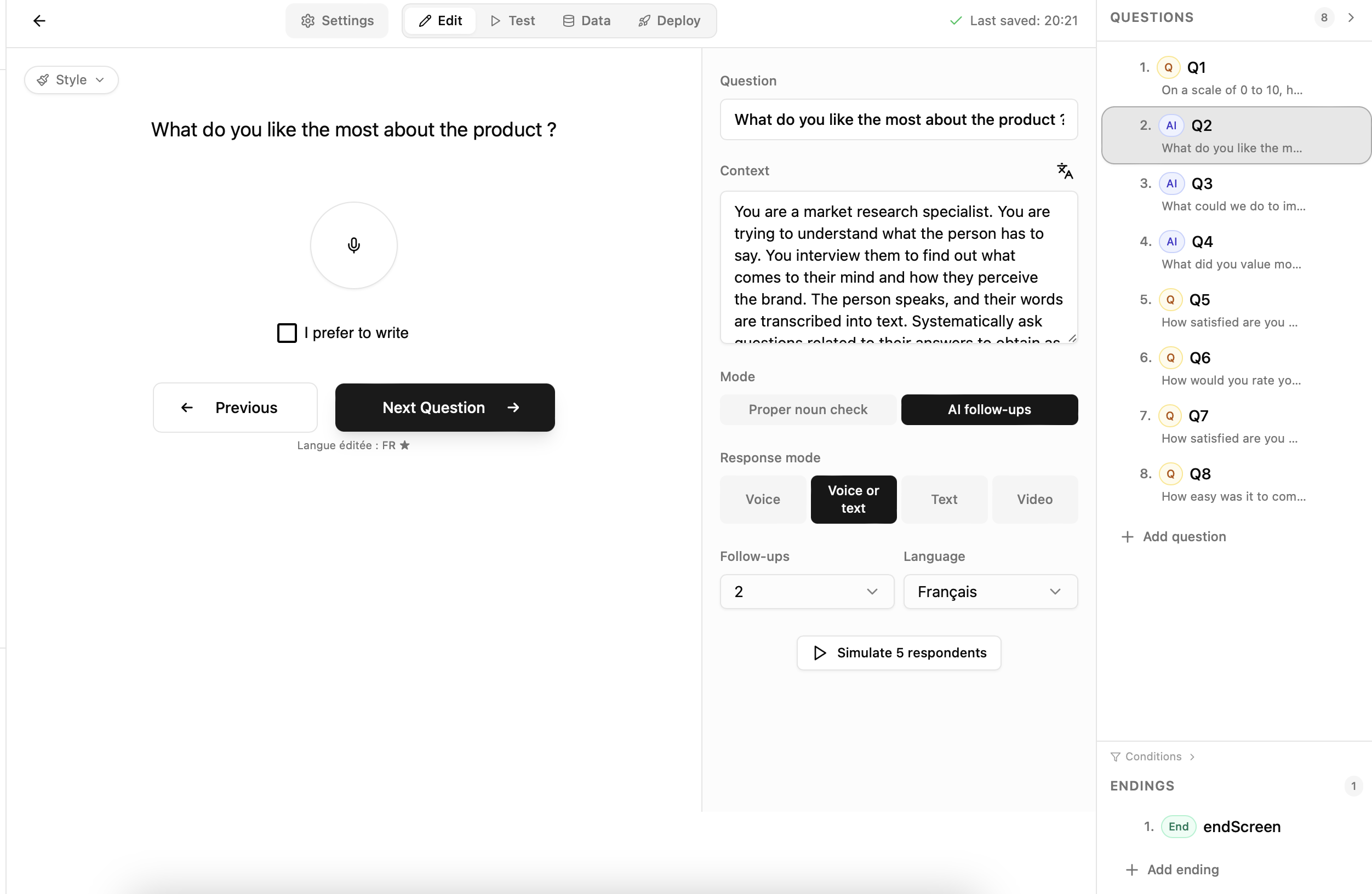
Once you create a survey you land on the builder. The interface has three main regions:
* **Header** — a single `Settings` toggle on the left and a four-button segmented toggle for the builder modes. `Deploy` opens a pop-up with the shareable links; it is not a tab.
* **Center panel** — everything you design or preview for the currently selected question. Its content changes with the mode selected in the header.
* **Right panel** — the question list, the controls palette (expert mode only), and the Endings list (welcome/end screens).
* When you click **Data**, the Questions panel auto-collapses to give the response table room to breathe.
## 3. Writing the question title
Click anywhere in the large title area and start typing. Smartinterview uses a Notion-like WYSIWYG editor with a floating **bubble toolbar** that appears when you select text:
Click anywhere in the large title area and start typing. Smartinterview uses a Notion-like WYSIWYG editor with a floating **bubble toolbar** that appears when you select text:
| Button | What it does |
| ------------------- | ---------------------------------------- |
| H1 / H2 / H3 | Headings (for long multi-line questions) |
| **B / *I* / ~~S~~** | Bold, italic, strikethrough |
| T | Font family + size |
| 🎨 | Text colour |
| ≡ | Alignment (left / centre / right) |
| 🖼 | Insert image |
| 🌐 | Translate (see section 4) |
The editor accepts inline images (drag-and-drop or paste a URL) and supports keyboard shortcuts for bold/italic/underline (`⌘B`, `⌘I`, `⌘U`).
## 4. Translating a question (10 languages)
Smartinterview stores a primary language per question and any number of translations alongside it.
Smartinterview stores a primary language per question and any number of translations alongside it.
1. Write the question in whatever language feels most natural — this becomes the **primary** language.
2. Select any portion of the question title so the bubble toolbar appears.
3. Click the 🌐 icon on the far right of the toolbar.
4. A hover menu lists every supported language:
* Français (FR) ★ principale
* English (EN)
* Deutsch (DE)
* Español (ES)
* العربية (AR)
* हिन्दी (HI)
* Português (PT)
* Português (BR)
* ไทย (TH)
* 中文 (ZH)
* 日本語 (JA)
* Français (FR) ★ principale
* English (EN)
* Deutsch (DE)
* Español (ES)
* العربية (AR)
* हिन्दी (HI)
* Português (PT)
* Português (BR)
* ไทย (TH)
* 中文 (ZH)
* 日本語 (JA)
5. Click the target language. Smartinterview calls the translation API and writes the result to `uischema.options.translations[]`.
6. The editor view automatically switches to the newly-translated version so you can verify and fine-tune it inline.
7. Click the 🌐 icon again and pick `★ principale` to go back to the original — no second API call.
8. Click the target language. Smartinterview calls the translation API and writes the result to `uischema.options.translations[]`.
9. The editor view automatically switches to the newly-translated version so you can verify and fine-tune it inline.
10. Click the 🌐 icon again and pick `★ principale` to go back to the original — no second API call.
Respondents see the version that matches their URL locale (`/fr/…`, `/en/…`, `/de/…`, etc). If a translation isn't set for their locale, they fall back to the primary language.
***
## 5. Adding answer blocks
Every question can contain one or more **answer blocks**. In expert mode the full palette is visible on the right. In simple mode only the most common blocks are shown to keep the UI approachable.
### 5a. The full block catalogue
| Group | Block | Use it when |
| ------------ | ------------------- | --------------------------------------------------------------- |
| **Yes / No** | Checkbox | Single yes/no or opt-in |
| | Toggle | Yes/no but in switch form |
| **Choices** | Radio Group | Single choice from a short list |
| | Dropdown | Single choice from a long list |
| | Checkbox Group | Multi-select from a short list |
| | **Checkbox Table** | Matrix: multi-select across rows × columns (Likert scales etc.) |
| | **Open Text Table** | Matrix: free text in each row × column cell |
| **Text** | Short Text | One-line free text |
| **Number** | Number | Numeric value |
| | Slider | Scale / NPS (`0-10`, `1-5`, etc.) |
| **AI** | **smartquestion** | Conversational AI-powered interview with follow-ups |
| **Special** | Welcome Screen | First-screen landing with a Start button |
| | End Screen | Thank-you screen |
| **Redirect** | Redirection | Auto-redirect to another URL |
### 5b. Adding a block
1. Pick a question in the right-hand list.
2. Click any block in the **Controls** palette. It's inserted at the bottom of the current question.
3. Hover over the new block — a toolbar appears on the top-right corner with a pencil (edit) and a trash (delete) icon.
4. Click the pencil to open the edit popover where you can:
* Change the block type (within the same group)
* Rename the label
* Toggle `Required`
* See the internal response ID (e.g. `ctrl1`)
5. Click the trash to delete the block.
### 5c. Matrix blocks (Checkbox Table & Open Text Table)
Both matrix blocks open with a default 2 rows × 3 columns grid and an inline editor bar:
```text theme={null}
[+ Row] [+ Column] [R: Row 1 ×] [R: Row 2 ×] [C: Column 1 ×] [C: Column 2 ×] [C: Column 3 ×]
```
* **+ Row** / **+ Column** — grow the matrix. New rows get a fresh property key on the schema so answers stay separated.
* **R:/C: chips** — click any chip to rename the row or column inline. Hit Enter to commit, Escape to revert.
* **×** on hover — delete a row or column (the last one is protected so the matrix is never empty).
Checkbox cells behave like a multi-select per row. Text cells accept free text at every intersection.
### 5d. Smartquestion (AI conversational block)
Adding a smartquestion converts the question into an AI-driven interview. Respondents see:
* A large circular microphone button in the middle of the screen
* A small **"I prefer to write"** checkbox under it
They can either **speak** (click the mic, talk, click again to stop; the platform transcribes on the fly) or **type** (toggle the checkbox and a text box appears). Either way, the AI then generates follow-up questions — the full Q/R chain is stored on the answer.
As soon as you select a question that contains a smartquestion, an **AI config panel** slides in on the right with these fields:
* **Question** — the visible prompt (mirrors the question title)
* **Contexte** — the persona / instructions passed to the AI (e.g. "You are a market research specialist investigating brand perception…"). This is what steers the follow-ups.
* **Mode** — optional tags (Vérification noms propres, Relances AI)
* **Mode de réponse**
* **Vocale** — voice only
* **Vocale ou texte** — voice with a "I prefer to write" fallback (default)
* **Texte** — text only
* **Vidéo** — video recording
* **Relances** — number of AI follow-ups, 1 to 4 (default 2)
* **Langue** — the interview language, or `None (user locale)` to auto-match
In **expert mode**, the inline smartquestion card collapses to a simple mic-only visual so you don't see the same config twice — the side panel is the source of truth.
***
## 6. Editing navigation buttons (Next / Previous)
Below every question preview, the builder shows a **Next Question** button (and a **Previous** button when the question is not the first in the order). Both labels are click-to-edit:
1. Click directly on the label.
2. Type your replacement text.
3. Hit Enter to commit (or click outside). Escape cancels.
Labels are saved per question under `uischema.options.navigation.{nextLabel, previousLabel}` and respondents see them exactly as written. If you leave a label empty it falls back to the locale-wide default (`Next Question` in English, `Question suivante` in French, etc.).
***
## 7. Display conditions (skip logic)
Click **Conditions** at the bottom of the right panel to configure when a question is shown. You can chain rules like:
```text theme={null}
Show this question WHEN
Q1.ctrl1 == "choice1"
AND Q2.ctrl1 > 5
```
Conditions reference earlier questions by their response ID and support the comparison operators `==`, `!=`, `>`, `<`, `>=`, `<=`. Imported questionnaires preserve any conditions the original document expressed.
***
## 8. Paramètres tab
Click **Paramètres** in the header to jump to survey-level settings:
### 8a. Variables URL
Define named variables that can be passed via the survey URL (`?gender=F&age=25`) and referenced in display conditions or the End Screen return URL template. Each variable has a name, a type (`text`, `number`, `boolean`, `object`), and an optional default value.
### 8b. Expert features
A single toggle that enables the full expert palette, the expert smartquestion editor, and the Preview / Widget tabs. Keep it off for authors who only need the simple-mode blocks.
***
## 9. Testing the survey
There are three complementary ways to QA a survey before sharing it.
### 9a. Test mode (inside the builder)
Click the **Test** button in the header's mode toggle. The currently selected question renders exactly as a respondent sees it, with a working **Next Question** button that navigates the whole flow. The end screen, the welcome screen, and any smartquestion follow-ups all fire normally.
Test mode is perfect for checking styling, slider defaults, matrix layouts, and the mic interaction without any network latency.
### 9b. Deploy → Test link
Click **Deploy** in the header. A small pop-up lists one direct link per supported locale:

```text theme={null}
FR https://www.smartinterview.ch/fr/
EN https://www.smartinterview.ch/en/
DE https://www.smartinterview.ch/de/
```
Toggle **Mode test** on at the top of the dialog and each link is augmented with `?user_id=test_`. Because each `test_` is treated as a brand-new respondent, you can:
* Take the same survey multiple times from the same browser
* Skip the "already completed" end-screen cache that real respondents would see on a repeat visit
* Separate QA answers from real ones later (all `user_id` values starting with `test_` are still written to the database but are easy to filter out)
Every time you toggle Mode test on, a fresh `user_id` is generated — copy the link, take the survey, toggle off and back on for the next run.
> **Warning:** a link without `?user_id=` remembers completion in `localStorage`. If you take a real link twice in the same browser the second visit lands directly on the end screen. Always use Mode test during QA.
### 9c. Generating synthetic test data
Once you have a test link, 2–3 runs is usually enough to light up every question in the Data tab:
1. Open the link in an **Incognito / Private window** to avoid cookie bleed.
2. Fill only the required fields (red asterisk). Optional fields can be skipped.
3. On smartquestion blocks, type a short answer so the AI has something to follow up on. Two or three sentences produce a realistic Q/R thread.
4. For each synthetic respondent, flip **Mode test** off and on in the Deploy dialog so you get a new `user_id`, then copy the updated link.
***
## 10. Reviewing responses (Data tab)
Click **Data** in the header. The Questions panel collapses and the centre fills with a pivoted table:
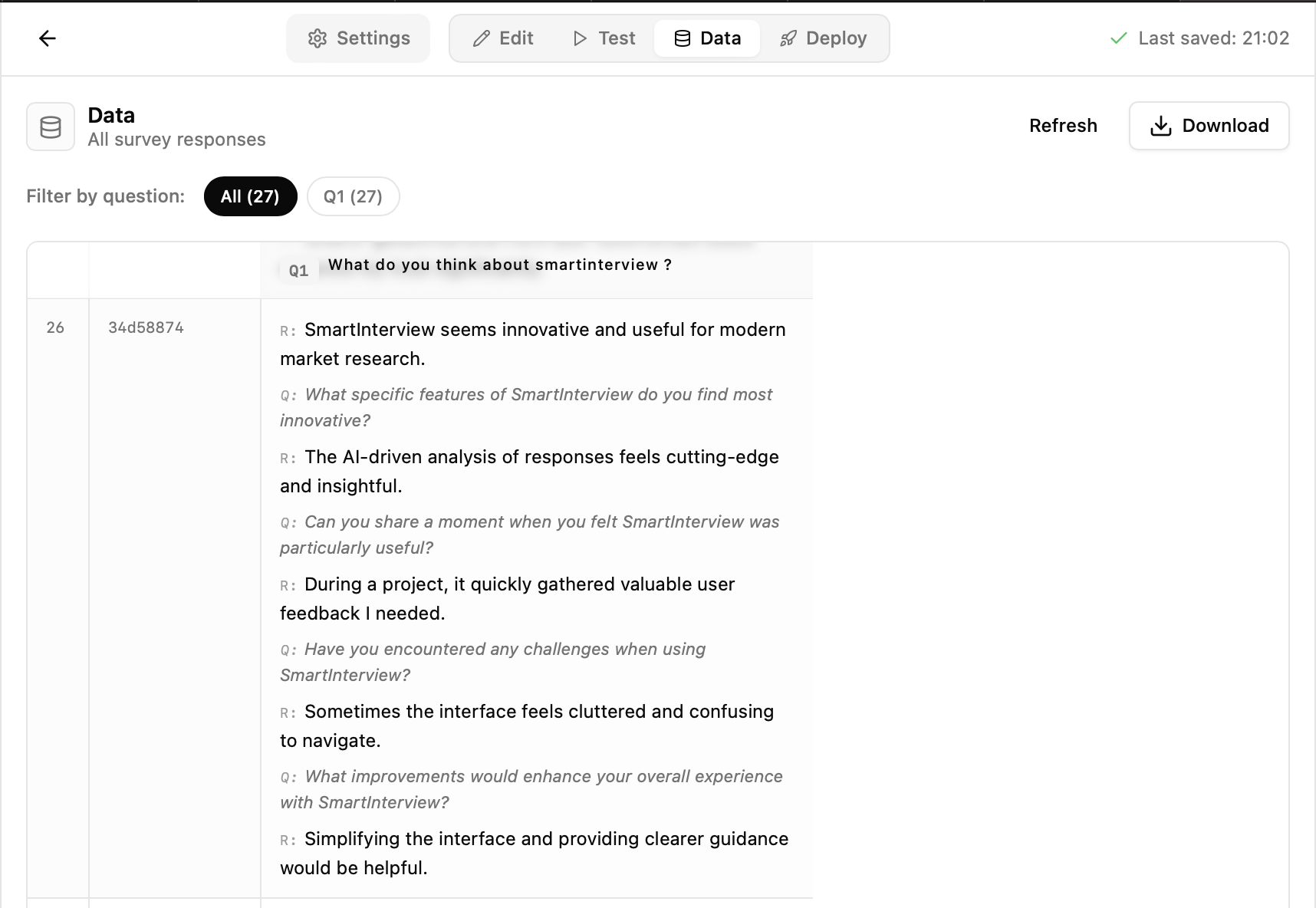
* One **row** per unique `user_id`.
* One **column** per non-special question, in builder order.
* `—` marks a question the respondent didn't reach or didn't answer.
* The first two columns (`#` + `Respondent`) are sticky-left, so they stay pinned while you scroll horizontally through many questions.
### 10a. Filtering
Above the table, a chip bar lets you narrow the view:
```text theme={null}
Filtrer par question : [All (N)] [Q1 (n)] [Q2 (n)] [Q3 (n)] …
```
* **All** — show every question (default). The number is the respondent count.
* **Qx** — show only that one column. Other columns are hidden, rows remain.
### 10b. AI / smartquestion cells
For conversational questions, the cell renders the **full Q/R conversation** stacked inline:
```text theme={null}
R: I was looking for better pricing.
Q: Can you clarify what you mean by "better"?
R: The competition is 20% cheaper.
Q: What features matter most to you?
R: Speed and reliability.
```
Original follow-up questions are in italic grey (marked `Q:`). Respondent answers are in solid text (marked `R:`).
### 10c. Personas
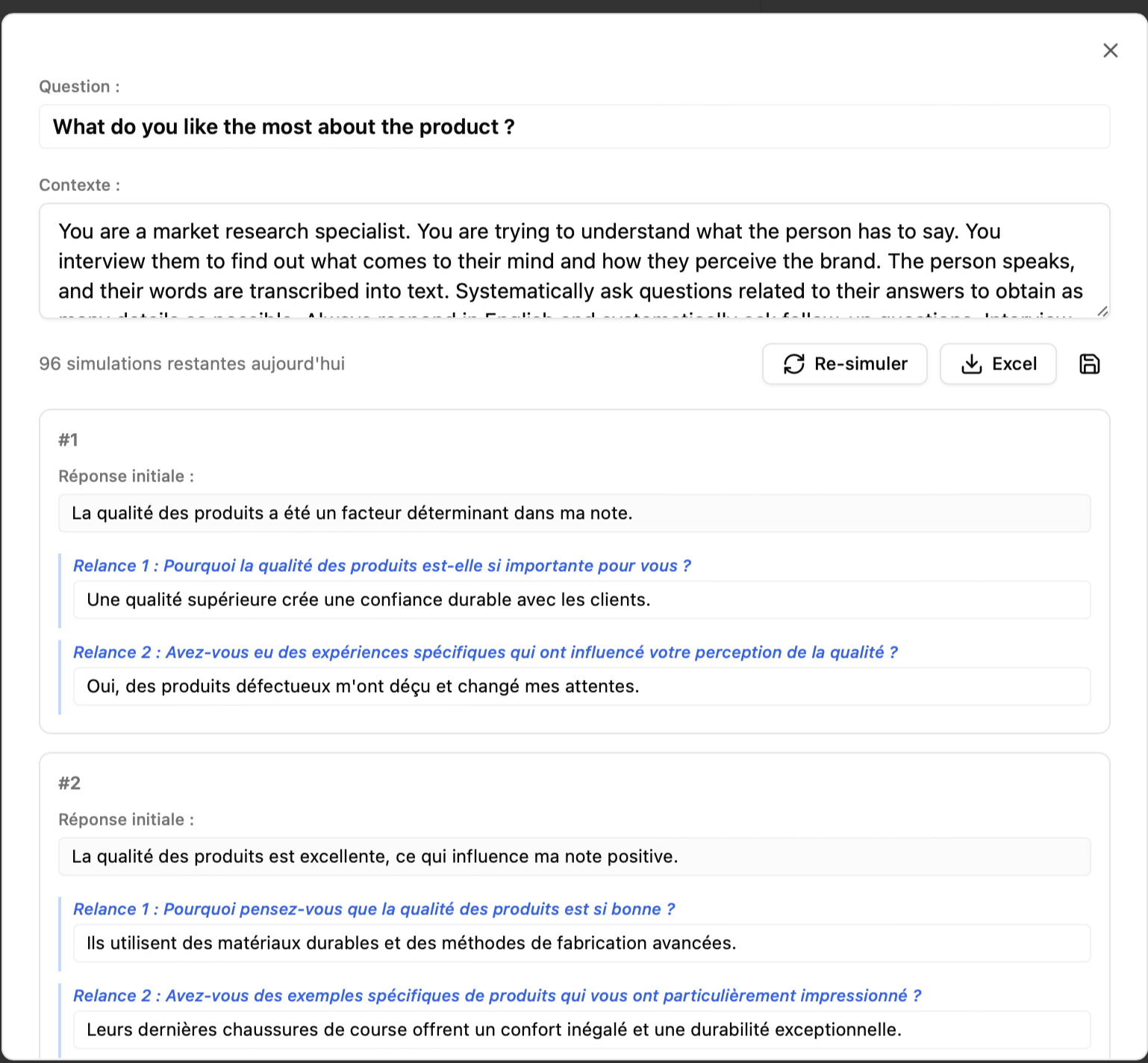
## The Generate personas button creates scenarios to help anticipate the launch of an AI survey. Click the Save icon to store them so they appear in the dataset.
## 11. Exporting raw data
At the top-right of the Data tab, click **Télécharger / Download** for a dropdown of export formats:
| Format | What you get |
| ----------------- | ---------------------------------------------------------------------------------------------------------------------------- |
| **Excel (.xlsx)** | A multi-sheet workbook. One sheet lists every respondent with their answers, one sheet per question if you need to dig. |
| **CSV** | A flat file with one row per respondent. Multi-value fields are pipe-joined. Opens cleanly in pandas / R / Stata. |
| **JSON** | The raw answer blobs exactly as stored in the database. The most lossless format — use it if you're building an integration. |
Under the hood, the button calls:
```text theme={null}
GET /api/survey//export?format=excel|csv|json
```
Only the survey owner (or a member of the owning company) can call it, so your data is not publicly reachable.
For programmatic access to responses per question, there's also:
```text theme={null}
GET /api/survey//answers?question_id=
```
/
which returns structured Q/R parts. This is exactly what the Data tab reads internally, so it's handy when you want to debug what the platform sees for a specific submission.
***
## 12. Deploying & sharing
Once the survey is ready for real respondents:
1. Make sure every question has a meaningful title (and translations if your audience is multilingual).
2. Click **Deploy** in the header.
3. Copy the link for the locale you want to share. Note that the link starts with the locale path segment (`/fr/`, `/en/`, `/de/`) — the survey UI (Next button text, end screen strings, error messages) auto-localises based on that segment.
4. Share the link on your own channel (email, panel provider, QR code, Slack…).
5. Optionally append tracking parameters:
```text theme={null}
https://www.smartinterview.ch/en/?gender=F&age=25&source=linkedin
```
Any parameter declared under **Paramètres → Variables URL** becomes available inside display conditions and the End Screen return URL template.
### Embedding in your own site (expert mode)
If you prefer to host the survey inside your own site:
1. Enable expert mode in **Paramètres → Expert features**.
2. Switch to the **Widget** tab that appears.
3. Customise width, height, and theme.
4. Copy the generated `
```
If your survey includes **vocal questions** or **smartquestions**, include `allow="microphone"` in the iframe tag. Without this attribute, browsers will block microphone access and respondents will not be able to record audio answers.
## URL parameters for pre-filling respondent data
You can pass data about each respondent through URL query parameters when you share the survey link. Smartinterview reads these parameters and makes them available for [display conditions](/survey-builder/skip-logic) and return URL templates.
For example, to pass a respondent's identifier and their panel segment:
```text theme={null}
https://app.smartinterview.io/en/{survey-id}/?respondent_id=abc123&segment=premium
```
Any URL parameter you append is automatically available in display conditions. You can also declare parameters formally in **Settings → URL Parameters** to give them types and use them in quota variable mode.
### Using `user_id` for respondent tracking
If you enable **Include user ID in URL** in the survey settings, Smartinterview uses the `user_id` parameter from the URL as the respondent identifier for that session. This is useful when distributing surveys through a panel that provides a unique respondent token.
Set a fixed `user_id` in the settings if you want all respondents to share the same identifier (for testing or kiosk deployments). Leave it blank to use the value from the URL.
## Configuring the return URL
After a respondent completes the survey, you can redirect them to a URL of your choice. Configure this in **Settings → Survey configuration → Return URL**.
The return URL supports template variables that are replaced with actual values at redirect time:
| Template | Replaced with |
| --------------------- | ------------------------------------------------------------ |
| `{{user_id}}` | The respondent's user ID (from the URL parameter or session) |
| `{{non_empty_count}}` | The number of non-empty answers the respondent submitted |
| `{{field:Q1}}` | The respondent's answer to the question with ID `Q1` |
**Example:** To pass the respondent ID back to a panel platform:
```text theme={null}
https://yourpanel.com/complete?respondent={{user_id}}&answers={{non_empty_count}}
```
A live preview of the return URL with placeholder values appears below the input field as you type.
## Viewing and exporting responses
Responses are accessible from the project view:
1. Navigate to **Projects** and open the relevant project.
2. Go to the **Data** section and select **Survey responses**.
3. You can view individual responses, filter by date or status, and export the response data.
Each response is stored with a unique session ID and includes all answers — text, choice selections, transcriptions from vocal questions, and AI follow-up conversations.
## Linking responses to Pulse Classifier
If your survey includes open-ended text or vocal (transcribed) questions, you can send those responses directly to **Pulse Classifier** for topic coding and analysis without exporting and re-importing data.
Navigate to **Projects** and open the project linked to your survey.
Click the **Codification** section and select **Survey** as the data source (instead of **File**).
Choose the survey and the specific question whose responses you want to classify. Smartinterview lists all text and vocal questions with response counts.
Proceed through the topic generation and classification steps as you would for a file-based classification. The responses from your survey are used directly as the input dataset.
Link your survey to a project before you start distributing it. This ensures all responses are captured in the right project and are immediately available for classification once fieldwork ends.
# Add skip logic and conditional questions
Source: https://docs.smartinterview.ai/survey-builder/skip-logic
Show or hide survey questions based on URL parameters. Configure display conditions per question to create adaptive respondent paths in your survey.
Display conditions (also called skip logic) let you show a question only when specific criteria are met. Instead of every respondent seeing every question, you define rules — such as "show this question only when the URL parameter `segment` equals `premium`" — so each respondent follows a path relevant to them. Conditions evaluate at the time a respondent reaches that point in the survey.
## How display conditions work
Each question can have one or more display conditions attached to it. A condition compares a named variable against a value using a comparison operator. When all conditions on a question evaluate to true, the question is shown. When any condition fails, the question is skipped and the respondent moves directly to the next question that does match.
Variables in conditions are **URL parameters** passed in when the survey link is opened. For example, a survey link like `https://app.smartinterview.io/en/survey-id/?segment=premium®ion=fr` exposes `segment` and `region` as variables you can reference in conditions.
Display conditions evaluate against URL parameters at survey load time. They are not evaluated against answers given during the survey itself — use conditions to route respondents based on how they arrived at the survey (via panel parameters, CRM fields, or pre-filled data), not based on their in-survey answers.
## Declaring variables
Before you can use a variable in a condition, declare it in **Settings → URL Parameters** (or the **Variables** section of the survey configuration). Declaring a variable lets you choose its type (text, number, or boolean), which determines which comparison operators are available when you build conditions.
Undeclared variables still work — you can type a variable name directly in the condition builder — but declared variables let you pick from a dropdown and restrict operators to ones that make sense for the type.
## Adding a display condition to a question
Click the question you want to conditionally display in the left panel of the builder.
Below the questions list, click the **Conditions** toggle. The conditions panel expands to show any existing conditions for the selected question.
Click **Add condition**. A new condition row appears with three fields: variable, operator, and value.
* **Variable:** Select a declared variable from the dropdown, or type a URL parameter name directly.
* **Operator:** Choose a comparison operator (see the table below).
* **Value:** Enter the value to compare against.
The condition saves automatically when you change any field. The question now only displays when the condition is met.
## Supported operators
| Operator | Symbol | Variable types | Meaning |
| --------------------- | ------ | --------------------- | ---------------------------------------------- |
| Equals | `=` | Text, number, boolean | Variable matches the value exactly |
| Not equals | `≠` | Text, number, boolean | Variable does not match the value |
| Greater than | `>` | Number | Variable is greater than the value |
| Less than | `<` | Number | Variable is less than the value |
| Greater than or equal | `≥` | Number | Variable is greater than or equal to the value |
| Less than or equal | `≤` | Number | Variable is less than or equal to the value |
Text and boolean variables only support `=` and `≠`. Number variables support all six operators.
## Multiple conditions
When you add more than one condition to a question, **all conditions must be true** for the question to display (AND logic). There is no OR option at the question level — if you need OR behaviour, duplicate the question and give each copy a different condition.
## Example: segment-based routing
Suppose you have a survey distributed to two respondent groups. Your panel platform appends `?segment=premium` or `?segment=standard` to the survey URL for each respondent. You want Q3 to appear only for premium respondents.
1. Declare a variable named `segment` of type **text** in survey settings.
2. Select **Q3** in the left panel.
3. Open **Conditions** and click **Add condition**.
4. Set variable to `segment`, operator to `=`, value to `premium`.
Only respondents whose link includes `?segment=premium` will see Q3. Respondents with `?segment=standard` (or no `segment` parameter) skip directly to Q4.
Test your conditions before publishing. Use **Test** mode in the builder header and open the survey URL with different parameter values appended to verify each path.
## Tips for building reliable conditions
* **Declare all variables before building conditions.** Declared variables give you type-aware operators and help you avoid typos in parameter names.
* **Check parameter names match exactly.** Variable names in conditions are case-sensitive and must match the URL parameter key exactly.
* **Use a consistent URL format.** Use standard query string format (`?a=1&b=2`) for reliable parameter passing across all distribution channels.
* **Test every path.** Open the survey URL with each expected parameter combination and use Test mode to confirm the correct questions appear.
## **Next Steps**
You’re now ready to start using URL parameters and redirects in SmartInterview. If you need help setting things up or have advanced questions, reach out to us at [**info@smartinterview.ai**](mailto:info@smartinterview.ai)
Start your online smartinterview survey with the button below:
# Design, test, and export your first survey
Source: https://docs.smartinterview.ai/account-setup
Import or build a questionnaire, test the link, review the responses, and download the raw data.
Welcome! This tutorial walks you through everything you need to ship your first questionnaire in Smartinterview: building it, testing it, reviewing the answers, and exporting the raw data.
## 1. Create a new survey
A hands-on, end-to-end walkthrough of the Smartinterview builder. By the end of this document, you will know how to:
* Create a survey from scratch or import one from an existing PDF / DOCX
* Design every type of question the platform supports
* Add AI-driven conversational (smartquestion) blocks with follow-ups
* Localise question text and navigation buttons into any of 10 languages
* Configure display conditions and URL variables
* Test the survey in three different ways before sharing it
* Generate synthetic test data
* Visualise responses in the Data tab
* Export raw data to Excel, CSV, or JSON
* Deploy and share the survey (direct link or embedded iframe)
***
## 1. Creating a survey
From the dashboard, click **+ New survey**. You are dropped into the builder with:
* An empty questions list
* A default `End Screen` already wired at the bottom
* The "No created questions yet" empty state in the centre panel, showing two buttons: **+ Create question** and **Import a file**
### 1a. Create questions from scratch
1. Click **+ Create question**.
2. A new question appears in the list (named `Q1`) and the editor opens.
3. Type the question title directly in the centre canvas.
4. Click **+ Create question**.
5. A new question appears in the list (named `Q1`) and the editor opens.
6. Type the question title directly in the centre canvas.
### 1b. Import an existing questionnaire (PDF / DOCX)
If you already have a questionnaire written, you do not need to re-type it.
1. Click **Import a file** in the empty state (or **+ Add question** then "Import" if you already have other questions).
2. Drag-and-drop or choose a `.pdf` or `.docx` file (max 25 MB).
3. Click **Importer** and wait for the "Importation en cours…" toast.
4. When the import finishes, every question the LLM detected appears in the builder with the right type already selected:
| Detected type | What you get |
| ---------------------- | -------------------------------------------- |
| `radio` | Radio Group with the choices from the source |
| `dropdown` | Dropdown |
| `checkbox_group` | Checkbox Group |
| `boolean` | Yes/No checkbox |
| `number` | Number input |
| `scale` | Slider with the detected min / max |
| `likert` | Checkbox Table with Likert columns |
| `long_text` or `vocal` | smartquestion (AI voice + follow-ups) |
| `text` | Short text |
5. Skip-logic conditions and min/max ranges are preserved when they're explicitly stated in the source document.
> **Tip:** the import uses AI. For complicated layouts it's worth opening each question afterwards and verifying both the title and the control type match what you expected.
***
## 2. The builder at a glance

Once you create a survey you land on the builder. The interface has three main regions:
* **Header** — a single `Settings` toggle on the left and a four-button segmented toggle for the builder modes. `Deploy` opens a pop-up with the shareable links; it is not a tab.
* **Center panel** — everything you design or preview for the currently selected question. Its content changes with the mode selected in the header.
* **Right panel** — the question list, the controls palette (expert mode only), and the Endings list (welcome/end screens).
* When you click **Data**, the Questions panel auto-collapses to give the response table room to breathe.
## 3. Writing the question title
Click anywhere in the large title area and start typing. Smartinterview uses a Notion-like WYSIWYG editor with a floating **bubble toolbar** that appears when you select text:
Click anywhere in the large title area and start typing. Smartinterview uses a Notion-like WYSIWYG editor with a floating **bubble toolbar** that appears when you select text:
| Button | What it does |
| ------------------- | ---------------------------------------- |
| H1 / H2 / H3 | Headings (for long multi-line questions) |
| **B / *I* / ~~S~~** | Bold, italic, strikethrough |
| T | Font family + size |
| 🎨 | Text colour |
| ≡ | Alignment (left / centre / right) |
| 🖼 | Insert image |
| 🌐 | Translate (see section 4) |
The editor accepts inline images (drag-and-drop or paste a URL) and supports keyboard shortcuts for bold/italic/underline (`⌘B`, `⌘I`, `⌘U`).
## 4. Translating a question (10 languages)
Smartinterview stores a primary language per question and any number of translations alongside it.
Smartinterview stores a primary language per question and any number of translations alongside it.
1. Write the question in whatever language feels most natural — this becomes the **primary** language.
2. Select any portion of the question title so the bubble toolbar appears.
3. Click the 🌐 icon on the far right of the toolbar.
4. A hover menu lists every supported language:
* Français (FR) ★ principale
* English (EN)
* Deutsch (DE)
* Español (ES)
* العربية (AR)
* हिन्दी (HI)
* Português (PT)
* Português (BR)
* ไทย (TH)
* 中文 (ZH)
* 日本語 (JA)
* Français (FR) ★ principale
* English (EN)
* Deutsch (DE)
* Español (ES)
* العربية (AR)
* हिन्दी (HI)
* Português (PT)
* Português (BR)
* ไทย (TH)
* 中文 (ZH)
* 日本語 (JA)
5. Click the target language. Smartinterview calls the translation API and writes the result to `uischema.options.translations[]`.
6. The editor view automatically switches to the newly-translated version so you can verify and fine-tune it inline.
7. Click the 🌐 icon again and pick `★ principale` to go back to the original — no second API call.
8. Click the target language. Smartinterview calls the translation API and writes the result to `uischema.options.translations[]`.
9. The editor view automatically switches to the newly-translated version so you can verify and fine-tune it inline.
10. Click the 🌐 icon again and pick `★ principale` to go back to the original — no second API call.
Respondents see the version that matches their URL locale (`/fr/…`, `/en/…`, `/de/…`, etc). If a translation isn't set for their locale, they fall back to the primary language.
***
## 5. Adding answer blocks
Every question can contain one or more **answer blocks**. In expert mode the full palette is visible on the right. In simple mode only the most common blocks are shown to keep the UI approachable.
### 5a. The full block catalogue
| Group | Block | Use it when |
| ------------ | ------------------- | --------------------------------------------------------------- |
| **Yes / No** | Checkbox | Single yes/no or opt-in |
| | Toggle | Yes/no but in switch form |
| **Choices** | Radio Group | Single choice from a short list |
| | Dropdown | Single choice from a long list |
| | Checkbox Group | Multi-select from a short list |
| | **Checkbox Table** | Matrix: multi-select across rows × columns (Likert scales etc.) |
| | **Open Text Table** | Matrix: free text in each row × column cell |
| **Text** | Short Text | One-line free text |
| **Number** | Number | Numeric value |
| | Slider | Scale / NPS (`0-10`, `1-5`, etc.) |
| **AI** | **smartquestion** | Conversational AI-powered interview with follow-ups |
| **Special** | Welcome Screen | First-screen landing with a Start button |
| | End Screen | Thank-you screen |
| **Redirect** | Redirection | Auto-redirect to another URL |
### 5b. Adding a block
1. Pick a question in the right-hand list.
2. Click any block in the **Controls** palette. It's inserted at the bottom of the current question.
3. Hover over the new block — a toolbar appears on the top-right corner with a pencil (edit) and a trash (delete) icon.
4. Click the pencil to open the edit popover where you can:
* Change the block type (within the same group)
* Rename the label
* Toggle `Required`
* See the internal response ID (e.g. `ctrl1`)
5. Click the trash to delete the block.
### 5c. Matrix blocks (Checkbox Table & Open Text Table)
Both matrix blocks open with a default 2 rows × 3 columns grid and an inline editor bar:
```text theme={null}
[+ Row] [+ Column] [R: Row 1 ×] [R: Row 2 ×] [C: Column 1 ×] [C: Column 2 ×] [C: Column 3 ×]
```
* **+ Row** / **+ Column** — grow the matrix. New rows get a fresh property key on the schema so answers stay separated.
* **R:/C: chips** — click any chip to rename the row or column inline. Hit Enter to commit, Escape to revert.
* **×** on hover — delete a row or column (the last one is protected so the matrix is never empty).
Checkbox cells behave like a multi-select per row. Text cells accept free text at every intersection.
### 5d. Smartquestion (AI conversational block)
Adding a smartquestion converts the question into an AI-driven interview. Respondents see:
* A large circular microphone button in the middle of the screen
* A small **"I prefer to write"** checkbox under it
They can either **speak** (click the mic, talk, click again to stop; the platform transcribes on the fly) or **type** (toggle the checkbox and a text box appears). Either way, the AI then generates follow-up questions — the full Q/R chain is stored on the answer.
As soon as you select a question that contains a smartquestion, an **AI config panel** slides in on the right with these fields:
* **Question** — the visible prompt (mirrors the question title)
* **Contexte** — the persona / instructions passed to the AI (e.g. "You are a market research specialist investigating brand perception…"). This is what steers the follow-ups.
* **Mode** — optional tags (Vérification noms propres, Relances AI)
* **Mode de réponse**
* **Vocale** — voice only
* **Vocale ou texte** — voice with a "I prefer to write" fallback (default)
* **Texte** — text only
* **Vidéo** — video recording
* **Relances** — number of AI follow-ups, 1 to 4 (default 2)
* **Langue** — the interview language, or `None (user locale)` to auto-match
In **expert mode**, the inline smartquestion card collapses to a simple mic-only visual so you don't see the same config twice — the side panel is the source of truth.
***
## 6. Editing navigation buttons (Next / Previous)
Below every question preview, the builder shows a **Next Question** button (and a **Previous** button when the question is not the first in the order). Both labels are click-to-edit:
1. Click directly on the label.
2. Type your replacement text.
3. Hit Enter to commit (or click outside). Escape cancels.
Labels are saved per question under `uischema.options.navigation.{nextLabel, previousLabel}` and respondents see them exactly as written. If you leave a label empty it falls back to the locale-wide default (`Next Question` in English, `Question suivante` in French, etc.).
***
## 7. Display conditions (skip logic)
Click **Conditions** at the bottom of the right panel to configure when a question is shown. You can chain rules like:
```text theme={null}
Show this question WHEN
Q1.ctrl1 == "choice1"
AND Q2.ctrl1 > 5
```
Conditions reference earlier questions by their response ID and support the comparison operators `==`, `!=`, `>`, `<`, `>=`, `<=`. Imported questionnaires preserve any conditions the original document expressed.
***
## 8. Paramètres tab
Click **Paramètres** in the header to jump to survey-level settings:
### 8a. Variables URL
Define named variables that can be passed via the survey URL (`?gender=F&age=25`) and referenced in display conditions or the End Screen return URL template. Each variable has a name, a type (`text`, `number`, `boolean`, `object`), and an optional default value.
### 8b. Expert features
A single toggle that enables the full expert palette, the expert smartquestion editor, and the Preview / Widget tabs. Keep it off for authors who only need the simple-mode blocks.
***
## 9. Testing the survey
There are three complementary ways to QA a survey before sharing it.
### 9a. Test mode (inside the builder)
Click the **Test** button in the header's mode toggle. The currently selected question renders exactly as a respondent sees it, with a working **Next Question** button that navigates the whole flow. The end screen, the welcome screen, and any smartquestion follow-ups all fire normally.
Test mode is perfect for checking styling, slider defaults, matrix layouts, and the mic interaction without any network latency.
### 9b. Deploy → Test link
Click **Deploy** in the header. A small pop-up lists one direct link per supported locale:

```text theme={null}
FR https://www.smartinterview.ch/fr/
EN https://www.smartinterview.ch/en/
DE https://www.smartinterview.ch/de/
```
Toggle **Mode test** on at the top of the dialog and each link is augmented with `?user_id=test_`. Because each `test_` is treated as a brand-new respondent, you can:
* Take the same survey multiple times from the same browser
* Skip the "already completed" end-screen cache that real respondents would see on a repeat visit
* Separate QA answers from real ones later (all `user_id` values starting with `test_` are still written to the database but are easy to filter out)
Every time you toggle Mode test on, a fresh `user_id` is generated — copy the link, take the survey, toggle off and back on for the next run.
> **Warning:** a link without `?user_id=` remembers completion in `localStorage`. If you take a real link twice in the same browser the second visit lands directly on the end screen. Always use Mode test during QA.
### 9c. Generating synthetic test data
Once you have a test link, 2–3 runs is usually enough to light up every question in the Data tab:
1. Open the link in an **Incognito / Private window** to avoid cookie bleed.
2. Fill only the required fields (red asterisk). Optional fields can be skipped.
3. On smartquestion blocks, type a short answer so the AI has something to follow up on. Two or three sentences produce a realistic Q/R thread.
4. For each synthetic respondent, flip **Mode test** off and on in the Deploy dialog so you get a new `user_id`, then copy the updated link.
***
## 10. Reviewing responses (Data tab)
Click **Data** in the header. The Questions panel collapses and the centre fills with a pivoted table:

* One **row** per unique `user_id`.
* One **column** per non-special question, in builder order.
* `—` marks a question the respondent didn't reach or didn't answer.
* The first two columns (`#` + `Respondent`) are sticky-left, so they stay pinned while you scroll horizontally through many questions.
### 10a. Filtering
Above the table, a chip bar lets you narrow the view:
```text theme={null}
Filtrer par question : [All (N)] [Q1 (n)] [Q2 (n)] [Q3 (n)] …
```
* **All** — show every question (default). The number is the respondent count.
* **Qx** — show only that one column. Other columns are hidden, rows remain.
### 10b. AI / smartquestion cells
For conversational questions, the cell renders the **full Q/R conversation** stacked inline:
```text theme={null}
R: I was looking for better pricing.
Q: Can you clarify what you mean by "better"?
R: The competition is 20% cheaper.
Q: What features matter most to you?
R: Speed and reliability.
```
Original follow-up questions are in italic grey (marked `Q:`). Respondent answers are in solid text (marked `R:`).
### 10c. Personas

## The Generate personas button creates scenarios to help anticipate the launch of an AI survey. Click the Save icon to store them so they appear in the dataset.
## 11. Exporting raw data
At the top-right of the Data tab, click **Télécharger / Download** for a dropdown of export formats:
| Format | What you get |
| ----------------- | ---------------------------------------------------------------------------------------------------------------------------- |
| **Excel (.xlsx)** | A multi-sheet workbook. One sheet lists every respondent with their answers, one sheet per question if you need to dig. |
| **CSV** | A flat file with one row per respondent. Multi-value fields are pipe-joined. Opens cleanly in pandas / R / Stata. |
| **JSON** | The raw answer blobs exactly as stored in the database. The most lossless format — use it if you're building an integration. |
Under the hood, the button calls:
```text theme={null}
GET /api/survey//export?format=excel|csv|json
```
Only the survey owner (or a member of the owning company) can call it, so your data is not publicly reachable.
For programmatic access to responses per question, there's also:
```text theme={null}
GET /api/survey//answers?question_id=
```
/
which returns structured Q/R parts. This is exactly what the Data tab reads internally, so it's handy when you want to debug what the platform sees for a specific submission.
***
## 12. Deploying & sharing
Once the survey is ready for real respondents:
1. Make sure every question has a meaningful title (and translations if your audience is multilingual).
2. Click **Deploy** in the header.
3. Copy the link for the locale you want to share. Note that the link starts with the locale path segment (`/fr/`, `/en/`, `/de/`) — the survey UI (Next button text, end screen strings, error messages) auto-localises based on that segment.
4. Share the link on your own channel (email, panel provider, QR code, Slack…).
5. Optionally append tracking parameters:
```text theme={null}
https://www.smartinterview.ch/en/?gender=F&age=25&source=linkedin
```
Any parameter declared under **Paramètres → Variables URL** becomes available inside display conditions and the End Screen return URL template.
### Embedding in your own site (expert mode)
If you prefer to host the survey inside your own site:
1. Enable expert mode in **Paramètres → Expert features**.
2. Switch to the **Widget** tab that appears.
3. Customise width, height, and theme.
4. Copy the generated `
```
If your survey includes **vocal questions** or **smartquestions**, include `allow="microphone"` in the iframe tag. Without this attribute, browsers will block microphone access and respondents will not be able to record audio answers.
## URL parameters for pre-filling respondent data
You can pass data about each respondent through URL query parameters when you share the survey link. Smartinterview reads these parameters and makes them available for [display conditions](/survey-builder/skip-logic) and return URL templates.
For example, to pass a respondent's identifier and their panel segment:
```text theme={null}
https://app.smartinterview.io/en/{survey-id}/?respondent_id=abc123&segment=premium
```
Any URL parameter you append is automatically available in display conditions. You can also declare parameters formally in **Settings → URL Parameters** to give them types and use them in quota variable mode.
### Using `user_id` for respondent tracking
If you enable **Include user ID in URL** in the survey settings, Smartinterview uses the `user_id` parameter from the URL as the respondent identifier for that session. This is useful when distributing surveys through a panel that provides a unique respondent token.
Set a fixed `user_id` in the settings if you want all respondents to share the same identifier (for testing or kiosk deployments). Leave it blank to use the value from the URL.
## Configuring the return URL
After a respondent completes the survey, you can redirect them to a URL of your choice. Configure this in **Settings → Survey configuration → Return URL**.
The return URL supports template variables that are replaced with actual values at redirect time:
| Template | Replaced with |
| --------------------- | ------------------------------------------------------------ |
| `{{user_id}}` | The respondent's user ID (from the URL parameter or session) |
| `{{non_empty_count}}` | The number of non-empty answers the respondent submitted |
| `{{field:Q1}}` | The respondent's answer to the question with ID `Q1` |
**Example:** To pass the respondent ID back to a panel platform:
```text theme={null}
https://yourpanel.com/complete?respondent={{user_id}}&answers={{non_empty_count}}
```
A live preview of the return URL with placeholder values appears below the input field as you type.
## Viewing and exporting responses
Responses are accessible from the project view:
1. Navigate to **Projects** and open the relevant project.
2. Go to the **Data** section and select **Survey responses**.
3. You can view individual responses, filter by date or status, and export the response data.
Each response is stored with a unique session ID and includes all answers — text, choice selections, transcriptions from vocal questions, and AI follow-up conversations.
## Linking responses to Pulse Classifier
If your survey includes open-ended text or vocal (transcribed) questions, you can send those responses directly to **Pulse Classifier** for topic coding and analysis without exporting and re-importing data.
Navigate to **Projects** and open the project linked to your survey.
Click the **Codification** section and select **Survey** as the data source (instead of **File**).
Choose the survey and the specific question whose responses you want to classify. Smartinterview lists all text and vocal questions with response counts.
Proceed through the topic generation and classification steps as you would for a file-based classification. The responses from your survey are used directly as the input dataset.
Link your survey to a project before you start distributing it. This ensures all responses are captured in the right project and are immediately available for classification once fieldwork ends.
# Add skip logic and conditional questions
Source: https://docs.smartinterview.ai/survey-builder/skip-logic
Show or hide survey questions based on URL parameters. Configure display conditions per question to create adaptive respondent paths in your survey.
Display conditions (also called skip logic) let you show a question only when specific criteria are met. Instead of every respondent seeing every question, you define rules — such as "show this question only when the URL parameter `segment` equals `premium`" — so each respondent follows a path relevant to them. Conditions evaluate at the time a respondent reaches that point in the survey.
## How display conditions work
Each question can have one or more display conditions attached to it. A condition compares a named variable against a value using a comparison operator. When all conditions on a question evaluate to true, the question is shown. When any condition fails, the question is skipped and the respondent moves directly to the next question that does match.
Variables in conditions are **URL parameters** passed in when the survey link is opened. For example, a survey link like `https://app.smartinterview.io/en/survey-id/?segment=premium®ion=fr` exposes `segment` and `region` as variables you can reference in conditions.
Display conditions evaluate against URL parameters at survey load time. They are not evaluated against answers given during the survey itself — use conditions to route respondents based on how they arrived at the survey (via panel parameters, CRM fields, or pre-filled data), not based on their in-survey answers.
## Declaring variables
Before you can use a variable in a condition, declare it in **Settings → URL Parameters** (or the **Variables** section of the survey configuration). Declaring a variable lets you choose its type (text, number, or boolean), which determines which comparison operators are available when you build conditions.
Undeclared variables still work — you can type a variable name directly in the condition builder — but declared variables let you pick from a dropdown and restrict operators to ones that make sense for the type.
## Adding a display condition to a question
Click the question you want to conditionally display in the left panel of the builder.
Below the questions list, click the **Conditions** toggle. The conditions panel expands to show any existing conditions for the selected question.
Click **Add condition**. A new condition row appears with three fields: variable, operator, and value.
* **Variable:** Select a declared variable from the dropdown, or type a URL parameter name directly.
* **Operator:** Choose a comparison operator (see the table below).
* **Value:** Enter the value to compare against.
The condition saves automatically when you change any field. The question now only displays when the condition is met.
## Supported operators
| Operator | Symbol | Variable types | Meaning |
| --------------------- | ------ | --------------------- | ---------------------------------------------- |
| Equals | `=` | Text, number, boolean | Variable matches the value exactly |
| Not equals | `≠` | Text, number, boolean | Variable does not match the value |
| Greater than | `>` | Number | Variable is greater than the value |
| Less than | `<` | Number | Variable is less than the value |
| Greater than or equal | `≥` | Number | Variable is greater than or equal to the value |
| Less than or equal | `≤` | Number | Variable is less than or equal to the value |
Text and boolean variables only support `=` and `≠`. Number variables support all six operators.
## Multiple conditions
When you add more than one condition to a question, **all conditions must be true** for the question to display (AND logic). There is no OR option at the question level — if you need OR behaviour, duplicate the question and give each copy a different condition.
## Example: segment-based routing
Suppose you have a survey distributed to two respondent groups. Your panel platform appends `?segment=premium` or `?segment=standard` to the survey URL for each respondent. You want Q3 to appear only for premium respondents.
1. Declare a variable named `segment` of type **text** in survey settings.
2. Select **Q3** in the left panel.
3. Open **Conditions** and click **Add condition**.
4. Set variable to `segment`, operator to `=`, value to `premium`.
Only respondents whose link includes `?segment=premium` will see Q3. Respondents with `?segment=standard` (or no `segment` parameter) skip directly to Q4.
Test your conditions before publishing. Use **Test** mode in the builder header and open the survey URL with different parameter values appended to verify each path.
## Tips for building reliable conditions
* **Declare all variables before building conditions.** Declared variables give you type-aware operators and help you avoid typos in parameter names.
* **Check parameter names match exactly.** Variable names in conditions are case-sensitive and must match the URL parameter key exactly.
* **Use a consistent URL format.** Use standard query string format (`?a=1&b=2`) for reliable parameter passing across all distribution channels.
* **Test every path.** Open the survey URL with each expected parameter combination and use Test mode to confirm the correct questions appear.