> ## Documentation Index
> Fetch the complete documentation index at: https://docs.smartinterview.ai/llms.txt
> Use this file to discover all available pages before exploring further.
# Smartinterview: URL Parameters and Redirects
 ## **URL Redirects: Intro**
SmartInterview uses URL parameters to manage redirects and preserve respondent-level information such as IDs or contextual variables.\
They enable key workflows, including participant tracking, personalized interviews, and integrations with third-party research tools.
> ***Note***\
> *This article is intended for studies that are manually distributed using your own panel/email/CRM list.*\
> *If respondents are recruited directly through SmartInterview panels, URL parameters are handled automatically and do not require manual setup.*
***
## **What are URL parameters?**
URL parameters are additional pieces of information appended to the end of a URL.
Example: “[https://example.com/page?id=123\&lang=en”](https://example.com/page?id=123\&lang=en”)
includes two URL parameters: “id” (set to “123”) and “lang” (set to “en”).
When a user is redirected to a website, these parameters can be **read and processed** by the destination platform, in this case, SmartInterview, allowing it to adapt behavior, store metadata, or personalize content.
***
## **How URL parameters work in SmartInterview**
**Incoming Redirects**
When a respondent opens a smartinterview link that contains URL parameters, **all parameters are automatically captured and stored** in the response data.
## **URL Redirects: Intro**
SmartInterview uses URL parameters to manage redirects and preserve respondent-level information such as IDs or contextual variables.\
They enable key workflows, including participant tracking, personalized interviews, and integrations with third-party research tools.
> ***Note***\
> *This article is intended for studies that are manually distributed using your own panel/email/CRM list.*\
> *If respondents are recruited directly through SmartInterview panels, URL parameters are handled automatically and do not require manual setup.*
***
## **What are URL parameters?**
URL parameters are additional pieces of information appended to the end of a URL.
Example: “[https://example.com/page?id=123\&lang=en”](https://example.com/page?id=123\&lang=en”)
includes two URL parameters: “id” (set to “123”) and “lang” (set to “en”).
When a user is redirected to a website, these parameters can be **read and processed** by the destination platform, in this case, SmartInterview, allowing it to adapt behavior, store metadata, or personalize content.
***
## **How URL parameters work in SmartInterview**
**Incoming Redirects**
When a respondent opens a smartinterview link that contains URL parameters, **all parameters are automatically captured and stored** in the response data.
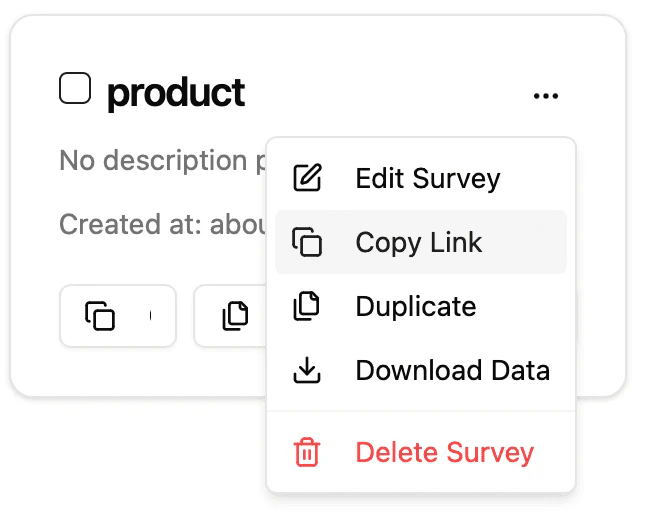 **Example**
`https://www.smartinterview.ch/en/83286d1a-27a9-4d9c-877f-c58f8a44b373?user_id=user_1x9d&v1=1`
SmartInterview will automatically store:
* `v1=1`
* `user_id=user_1x9d`
These values are available in:
* The respondent transcript
* Response-level metadata (in order to create conditional forms, for example)
* Redirects back to external tools
***
## **Manually Adding URL Parameters**
If you want specific URL parameters to appear as dedicated columns in the Builder table, you can define them manually.
**Example**
`https://www.smartinterview.ch/en/83286d1a-27a9-4d9c-877f-c58f8a44b373?user_id=user_1x9d&v1=1`
SmartInterview will automatically store:
* `v1=1`
* `user_id=user_1x9d`
These values are available in:
* The respondent transcript
* Response-level metadata (in order to create conditional forms, for example)
* Redirects back to external tools
***
## **Manually Adding URL Parameters**
If you want specific URL parameters to appear as dedicated columns in the Builder table, you can define them manually.
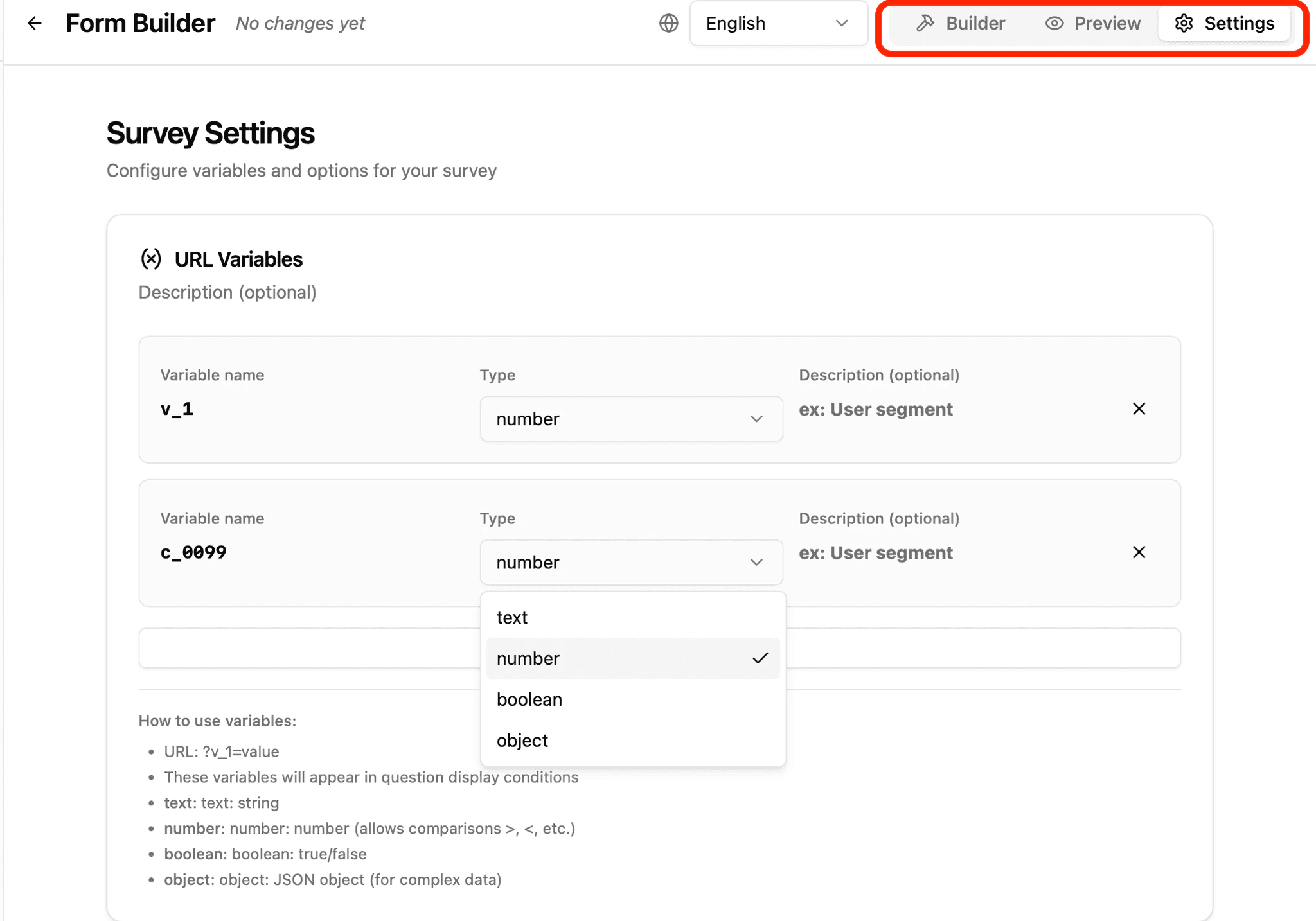 ## **Intermediate Redirects**
* At the end of an interview or in the middle, respondents can be redirected to an external URL. Using multiple (here red1 and red2)
## **Intermediate Redirects**
* At the end of an interview or in the middle, respondents can be redirected to an external URL. Using multiple (here red1 and red2)
 * In order to do so, design a "Redirection" component in "Layout Type."
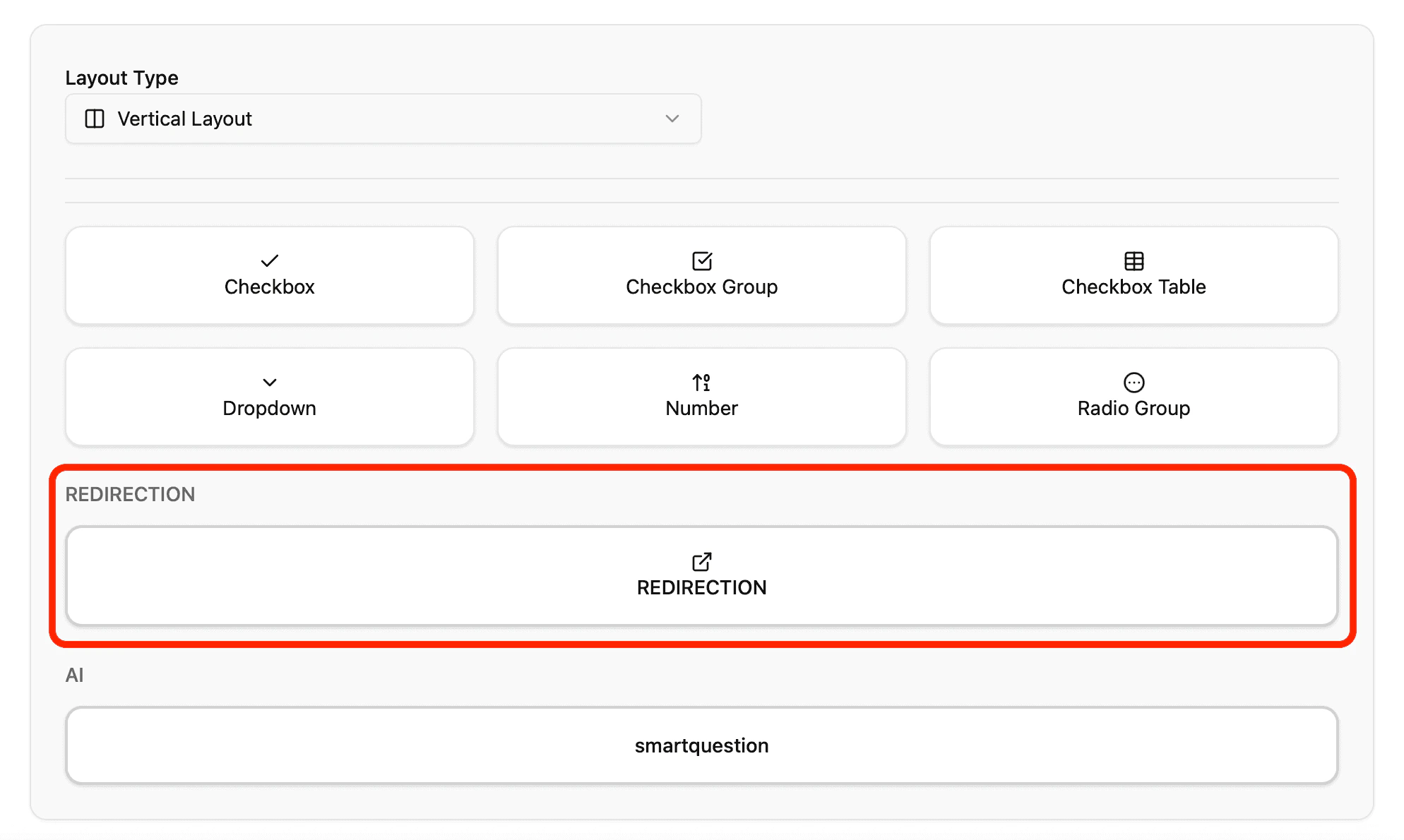 When you click on "Redirection," you can choose to redirect to [example.com](http://example.com).
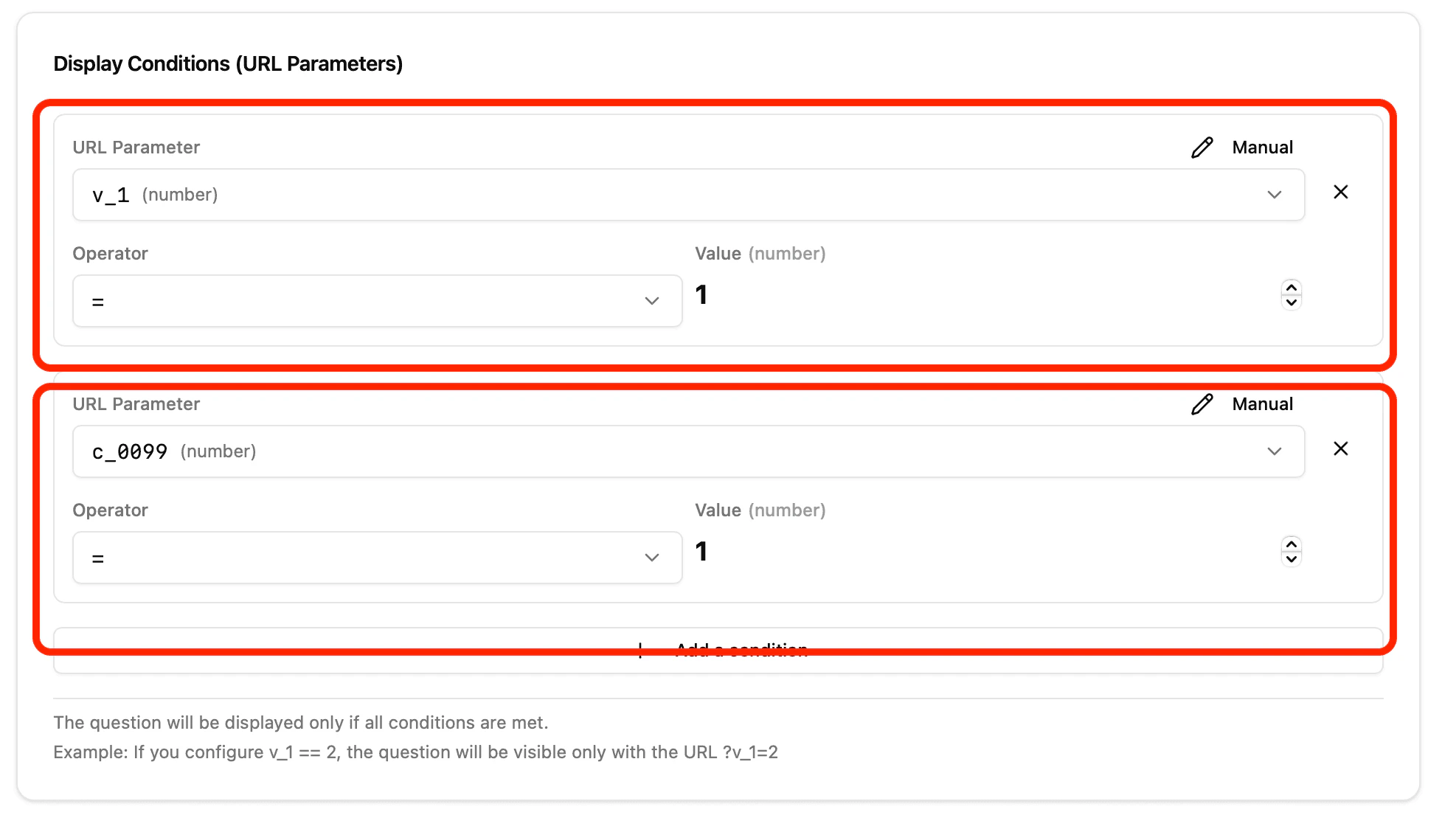
## **Conditions with URL passed parameters**
Once you have defined URL parameters, you are able to use them in "display" conditions per question in order to show/not to show these depending on the value
When you click on "Redirection," you can choose to redirect to [example.com](http://example.com).
## **Conditions with URL passed parameters**
Once you have defined URL parameters, you are able to use them in "display" conditions per question in order to show/not to show these depending on the value
 ## **Preserving Parameters on Redirect**
* When you clicked on "Redirection" you have to choose the redirection and pass the parameters
* **Example:**
* `https://example.com/de-CH/survey/96e6fb16-79a3-49db-bece-51ab50b81b20?user_id={{user_id}}&v_1={{v_1}}&a_001={{a_001}}`
* If you want to pass` user_id, v_1 and a_001`
## **Preserving Parameters on Redirect**
* When you clicked on "Redirection" you have to choose the redirection and pass the parameters
* **Example:**
* `https://example.com/de-CH/survey/96e6fb16-79a3-49db-bece-51ab50b81b20?user_id={{user_id}}&v_1={{v_1}}&a_001={{a_001}}`
* If you want to pass` user_id, v_1 and a_001` 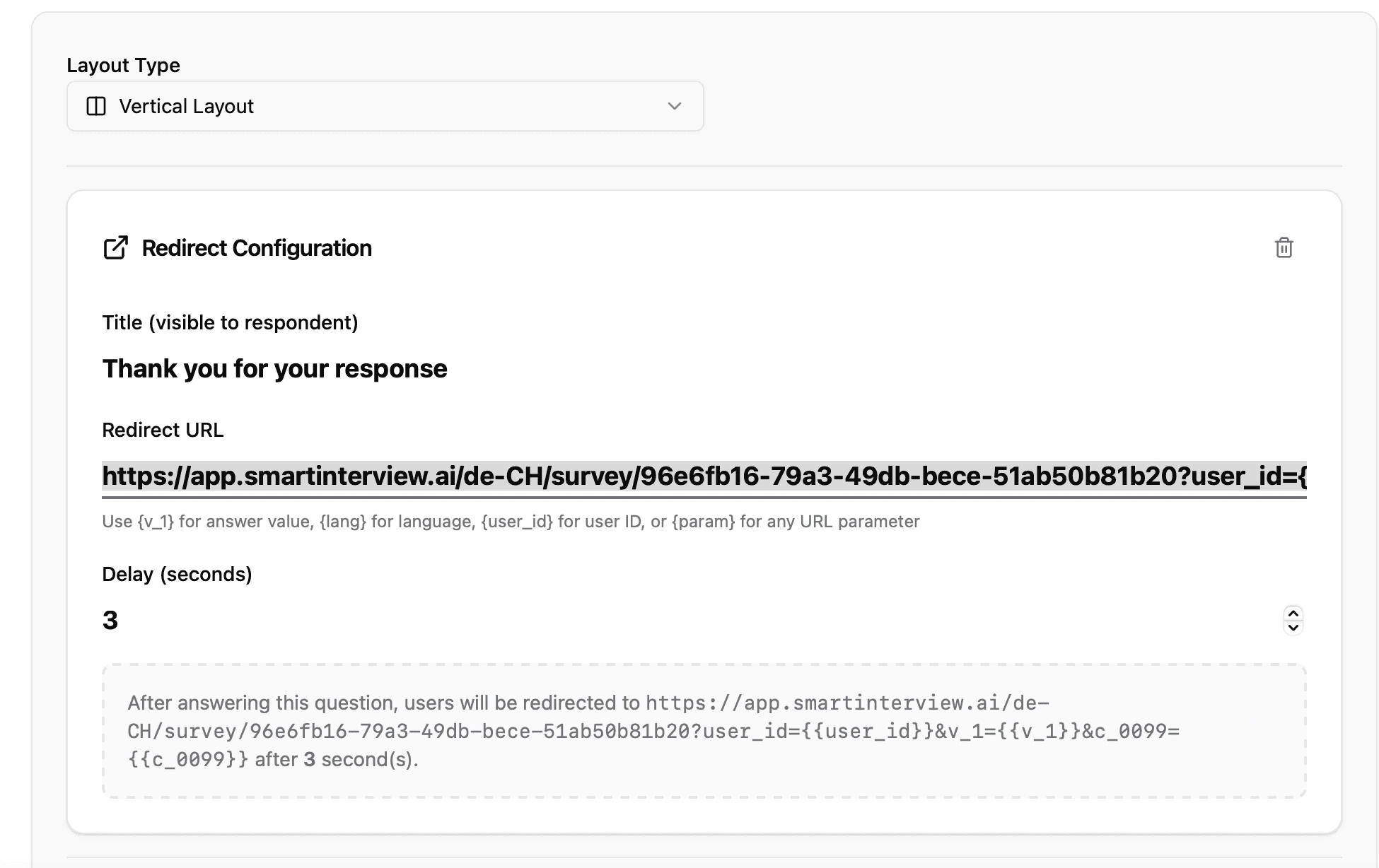 ## **Outgoing Redirects**
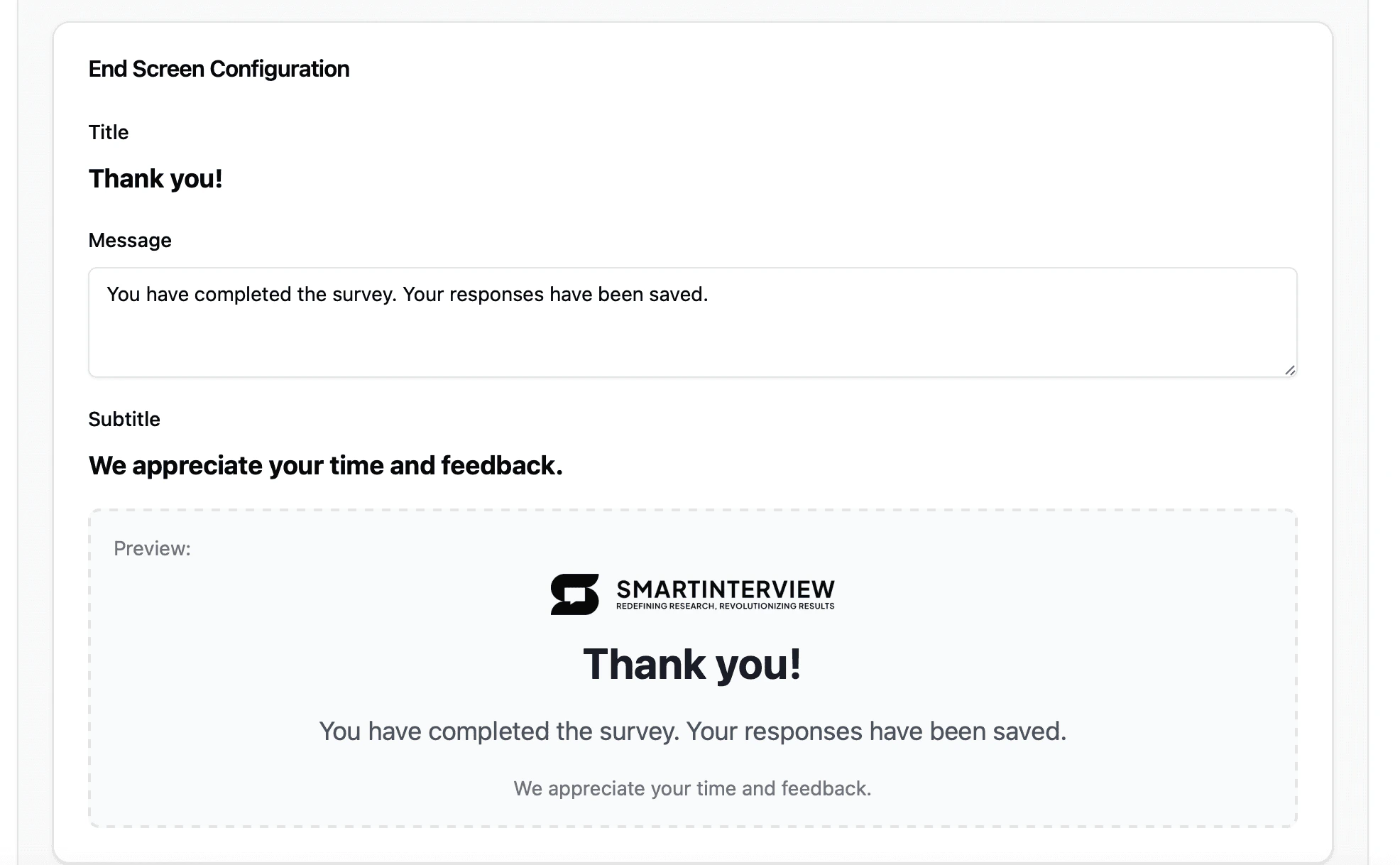
1. With the initial subscription "Essential". You have to keep the smartinterview logo.
2. With "Starter" or "Elite" you can choose another logo (yours or another)
## **Outgoing Redirects**
1. With the initial subscription "Essential". You have to keep the smartinterview logo.
2. With "Starter" or "Elite" you can choose another logo (yours or another)
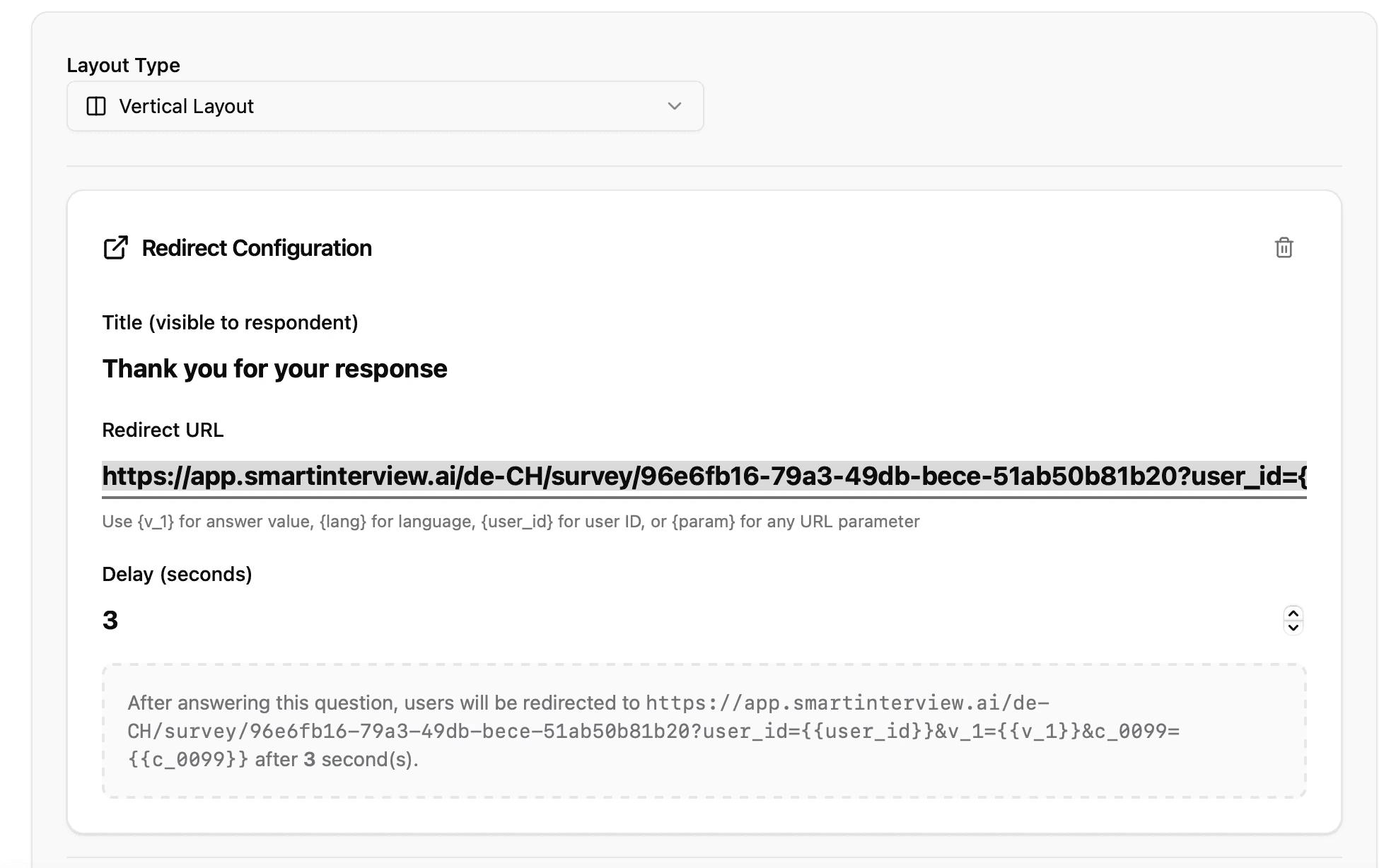
 In the Redirect URL field, paste the URL that participants will be redirected to.
 ## **Next Steps**
You’re now ready to start using URL parameters and redirects in SmartInterview. If you need help setting things up or have advanced questions, reach out to us at [**info@smartinterview.ai**](mailto:info@smartinterview.ai)
Start your online smartinterview survey with the button below:
## **Next Steps**
You’re now ready to start using URL parameters and redirects in SmartInterview. If you need help setting things up or have advanced questions, reach out to us at [**info@smartinterview.ai**](mailto:info@smartinterview.ai)
Start your online smartinterview survey with the button below: